How to Add AI Captions to Video Automatically Online For Free
Generate accurate word-by-word captions for your videos in minutes using free speech recognition technology. No manual typing required.
Adding captions to your videos manually can take hours of tedious work. For every minute of video, you might spend 5-10 minutes typing, timing, and formatting subtitles. That's where automatic caption generation comes in.
With VidTL's free online video editor, you can add captions to video automatically using built-in speech recognition technology. The tool analyzes your video's audio track and generates accurate captions with word-level timestamps in just a few clicks.
This guide walks you through the complete process, from uploading your video to exporting the final captioned version.
Why Automatic Captions Matter
Save Massive Time
What used to take hours now takes minutes. Automatic caption generation processes your entire video while you work on other tasks.
Improve Accessibility
Make your content accessible to deaf and hard-of-hearing viewers, plus anyone watching in sound-sensitive environments.
Boost Engagement
Videos with captions get 40% more views on social media. Viewers can follow along even with sound off.
Better SEO
Search engines can index your spoken content when it's transcribed into captions, helping people find your videos.
Step-by-Step: Add Captions to Video Automatically
Open VidTL and Import Your Video
Start by opening the VidTL editor in your web browser. You'll see a clean interface with a media library panel on the left, a preview window in the center, and a timeline at the bottom.
Click the pink "Import" button in the Media Library panel to select your video file. VidTL supports all common formats including MP4, MOV, WebM, and AVI.

Once imported, your video appears as a thumbnail in the Media Library. You'll see the filename, duration, and technical details like codec and file size.
Add Video to Timeline
Drag your video from the Media Library and drop it onto the timeline. The video clip will appear on the first video track, and if your video has audio, it will automatically create a linked audio clip on the corresponding audio track.
The timeline displays your clips with waveforms for audio tracks, making it easy to see where speech occurs in your video.

Generate Automatic Captions
Select the video clip on your timeline by clicking on it. The clip will be highlighted with a colored border to show it's selected.
Navigate to the top menu bar and click on "Tools". A dropdown menu appears with several options. Click on "Generate Subtitles (Free)" to use the built-in speech recognition engine that runs directly in your browser.
Pro tip: The free version runs on a first come first served basis. For faster processing on longer videos, you can use "Generate Subtitles (Priority)" which uses priority cloud processing.

A processing dialog appears showing progress. The speech recognition engine analyzes your video's audio track and transcribes every word with precise timestamps. Speed depends on demand and which model you select.
For a 5-minute video, expect processing to take 3-6 minutes on most modern computers. You can continue working on other things while it processes.
Review and Edit Captions
Once processing completes, caption clips automatically appear on your timeline. Each word or phrase gets its own individual clip perfectly timed to the audio.
To edit your captions, click the "Subtitles" tab in the left sidebar panel. This opens the subtitle editor with two viewing modes.

List View
Shows each caption entry with its exact start time and text. Click any entry to jump to that point in your video. Edit text directly by clicking on it.
Paragraph View
Displays your captions as flowing text, making it easier to read through the full transcript and catch errors. Click any word to edit it.
The automatic transcription is typically 98-99% accurate for clear audio. Review the captions and fix any misheard words, especially technical terms, names, or words spoken with accents.
Customize Caption Appearance
Select any caption clip on the timeline and open the Properties panel on the right side. Here you can customize how your captions look.
Text Properties
- • Font family and size
- • Text color and opacity
- • Bold, italic, or underline
- • Text alignment
Background & Effects
- • Background color and opacity
- • Stroke/outline color and width
- • Shadow effects
- • Position and padding
For social media videos, white text with a black stroke or semi-transparent black background ensures readability on any video content.
Export Your Captioned Video
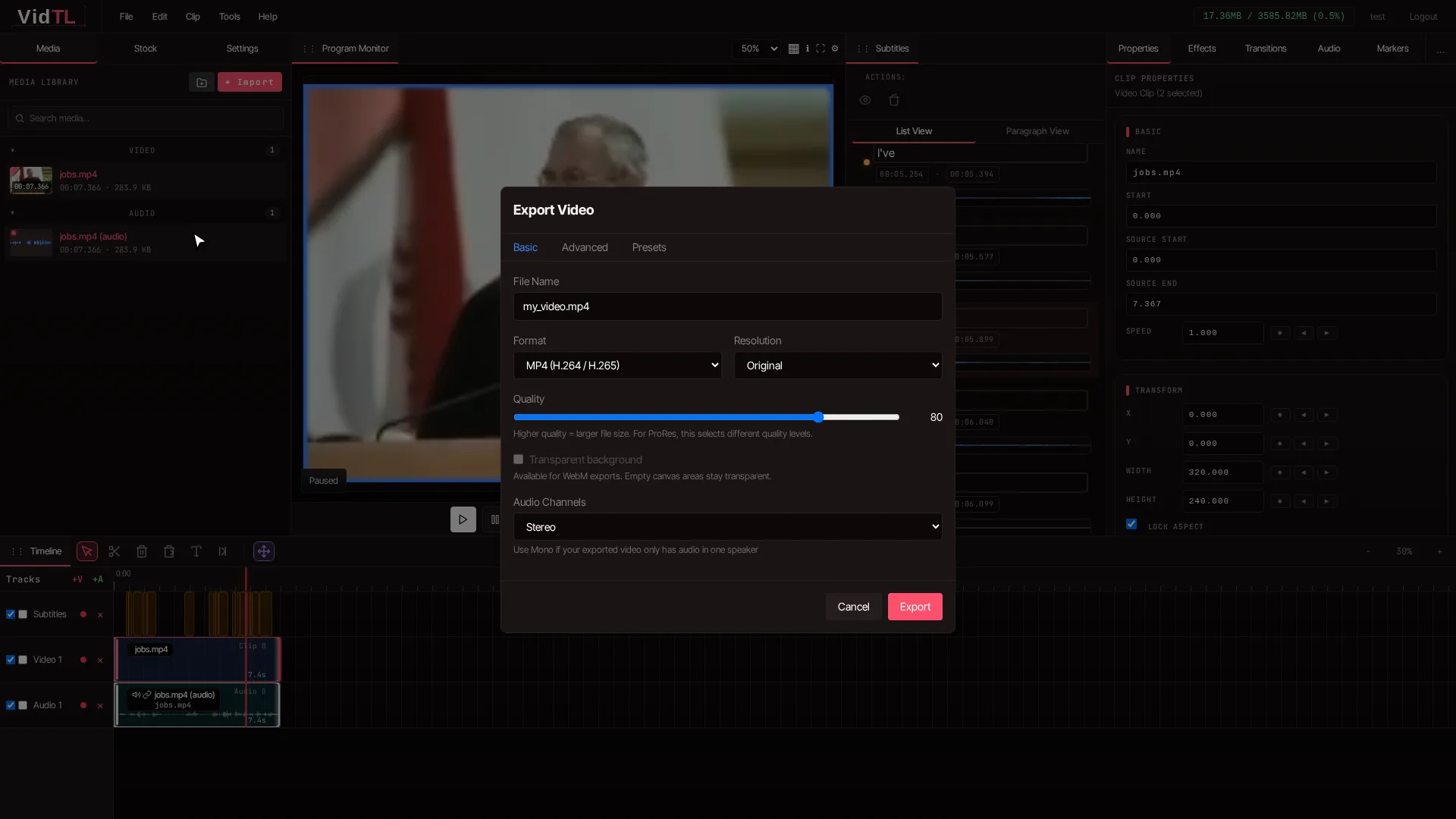
When you're happy with your captions, go to the File menu and select "Export Video". Choose your preferred export settings including resolution, frame rate, and quality.
VidTL renders your video with captions burned directly into the video file. The export process shows real-time progress, and you can download the finished video when complete.
Alternative option: If you need separate caption files (SRT format) for platforms like YouTube, you can download your subtitles a text file and upload it separately.
Tips for Better Automatic Captions
Use Clear Audio
The speech recognition works best with clean audio. Record in quiet environments and use a quality microphone. Background music or noise can reduce accuracy.
Speak Clearly
Videos with clear pronunciation and moderate speaking pace generate more accurate captions. Mumbling or rapid speech may result in more errors to correct.
Check Technical Terms
Industry jargon, brand names, and technical terminology might be transcribed phonetically. Always review and correct these specialized words.
Add Punctuation
Automatic captions may not include proper punctuation. Add periods, commas, and question marks to make your captions easier to read.
Manual vs Automatic Captions
| Aspect | Manual Captions | Automatic Captions |
|---|---|---|
| Time Required | 5-10 minutes per minute of video = over 1 hour for a 15 minute video | 30 seconds + processing time + review |
| Accuracy | 100% (if done carefully) | 98-99% (requires review) |
| Effort Level | High - constant attention needed | Low - just review and correct |
| Timing Precision | Depends on skill | Perfect word-level timing |
| Cost | Free but time-consuming | Free with VidTL |
| Best For | Short videos, creative captions | Any length, standard transcription |
Frequently Asked Questions
Can I add captions to video automatically for free?
Yes. VidTL's "Generate Subtitles (Free)" option uses speech recognition at no cost to you. It's 100% free with your account. There are no limits on video length or usage.
How accurate are automatically generated captions?
Automatic captions typically achieve 98-99% accuracy with clear audio. Accuracy depends on audio quality, speaker clarity, background noise, and accent. Technical terms or proper nouns may need correction. Always review the generated captions and fix any errors before publishing your video.
What video formats work with automatic caption generation?
VidTL supports all common video formats including MP4, MOV, WebM, AVI, and MKV. The speech recognition works with any video that contains an audio track. If your video has clear spoken words, you can add captions to it automatically regardless of format.
Can I export captions as a separate file instead of burning them into the video?
Yes. After generating automatic captions, you can export them as an SRT subtitle file from the subtitle editor. This separate file can be uploaded to platforms like YouTube, Vimeo, or Facebook, giving viewers the option to turn captions on or off. You can also burn captions directly into the video if you prefer permanent captions.
How long does it take to generate automatic captions?
Processing time depends on video length and the quality you select. For the free version, expect roughly 2-3 minutes for a 5-minute video on most modern computers. The priority option typically processes a 15 minute video in about 30 seconds.
Start Adding Captions Automatically Today
You no longer need to spend hours manually typing and timing captions. With VidTL's free automatic caption generation, you can add accurate captions to your videos in minutes. The speech recognition technology handles the tedious transcription work while you focus on creating great content.
Whether you're creating content for YouTube, Instagram, TikTok, or any other platform, automatic captions help you reach more viewers, improve accessibility, and boost engagement. The word-level timestamps ensure perfect synchronization, and the built-in editor makes corrections quick and easy.
Open VidTL in your browser, import your video, and click "Generate Subtitles" to see how much time you can save on your next project.