AI video generator
Describe a shot. Start on a frame.
VidTL’s AI video generator makes a brand-new clip from your description. Pick a frame from your own footage and the clip starts there, ends there, or both, so the new shot carries on from the one before it. It lands in your media library, ready for the timeline.
- Part of Pro
- No watermark
- Nothing to install
How it works
Pick a frame, say what happens.
-
01
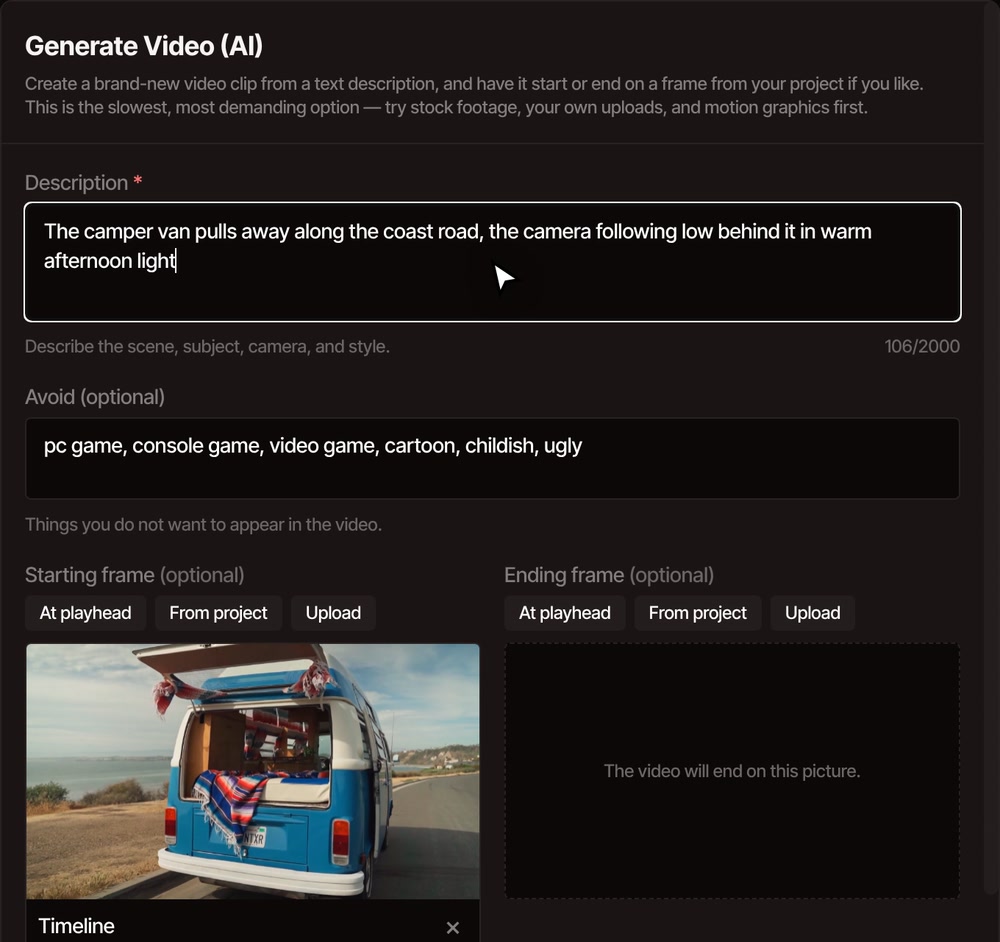
Open Tools, then Generate Video (AI)It sits in the Generate group. Park the playhead first if you want the clip to start on the frame you are looking at.
-
02
Pick a starting frameUse At playhead, From project or Upload. You can add an ending frame too, or skip both and describe the clip in words alone.
-
03
Describe what happens and press Generate VideoSay what moves and how the camera moves. You can keep editing while it works, and the status line shows where it is.
-
04
Drag the clip onto your timelineIt arrives in a Generated Videos folder in your media library, ready to trim, colour and caption like any other clip.
What you can make
Footage that carries on from what you filmed.
-
Carry on a shot
Pick the last frame of a clip as the starting frame and describe what happens next. The new clip picks up where yours stopped.
-
Land on a frame
Pick an ending frame and the clip travels to it. Give it a starting and an ending frame and it works out the movement between the two.
-
Bring a picture to life
Start from a still: a photo you upload, a picture from your library, or any frame of your footage. The clip takes the same shape as the frame.
-
Describe it from nothing
Skip the frames and write the shot in words: the subject, the camera, the light. It is the slowest way to get footage, so try stock first.
-
Keep a result you like
Set the same seed number to get the same result again, or leave it on random for a new take every time.
-
Edit it like any clip
The clip goes into a Generated Videos folder in your library. Trim it, add effects, caption it and export it with the rest of your project.
Before you try it
It is slow, short and uses a lot of credits.
-
It takes a while
About three minutes for a five-second clip on the faster choice in the Model list. The higher-quality choice can take close to an hour. You can keep editing in the meantime.
-
Clips are short and small
The default is five seconds. The faster choice makes 512 by 320 pixel clips up to about 10 seconds long, and the higher-quality one goes up to 1344 by 768 and about 15 seconds. Use a generated clip as one shot in a cut, not as your main footage.
-
It uses a lot of credits
One clip costs far more of your weekly AI credits than a voiceover or a song. The dialog warns you before you start, and the credits for a clip that fails come back.
Part of Pro
Pro and Studio can generate video clips, using the weekly AI credits that come with the plan.
The free plan still has the whole editor with no watermark, automatic captions, editing by text, and free stock footage to search from inside the editor.
See plansQuestions
About AI video.
Is there a free AI video generator in VidTL?
Making clips with AI is part of Pro and Studio. The free plan has the whole editor, with no watermark, plus free stock footage you can search from inside it, so you can still fill a gap in your video without paying.
How long does a clip take?
A five-second clip took between two and a half and three and a half minutes in our tests, using the faster choice in the Model list. The higher-quality choice is much slower and has taken close to an hour for five seconds. You can keep editing while it works, but keep the tab open until the clip arrives.
How long can a clip be, and how sharp?
Five seconds is the default. The longest the Model list allows is about 10 seconds on the faster choice and about 15 on the higher-quality one, and the largest picture is 1344 by 768, so nothing reaches full HD.
Does the clip have sound?
Don’t count on it. The clips we made in testing came back silent, so plan to add a voiceover, music or sound effects yourself.
Does my footage get uploaded?
Your project stays on your computer. Only what you hand the generator leaves it: the description, and the starting or ending frame if you picked one. Finished clips come back to your media library. Pick only frames you have the right to use, and be careful with pictures of real people.
Do I own what it makes?
VidTL’s terms say you keep ownership of what you generate, subject to any rights owned by others. AI output can be unexpected, so watch the whole clip before you publish it. The details are in the terms.
What if it fails?
You will see a message and nothing is added to your project. The credits for a clip that fails are given back.
Also in the editor
Your next shot is one sentence away.
Pick a frame, describe what happens, and the clip is in your library when it is done.