Skip to content

AI video editing assistant

Edit video with AI just by typing.

Tell VidTL what to change and its AI assistant makes the edit. It cuts pauses and mistakes, writes captions, adds titles and cleans up the sound, and every change lands on your timeline as an ordinary edit you can adjust or undo.

  • Part of Pro
  • Undo any change
  • Nothing to install
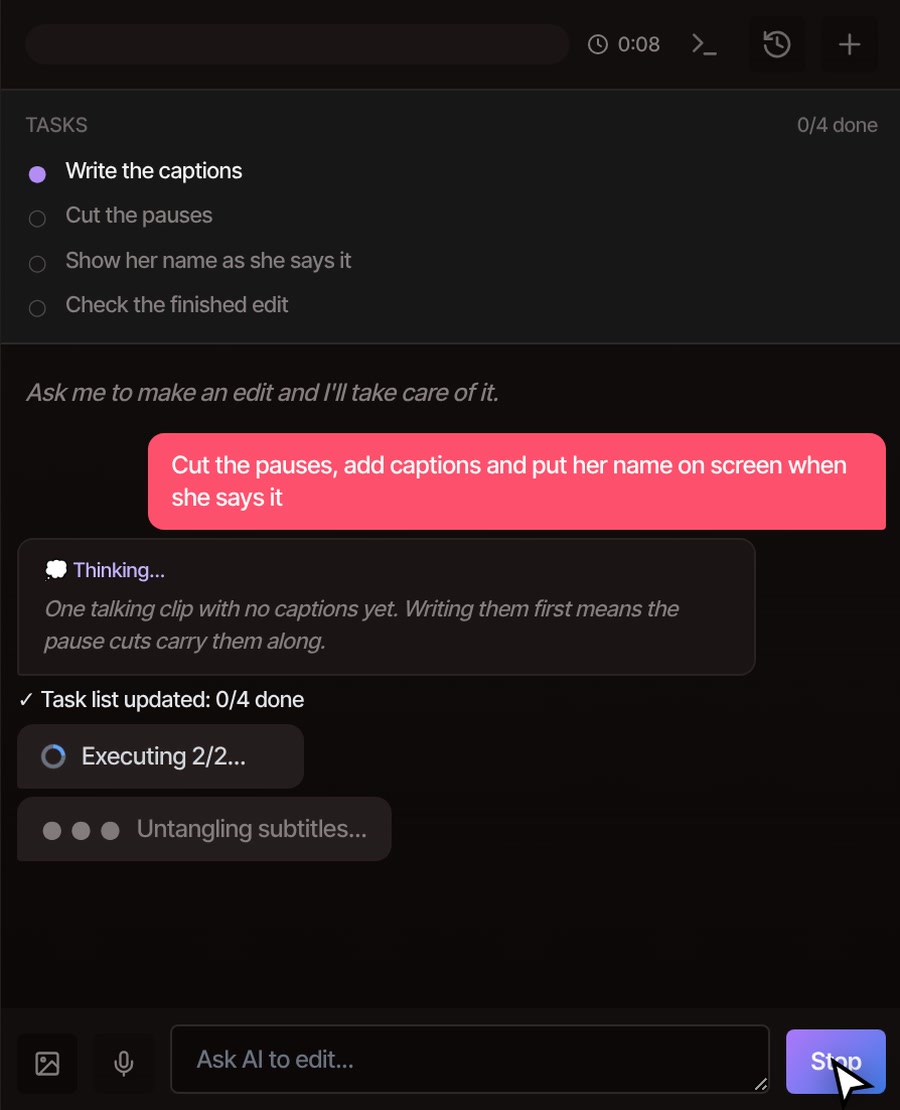
One request: cut the pauses, add captions and put her name on screen when she says it. Footage: NASA's SpaceX Crew-3 interview with astronaut Kayla Barron, courtesy of NASA. NASA does not endorse VidTL.

How it works

Say it in plain words. Then check its work.

  1. 01

    Open the AI panelBring your footage in, then click the AI tab on the right of the editor.

  2. 02

    Say what you wantType it the way you would tell an editor, or press the microphone and say it. You can add a picture too, like a frame you want matched.

  3. 03

    Watch it workA bigger job gets a task list that ticks off as each edit lands. Press Stop whenever you like.

  4. 04

    Check the resultPlay it back, then ask for changes, adjust clips by hand, or press Restore on its reply to go back.

The AI panel partway through a request. The task list shows Write the captions in progress, with Cut the pauses, Show her name as she says it and Check the finished edit still to come. Below the typed request, the assistant notes that it will write the captions first so the pause cuts carry them along, and the Send button has turned into Stop.

What you can ask for

From one quick fix to a whole rough cut.

You don't need to know which tool does what. Ask for the result and the assistant picks the tools, whether that is one trim or a full edit of a long interview.

More things to ask for

You stay in charge

Every change is an ordinary edit.

Nothing it does is locked away. The assistant uses the same timeline, tracks and tools you do, so you can take over at any point.

  • Real clips on real tracks

    Captions land on their own track, cuts split the clips where they happen, and titles sit on a track above the picture. Trim, move or delete any of it by hand.

  • Undo, or restore

    Undo steps back through its changes the same way it does through yours. Each reply also has Restore, which puts the project back to how it was before that request.

  • Stop, or carry on

    While it works, Send turns into Stop. If a long job runs out of time, everything done so far stays, and Continue picks up where it left off.

  • It asks when it's unsure

    If it needs something you haven't said, like the words for a title, it asks. Your chats are saved, so you can come back to one later.

Pricing

Start free. Upgrade for the AI.

Every plan edits videos of any length and exports without a watermark. Pro adds the AI assistant that does the editing for you. Cancel anytime.

Hobby

For first videos and weekend projects.

$0forever

No card needed

Start free

AI credits each weekNone

  • Unlimited video length
  • No watermark, exports up to 8K
  • Edit video by editing text
  • Automatic captions
  • Background removal
  • 5 GB of cloud storage
  • Not included: AI assistant
  • Not included: Voiceovers from text
  • Not included: AI music and video
  • Not included: Cloud exports
Most popular

Pro

For creators who publish every week.

$29$23/ month

billed yearly, $276 a year

Go Pro

AI credits each week1×

Everything in Hobby, plus:

  • AI assistant that edits for you
  • Automatic rough cuts
  • Voiceovers from text, even in your own voice
  • AI music and video
  • Faster captions and background removal
  • Cloud exports, so you can close the tab
  • 100 GB of cloud storage

Studio

Best value

For studios and anyone publishing every day.

$99$79/ month

billed yearly, $948 a year

Get Studio

AI credits each week5×

Everything in Pro, plus:

  • 5×AI credits, refilled every week
  • 5×AI edits and rough cuts
  • 5×Voiceovers, in any voice
  • 5×AI music and video clips
  • 5×Fast captions and background removal
  • 1 TB of cloud storage

Prices in US dollars. Yearly plans are billed once a year.

Questions

Before you hand it the edit.

Is the AI assistant free?

No. It comes with Pro and Studio, which include AI credits that refill every week. The rest of the editor is free with no watermark, and you can do these jobs by hand: Remove Silence cuts the pauses, and with a free account you can write captions and cut words out of the transcript.

Does my video get uploaded?

Your video files stay on your computer, and the edits are made there. The assistant itself runs on VidTL's servers. It works from a description of your project, such as clip names, timings and captions, and takes a still frame when it needs to see the picture. Jobs that run on our servers, like writing captions or a voiceover, send only what that job needs.

Can I talk to it instead of typing?

Yes. Press the microphone next to the message box and say what you want. Your words appear in the box, so you can check them before you send.

What if it gets the edit wrong?

Tell it what to change, the way you would tell an editor, and it adjusts the edit. You can also fix any clip by hand, or press Restore on its reply to put the project back to how it was before.

Can Claude Code or another coding agent use it?

Yes. With a Pro or Studio plan, a coding agent can use the same editing tools from your terminal while the editor is open in your browser. The MCP and CLI guide shows the setup.

Tell it the edit. Then press play.

The editor opens in your browser with nothing to install. The AI assistant comes with Pro.