Free multicam editing
Multicam video editor. Cut to who’s talking.
Put every camera on the timeline. VidTL lines the angles up by their sound, then cuts between them to whoever is speaking. It runs in your browser: no watermark, nothing to install.
- No account to start
- No watermark
- Footage stays on your computer
How it works
Two tools, and your cameras are cut.
-
01
Put every camera on the timeline.Add each camera’s file. The sound comes with the picture. They can sit end to end for now, because the next step moves them.
-
02
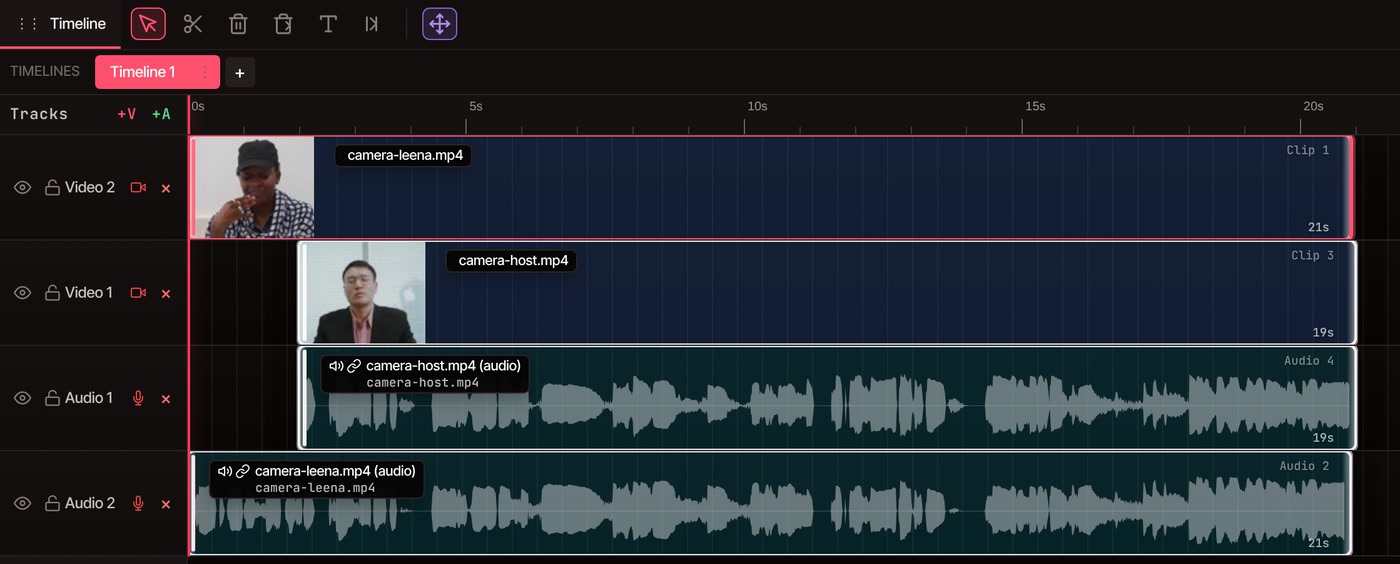
Select them and run Multi Cam Smart Sync.It’s in the Tools menu, under Multi-Camera. VidTL compares the sound of the clips, slides matching moments to the same time, and stacks the cameras on their own tracks.
-
03
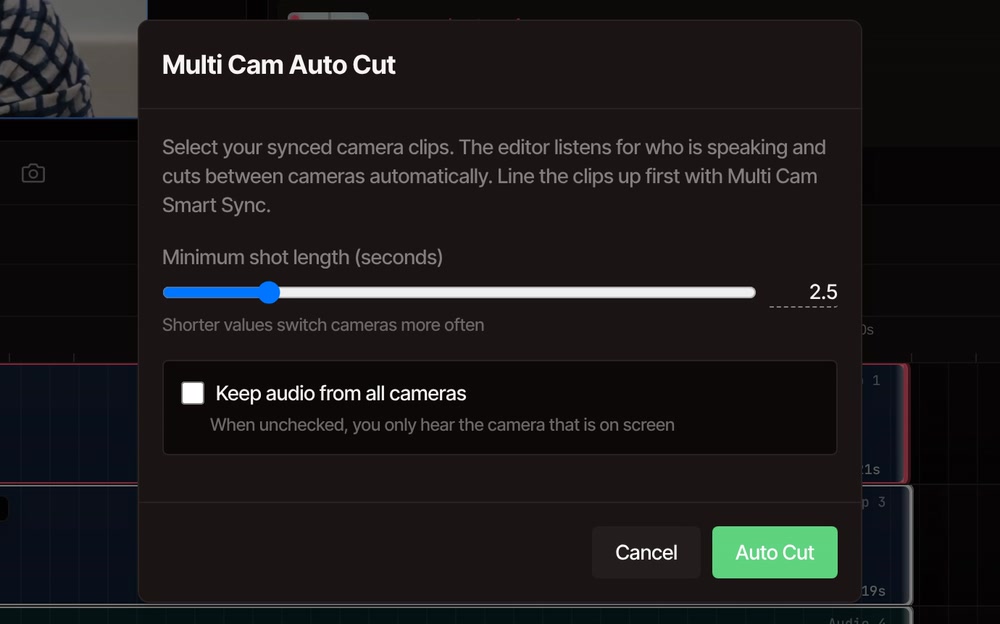
Run Multi Cam Auto Cut.Same menu. Choose the shortest shot and whether to keep every camera’s sound, then click Auto Cut. Each stretch goes to the camera whose person is speaking.
What you get
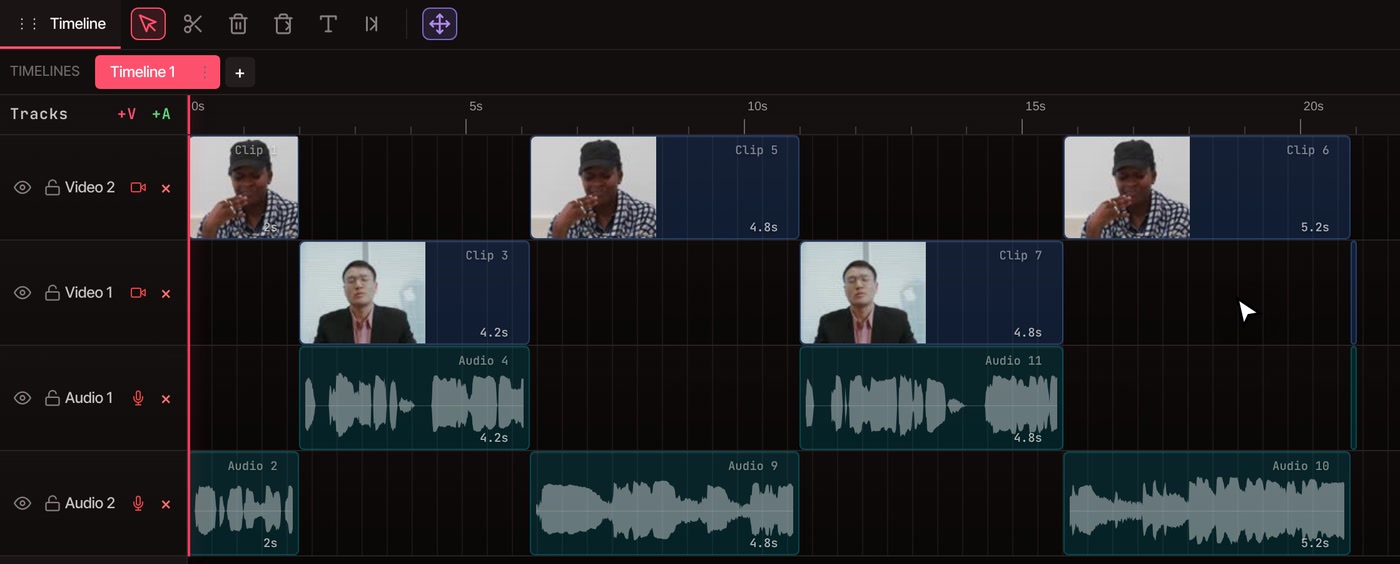
Both cameras in step, then one on screen at a time.
In the demo, the second camera started recording about two seconds after the first. Smart Sync found the gap from the sound alone. Auto Cut then made four shots where both cameras were rolling, and left the first two seconds, where only one camera was running, as they were.
What to expect
How the angles are lined up, and how the cuts are picked.
-
Lined up by sound
Smart Sync matches how loud each clip gets over time, so the cameras need to have heard the same thing: people talking, music, a clap. Clips with nothing in common are placed one after another instead, and nothing is lost.
-
Cut to the louder camera
Each camera is measured against its own average, so a hotter microphone doesn’t win every time. It works best when each camera or microphone is closer to its own speaker. One camera facing everyone can’t be cut by voice.
-
Two angles or more
Select as many cameras as you shot. Every stretch goes to whichever one is loudest at that moment. A camera with no usable sound never counts as the speaker.
-
You set the pace
Minimum shot length runs from 1 to 10 seconds and starts at 2.5. A lower number switches cameras more often, and a short noise or cough doesn’t flip the cut.
-
Where every camera rolls
The cut covers the time all selected cameras overlap. Footage from before the last camera started, or after the first one stopped, stays as it was.
-
Sound your way
By default you hear the camera that’s on screen. Tick Keep audio from all cameras and every microphone keeps playing under the cut.
The result is ordinary clips on the timeline. Drag an edge to move a cut, delete a shot, or add titles and captions over it. Smart Sync and Auto Cut each undo in one step with Ctrl+Z. Auto Cut makes straight cuts. If you want a fade between shots, add one yourself with the transitions in the editor.
Questions
Multicam, answered.
Is the multicam editor free?
Yes. Multi Cam Smart Sync and Multi Cam Auto Cut need no account, and the video you export has no watermark. Your footage is read on your own computer, so it isn’t uploaded to line the cameras up or to make the cuts.
How does VidTL line up the cameras?
It listens. Each clip’s sound is measured and compared with the others, and matching moments are moved to the same time. A clap at the start of a take gives it something sharp to match, but ordinary talking works too. Long recordings are fine: the sound is read a piece at a time.
How does it know who is speaking?
It compares how loud each camera’s sound is, about twenty times a second, and gives each stretch to the louder one. It hears loudness, not voices, so it can’t tell two people apart on one microphone.
What if the cameras can’t be matched?
Then they stay separate. Smart Sync places clips that match nothing one after another and says so. Line them up by hand by dragging the clips, then run Auto Cut, which only needs the clips to overlap in time.
Can I fix a cut I don’t like?
Yes. Drag the edge of a shot to move the cut, or press Ctrl+Z to undo the whole Auto Cut and try again with a different shortest shot. The shots are normal clips, so everything else in the editor works on them.
Can the AI assistant do this for me?
On Pro, yes. The AI video editing assistant can run both steps when you ask it to line up your cameras and cut to whoever is speaking. The tools on this page stay free either way.
Also in the editor
- Podcast video editor Cut a recorded conversation between its speakers.
- Interview video editor Edit an interview from one camera or several.
- Edit video by text Trim the cut further by deleting words from the transcript.
- Remove silence from video Take out the pauses once the angles are cut.
- Split video Cut a clip in two wherever you need a change by hand.
- AI video editing assistant On Pro, ask for the whole multicam pass in plain words.
Every angle, cut for you.
Free to start, nothing to install, and no watermark on what you export.