Free video transitions
Video transitions you drag onto a clip.
Open the Transitions panel and drag a cross dissolve, fade, zoom or slide onto any clip. It plays back straight away. It runs in your browser, with no sign-up and no watermark.
- No watermark
- No account needed
- Every transition is free
How it works
Drag a preset, watch it play.
-
01
Open the Transitions tabIt sits in the panel on the right of the editor, next to Properties and Effects. Presets are grouped as Opacity, Transform, Position, Transition and Audio.
-
02
Drag a preset onto a clipDrop it on the left half of the clip to put it at the start, or the right half to put it at the end. A Cross Dissolve on the right half blends the clip into the next one on its track.
-
03
Play it and adjustEvery preset lasts one second. Each one adds keyframes to the clip, and you can drag those green marks on the timeline to make it shorter or longer. Undo takes a preset back off.
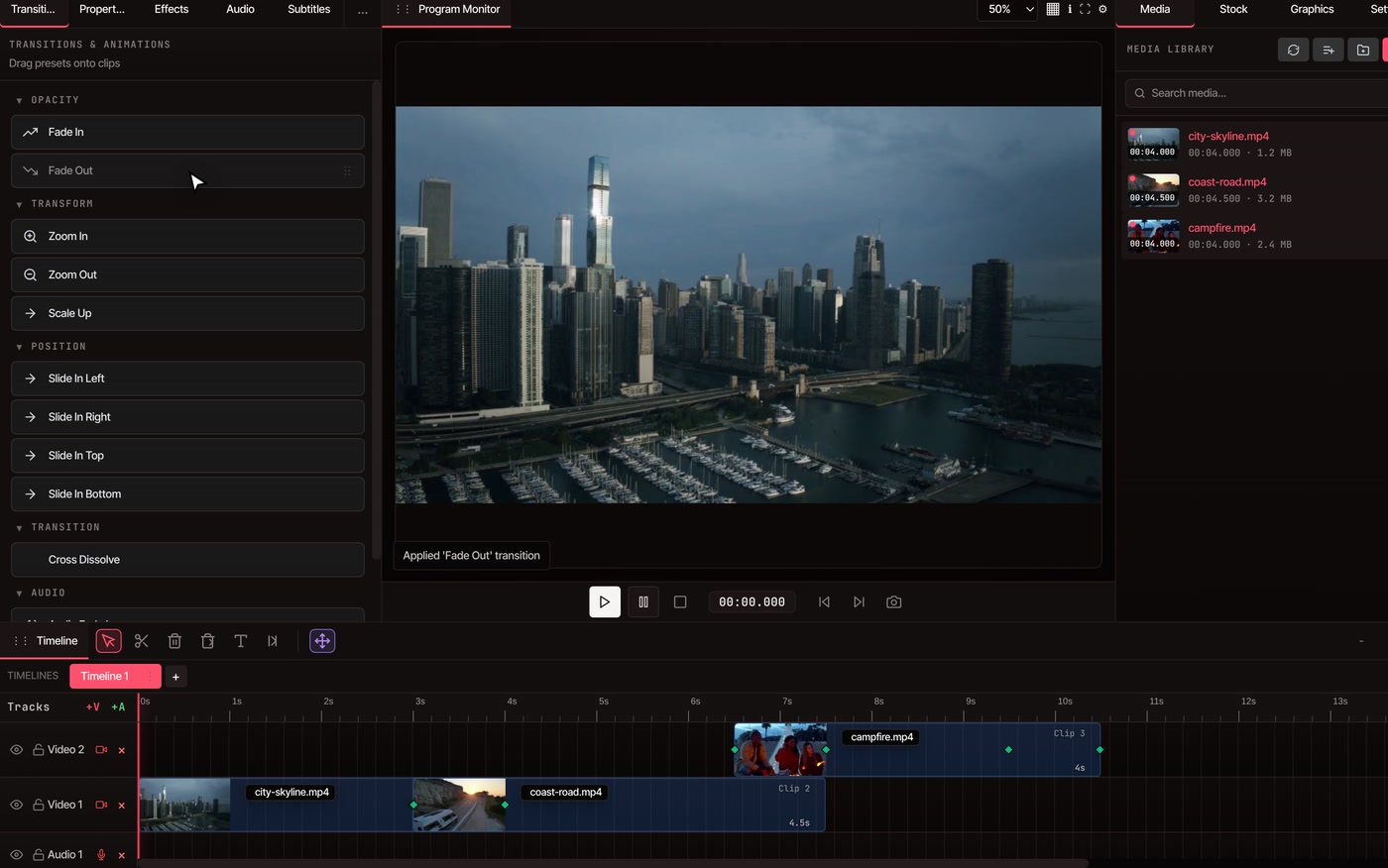
What is in the panel
Every preset, plainly listed.
-
Cross Dissolve
Blends the end of one clip into the start of the next over one second. The second clip slides back so the two overlap, which makes the finished video that much shorter. It works on video and pictures.
-
Fade In and Fade Out
A clip goes from transparent to solid, or back again, over one second. Fade in from black at the start of a video or out to black at the end.
-
Zoom and scale
Zoom In grows a clip from half size to full size. Zoom Out shrinks it to half. Scale Up pushes in from full size to one and a half times, so the edges leave the frame.
-
Slide in from any side
Slide In Left, Right, Top and Bottom bring a clip in from just off the frame. Put the clip on a track above another one and it slides over the footage underneath.
-
Sound fades
Select an audio clip and the panel offers Audio Fade In and Audio Fade Out, a one-second ramp from or to silence. Use them on the sound of a clip you dissolve into.
-
Blur and color in Effects
The Effects tab adds Blur, from 0 to 20 pixels, and Color Correction with exposure, contrast, temperature, saturation and more. They apply to the whole clip, so they are looks, not animated transitions.
Questions
Transitions, answered.
Are video transitions free in VidTL?
Yes. Every preset in the Transitions panel works without an account or a payment, and every plan exports with no watermark. The editor opens in your browser on a desktop or laptop computer.
Does VidTL have wipe or film grain transitions?
Not yet. The panel has cross dissolve, fades, zooms and slides, and the Effects tab adds blur and color correction. Wipes, glitches and film grain are not in the editor today.
Can I make a transition shorter or longer?
Yes. Each preset lasts one second and is stored as keyframes on the clip. Drag the green keyframe marks along the timeline to change how long it takes. A preset can never be longer than the clip it is on.
Does Cross Dissolve fade the sound too?
No, it blends the pictures only. The sound of both clips plays during the overlap, so select each audio clip and add Audio Fade Out to the first and Audio Fade In to the second.
Can I add the same transition to every clip at once?
In the panel you drag one preset onto one clip at a time. With a Pro plan, the AI assistant can add a transition to every clip on a track from one typed request.
Can I put transitions on text and pictures?
Yes. Fades and slides work on video, pictures and text clips. Zooms and Cross Dissolve are for video and pictures.
Also in the editor
- Merge videos Join clips on one track, then put a dissolve on each join.
- Add text to video Titles take fades and slides too.
- Color correct video Match the look of clips before you blend them together.
- Trim video Cut each clip to length so the transition lands where you want.
- AI video editing assistant Ask for a transition on every clip of a track in one request.
- Online video editor The whole editor, free in your browser, with no watermark.
Blend your clips, free.
No sign-up, no watermark, and nothing to install.