Video editor
The free online video editor.
Edit in your browser with nothing to download, no account to make and no watermark on what you export. Trim, split and stack clips on a multi-track timeline, add titles and effects, then export in up to 8K.
- No download
- No sign-up
- No watermark
- Exports up to 8K
How it works
From raw clips to a finished video.
-
01
Bring in your clipsClick + Import in the Media panel or drag files onto it. The Add all clips to timeline button lays them end to end, in the order you pick.
-
02
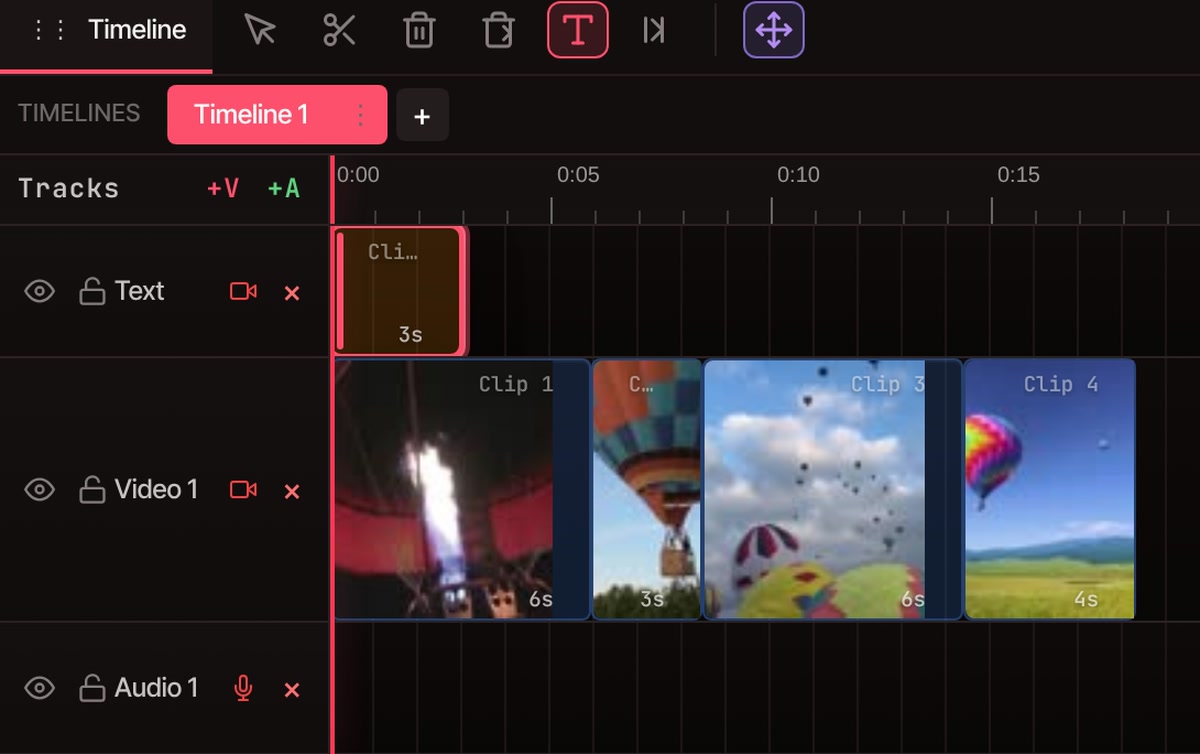
Trim and cutDrag a clip’s edge to trim it. Press S to split at the playhead, then click a piece with the Ripple Delete tool to remove it and close the gap.
-
03
Add a titlePick the Text tool (T), click the picture and type. Set the font, size and color in Properties.
-
04
ExportOpen File › Export Video, pick MP4, MOV, WebM or GIF and press Export.
A full editor
Desktop editing tools, in a browser tab.
-
As many tracks as you need
Stack video, photos, titles and sound on unlimited tracks, and keep several timelines in one project. Record your screen, webcam or voice straight onto a track.
-
Keyframes and masks
Animate position, size, rotation, opacity and speed. Draw a mask to hide or reveal part of a shot, and animate the mask too.
More on keyframes and masks -
Transitions and effects
Cross dissolves, fades, zooms and slides between clips. Blur, and color correction down to highlights, shadows and white balance.
More on transitions and effects -
Titles and templates
Type straight onto the picture, or start from an animated title, name tag, callout or end screen and change the words.
More on graphics templates -
Green screen
Take out a green or any other solid backdrop, live as the video plays. Shot without one? Cut a person out of any shot on your own computer, for free.
More on green screen -
Multi-camera editing
Line up every camera angle by its sound, then let VidTL cut to whoever is talking.
More on multi-camera editing
Export
No watermark, in the file you need.
Your own computer makes the video, so nothing gets uploaded and nothing gets stamped on the picture. That’s the same on every plan.
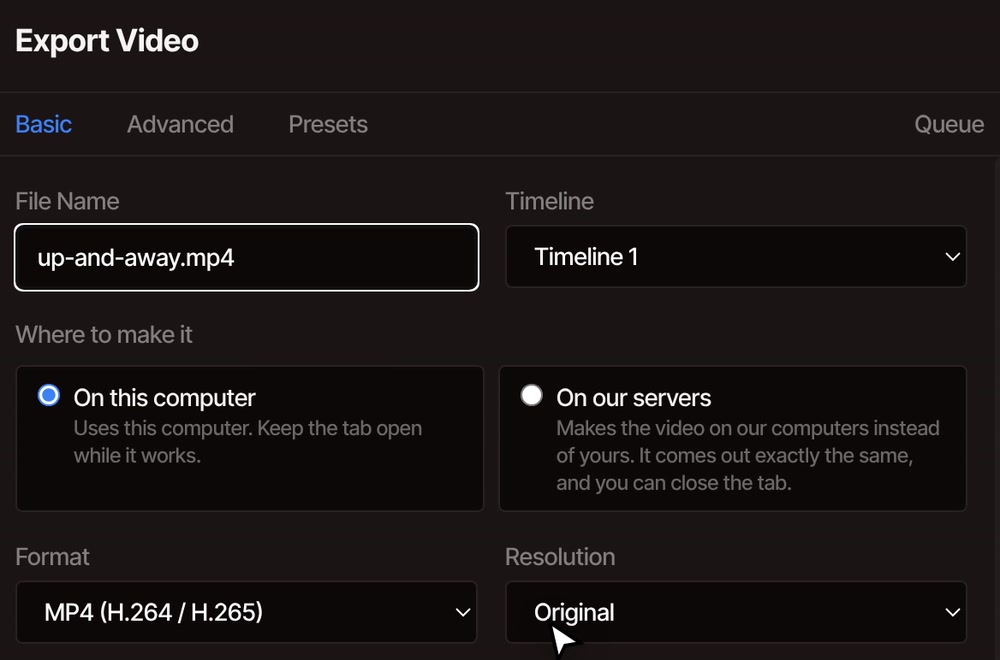
- MP4, MOV, WebM or GIFMP4 in H.264 or H.265, MOV with ProRes, and WebM with a see-through background for overlays.
- Any size up to 8K360p to 4K, or your project’s own size up to 8K, with presets for X, YouTube, TikTok and Instagram.
- Several files in one goWidescreen, vertical and square versions in one run, or one file per chapter, split at your markers.
Exports have no length limit, except animated GIFs and see-through videos: those are built in your computer’s memory, so very long ones may not fit.
More on editing and exporting in 4KFree, and what Pro adds
Editing and exporting are free, and you don’t need an account.
A free account with a confirmed email adds automatic captions and cloud storage for your projects. Pro adds the AI assistant that edits for you, voiceovers, AI music and video, faster captions and background removal, and cloud exports.
See plansQuestions
Before you start editing.
Is VidTL really free?
Yes. Editing and exporting are free on every plan, with no watermark, exports up to 8K and videos of any length. You only pay if you want Pro’s AI tools, voiceovers or exports made on our servers.
Do I need to download anything or sign up?
No. The editor opens in your browser and you can start straight away. Sign up free and confirm your email when you want automatic captions or cloud storage for your projects.
Which browsers and computers does it work on?
Chrome, Edge, Brave, Arc and Firefox all run it well, and it works on Windows, Mac, Linux and Chromebook computers. Safari works for lighter editing. The editor needs a desktop or laptop computer; it doesn’t work on phones.
Does my footage get uploaded?
No. Editing and exporting happen on your own computer, so your footage stays there unless you save it to cloud storage or use a tool that runs on our servers.
Which files can I edit?
Video in MP4, MOV, WebM, MKV, AVI and M4V; sound in MP3, WAV, AAC, M4A, OGG, Opus and FLAC; pictures in PNG, JPG, GIF, WebP, BMP and SVG; and SRT subtitles. Some phone videos use a format many computers can’t play on their own, and those play in the editor too.
Can I move a project to Premiere Pro or DaVinci Resolve?
Yes. File › Export for Premiere Pro or Export for DaVinci Resolve saves your timeline as an XML file, with your media in a ZIP if you want it; effects and graphics those apps can’t rebuild come across as finished video. File › Import XML/Zip (FCP7) opens their timelines, with the tracks, clips and markers.
Your next video, in your browser.
No download, no account and no watermark on your exports.