Keyframes and masks
Keyframe animation in a free video editor.
Set a keyframe, move the playhead, change a value, and VidTL animates everything in between. Move, resize, rotate or fade any clip, then add a mask to show only part of it.
- No account to start
- No watermark
- Runs in your browser
How it works
Animate a clip in three moves.
-
01
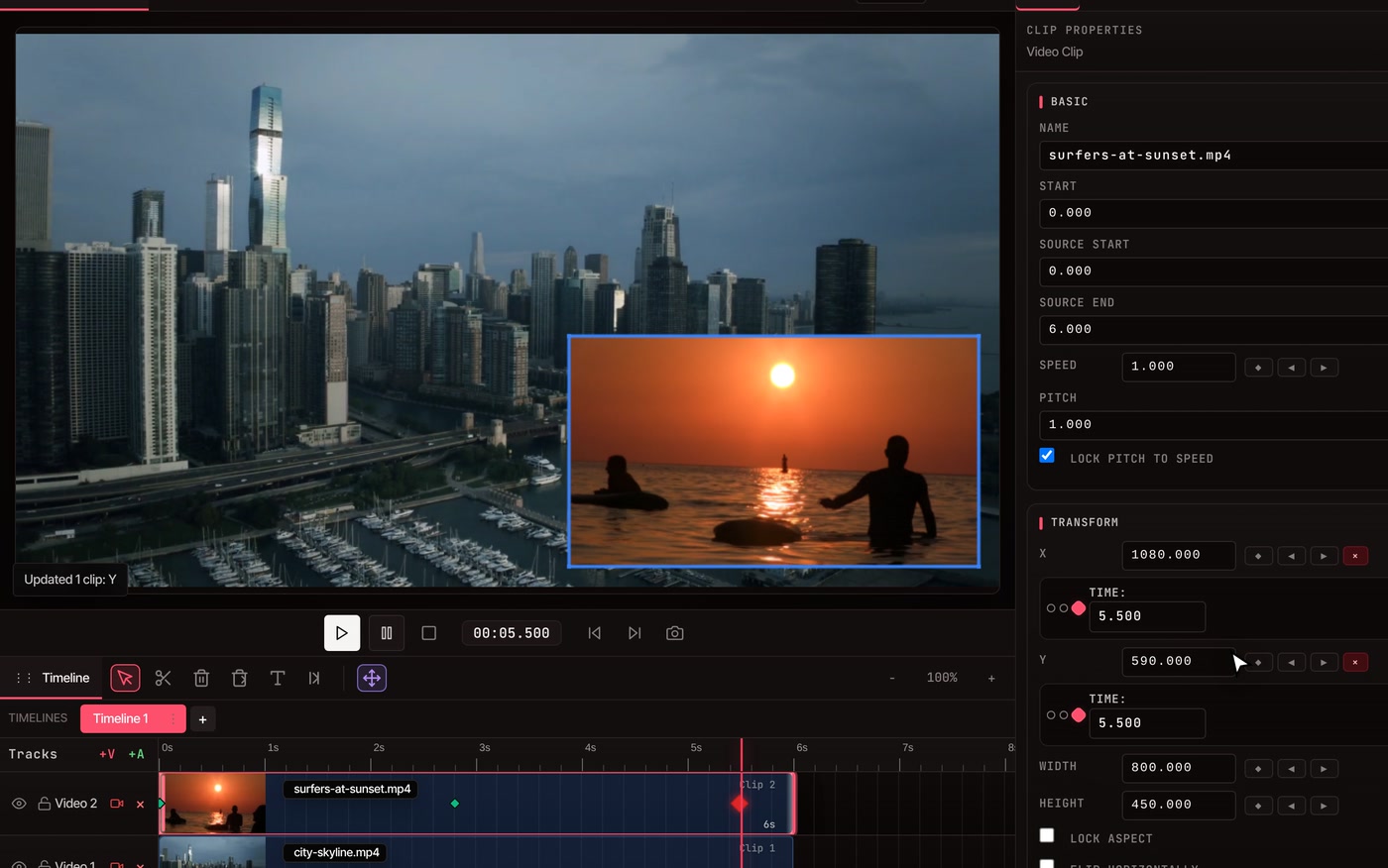
Plant the first keyframe.Click the clip, then press the diamond beside X and Y in Clip Properties. That pins where it starts.
-
02
Move along and change the value.Click the ruler further on and type a new X and Y. A keyframe appears by itself, and VidTL fills in the motion between the two.
-
03
Play it and adjust.Keyframes show as diamonds on the clip. Drag one along to retime it, or select it and press the × to delete it. Every change can be undone.
What you can animate
Most of what a clip does can move over time.
-
Position and size
X, Y, Width and Height each take keyframes. That is how a picture-in-picture slides across the frame, or a shot pushes in slowly.
-
Rotation and opacity
Spin a clip, tilt it into place, or fade it up and down. Opacity and Rotation have their own keyframe buttons.
-
Speed
The Speed field takes keyframes too, so a clip can run at normal pace, slow down for one moment and speed back up.
-
Text and sound
Text clips animate position, size and opacity. Sound clips animate volume, which is how you fade music under a voice.
-
Ready-made motion
Open the Transitions tab and drag a preset onto a clip: fade in or out, zoom, scale up, slide in from any side, cross dissolve. They are ordinary keyframes, so you can change them afterwards.
-
Copy motion to another clip
Copy a clip’s keyframes with Ctrl+Alt+C, select another clip and paste with Ctrl+Alt+V. They land at the playhead.
Masks
Hide or reveal part of a shot.
-
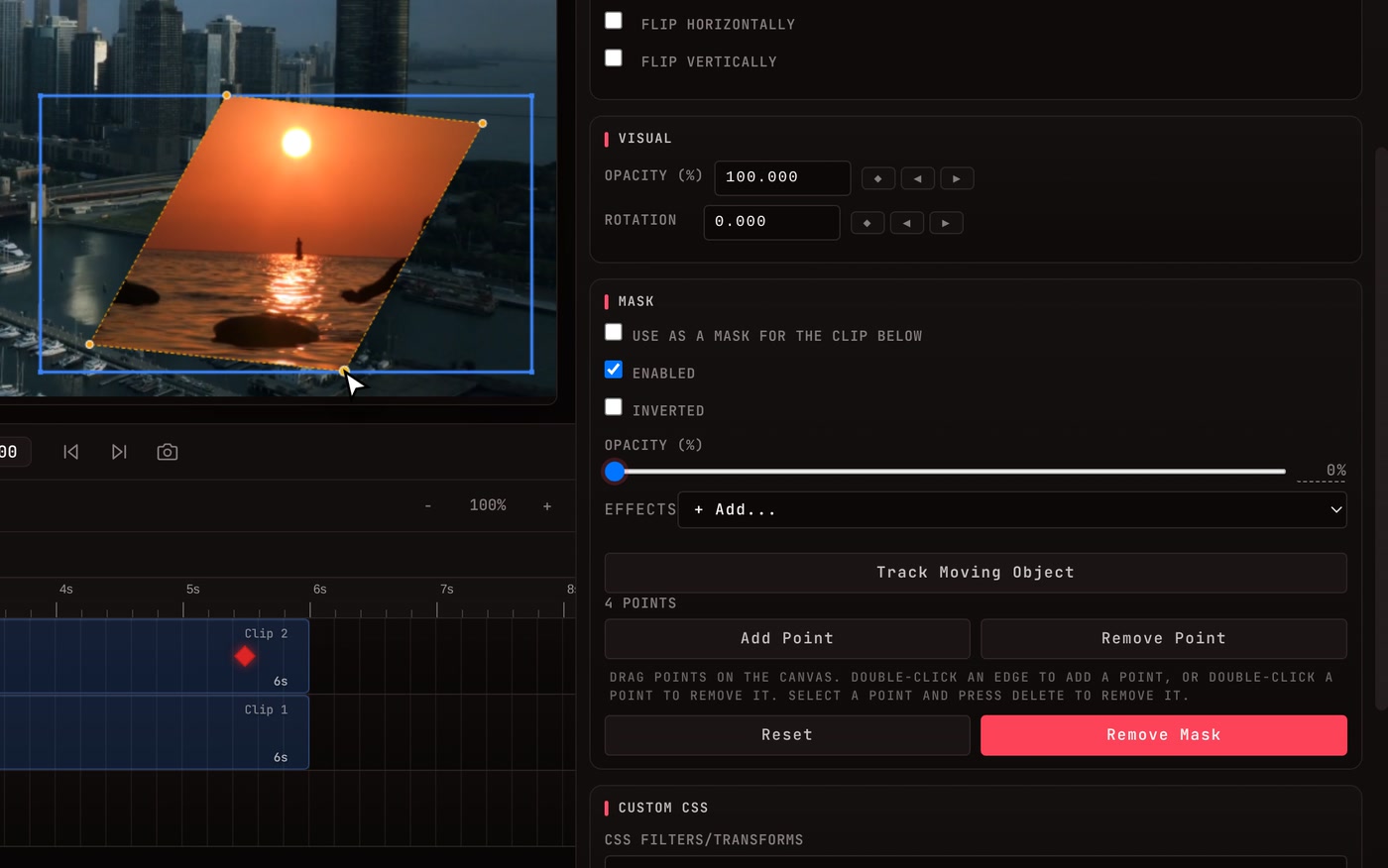
Add Mask.Select a clip and press Add Mask in the Mask group of Clip Properties. You get a rectangle with four points. Drag the points in the preview. Double-click an edge to add a point.
-
Choose what happens outside it.Outside the shape the clip is see-through by default, so what is under it shows. Turn on Inverted to swap inside and outside, or set the outside opacity and add an effect such as a blur.
-
Use a clip as the mask.Tick “Use as a mask for the clip below” and the clip underneath shows only where this one has pixels. Text, a transparent PNG or an animated title all work.
-
Follow something moving.Track Moving Object picks out a person or thing in the shot and carries a mask along with it, so you can blur it, hide it or show only it.
Questions
Keyframes and masks, answered.
Is keyframe animation free in VidTL?
Yes. Keyframes, masks and object tracking need no account and leave no watermark. The AI assistant, which can set keyframes from a request you type, is part of Pro.
Can I make the motion ease in and out?
Keyframes you set by hand move at a steady pace from one to the next. The presets in the Transitions tab are eased, and the AI assistant (Pro) can set an ease when you ask for one. There is no curve editor.
Can a mask change shape or move over time?
The shape you draw is one set of points for the whole clip. It moves, scales and fades with the clip, so keyframing the clip carries the mask along. Track Moving Object builds a mask that follows something in the footage. The first time you use it, the tracker needs a moment to load. Mask edges are straight lines between points, with no feathering.
Can I animate text and titles?
Text clips take keyframes on position, size and opacity. Titles and graphics from the Graphics panel are animated layer by layer on their own small timeline.
Also in the editor
- Video transitions Fades, wipes and dissolves between shots.
- Motion graphics templates Titles, name tags and callouts that already move.
- Change video speed Slow a moment down or speed a clip up.
- Blur a face in video Track a moving face or plate and hide it.
- Add text to video Put words on screen, then animate them.
- AI video editing assistant Ask for the animation in plain words instead.
Make it move. Then mask the rest.
Open the editor on a desktop or laptop, drop in a clip and set your first keyframe. No account, no watermark.