Free face blur for video
Blur a face in video, even when it moves.
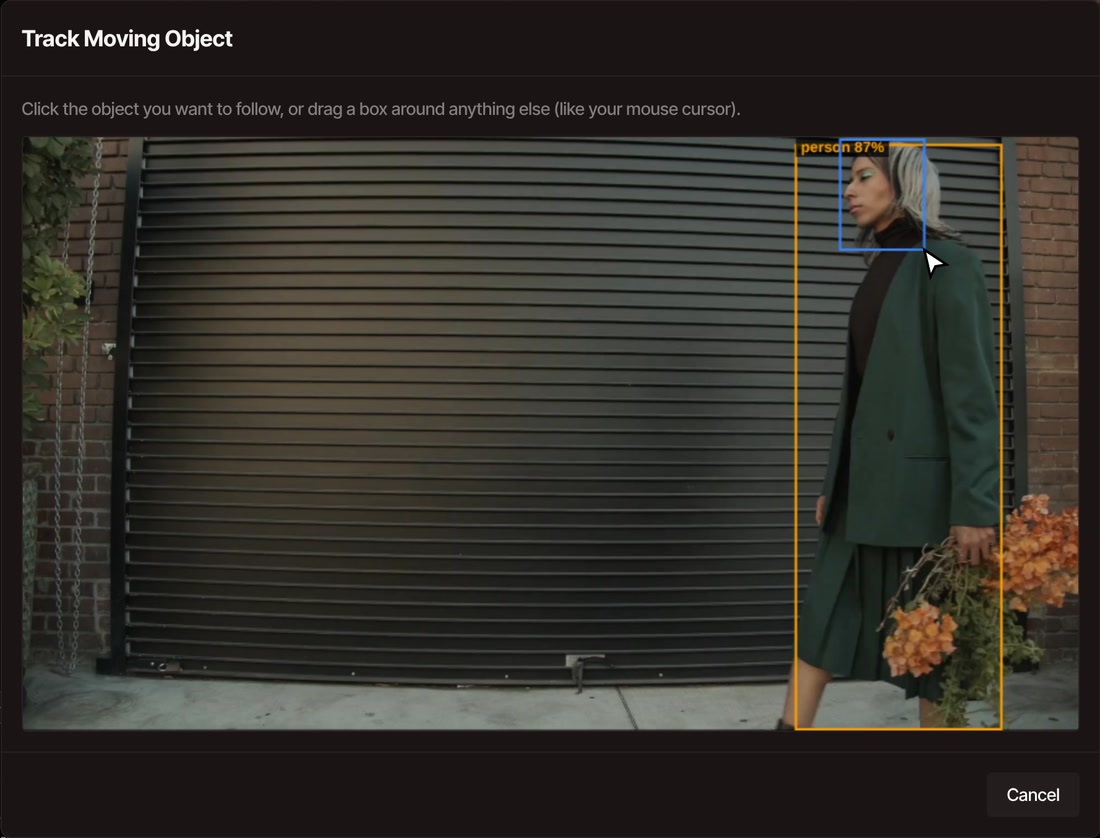
Right-click the clip, choose Track Moving Object, and drag a box around the face. VidTL follows it through the clip and keeps it blurred in every frame. Free in your browser, with no account and no watermark.
- Free, no account
- No watermark
- Video stays on your computer
How it works
Blur a face in four steps.
-
01
Right-click the clip and choose Track Moving Object.Park the playhead on a frame where the face is clear first. You can also select the clip and press Track Moving Object under Mask in the clip properties.
-
02
Drag a box around the face.The editor outlines the people and everyday objects it recognizes, but not faces. Click a person to blur their whole body, or drag a box around just the face.
-
03
Choose Blur It.VidTL follows the face through the clip, with progress at the bottom of the preview. The blur then plays back with the clip, and Ctrl+Z undoes it.
-
04
Scrub through before you export.If the blur slips off the face, move the playhead there and drag the blur’s corner points in the preview. Your fix becomes part of the movement.
What to expect
What it does, and where it needs a hand.
-
It follows the face
VidTL checks where the face is ten times a second and glides the blur between those spots, working forward and backward from the frame you picked. It covers the part of the clip that is on your timeline.
-
Blur it, hide it, or keep only it
Blur It is the one for faces. Hide It makes the area see-through, and Show Only It hides everything around the box. Keep It Centered uses the same tracking to follow a subject with the camera.
-
Anything you can box
Number plates, phone screens, name badges, a logo. Draw a box around anything that moves and VidTL follows it, the same way it follows a face.
-
You find the face
The editor spots people, cars and other everyday objects on its own, but not faces. You draw the box around the face once, on one frame, and it takes over from there.
-
The box stays one size
The blur keeps the size of the box you drew, so a face that walks toward the camera grows past it. If the face turns away or goes behind something, the blur waits where it last saw it. Scrub through once before you export.
-
One blur per clip
Each clip holds one tracked blur, and tracking again replaces it. For two people who stay side by side, drag one box around both.
Questions
Questions about blurring faces.
Can I blur a face in a video for free?
Yes. Open the editor, add your video, right-click it on the timeline and choose Track Moving Object. It is free with no account, and nothing you export has a watermark. It needs a desktop or laptop computer, because the editor does not run on phones.
Does it find faces automatically?
No. When you start, the editor outlines the people and everyday objects it recognizes, and you can click one. A face you mark by hand: drag a box around it on one frame, and VidTL follows it from there.
Will the blur follow the person if they move?
Yes. The blur moves with the box you drew, through the whole clip. It follows best when the face stays about the same size and stays in view, as in the recording above. Scrub the timeline once to check it before you export.
What if the face turns away or leaves the frame?
When VidTL cannot find the face in a frame, the blur stays where it last found it. If it ends up in the wrong place, move the playhead there and drag the blur’s corner points over the face. The fix becomes part of the movement. If the face keeps getting lost, try again from a frame where it is clearer, with a box drawn a little tighter.
How strong is the blur, and can I change it?
Blur It uses the strongest setting the Blur effect has, which turns a face of the size in the recording above into a smudge. On a close-up that fills the frame, check the result at full size, and choose Hide It instead if the face has to be gone. To soften the blur, select the clip and lower its radius under Mask in the clip properties.
Can I blur more than one face?
Not at the same time. Each clip holds one tracked blur, and tracking again on the same clip replaces it. If two people stay side by side, drag one box around both of them.
Does my video get uploaded?
No. Following the face happens on your own computer and your video stays there. The first time you use it, the editor downloads a small file it needs to recognize people.
Is the blur in the exported video?
Yes. It is drawn into the picture when you export with File › Export Video, and your original file is not changed. Until you export, the blur stays an effect on the clip that you can adjust or undo.
Also in the editor
- Trim video Cut the clip down to the part with the face before you track it.
- Auto reframe Follow a person with the camera instead of blurring them.
- Keyframes and masks Draw your own mask to hide or reveal part of a shot.
- Remove video background Cut a person out of a shot and put something else behind them.
- Compress video Export the blurred video as a smaller file.
- Online video editor The whole editor around it: timeline, titles, effects and export.
Box the face once. It stays blurred.
Free in your browser, with no account and no watermark.