Video background remover
Remove video background without a green screen.
Select a clip, choose Remove Background, and the person is cut out of the whole video. Put another clip or picture behind them. The free version runs on your own computer, with no account and no watermark.
- Free, no account
- No watermark
- Nothing to install
How it works
Cut a person out in four steps.
-
01
Put the clip on a video track, and what goes behind it on the track below.Whatever sits on the lower track shows through once the background is gone.
-
02
Select the clip and choose Tools › Video › Remove Background.You can also right-click the clip and choose Remove Background.
-
03
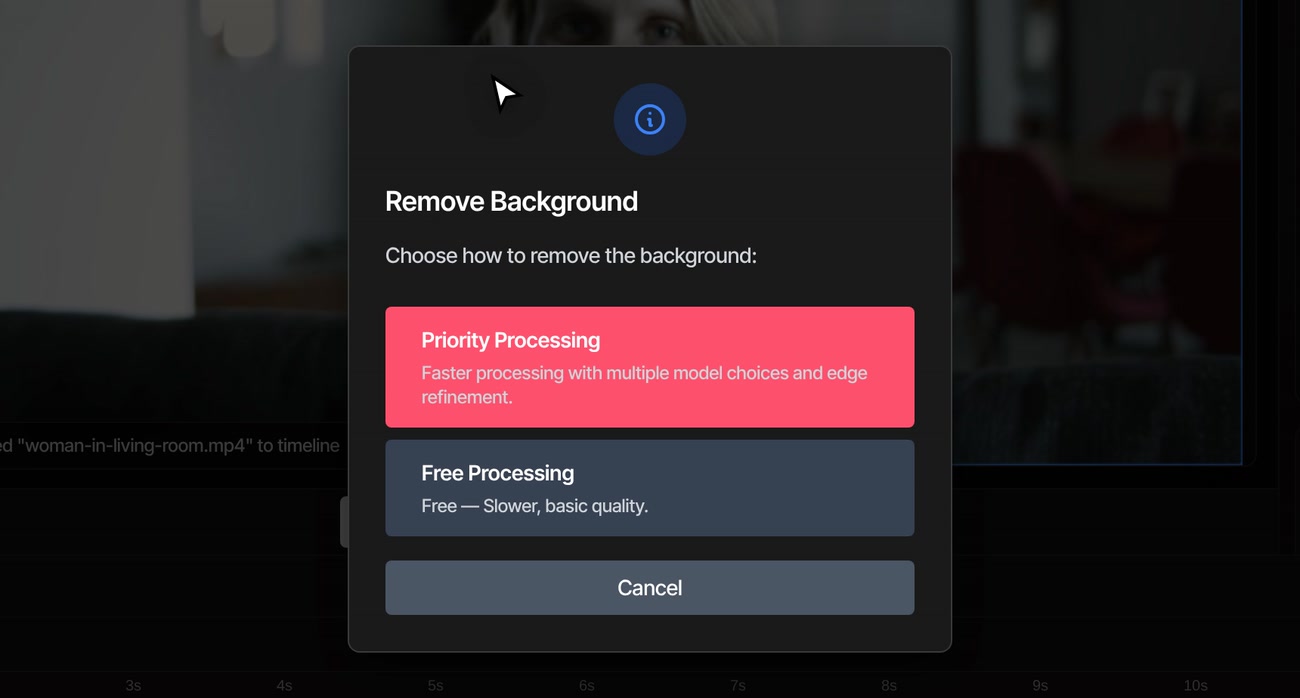
Choose Free Processing, then press Start.Sensitivity sets how much counts as the person: lower keeps more of them. Edge feather softens the outline. Preview shows one frame before and after.
-
04
Play it back, then export as usual.Progress shows in the status line while it works. Restore Background brings the room back, and Ctrl+Z undoes the whole thing.
What you get
What the cutout does, and where it stops.
-
Video and photos
A video is cut out frame by frame. A photo becomes a transparent picture that stays in your project.
-
Anything goes behind it
A clip, a picture or a title on a track below shows through. Move, scale or fade the person like any other clip.
-
Stays on your computer
Free Processing does the work on your own computer. Your video is not uploaded.
-
Basic quality, said plainly
Free Processing is the slower, basic option. Edges around hair come out soft, and with quick movement the outline can trail a little.
-
It reads the whole file
It works through the whole file you imported, not only the part on your timeline, and one clip at a time. Trim long footage before you import it.
-
A cutout you can undo
Restore Background puts the original back, from the right-click menu or by running the tool again. Ctrl+Z works too.
Free and Pro
Free on your computer. Priority Processing is part of Pro.
Free Processing works on any clip, with no account and no watermark. Priority Processing runs on VidTL’s servers instead, so it is faster and gives you more control: pick People for footage with people, General for objects or Detailed for sharper edges, and turn on Refined edges for hair and fine detail. It uses the AI credits in your plan’s weekly allowance, and the video is uploaded for the job.
See plans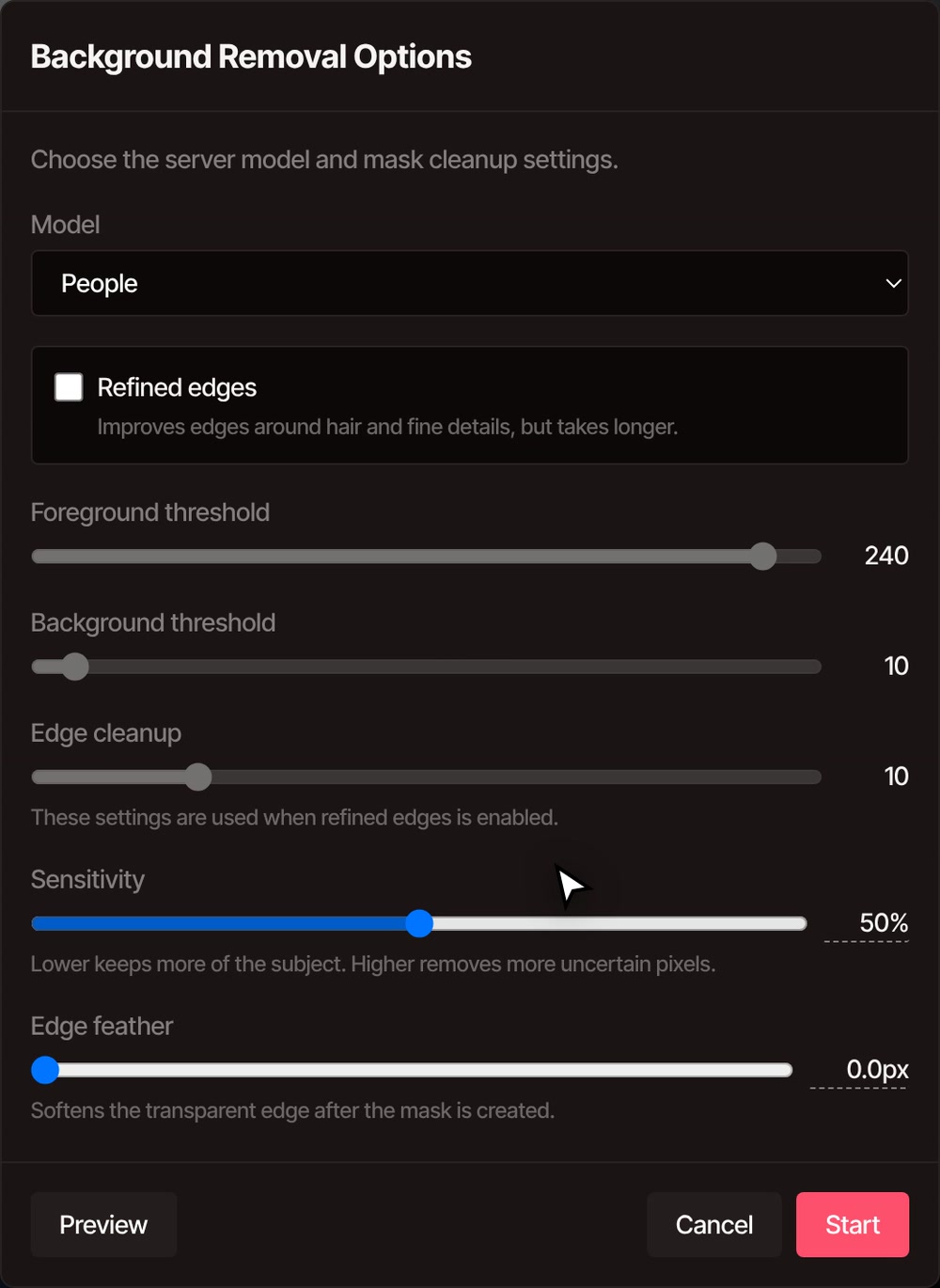
Questions
Questions about removing a background.
Can I remove a video background without a green screen?
Yes. Select the clip, choose Tools › Video › Remove Background and pick Free Processing. The editor finds the person through the whole clip and makes the rest see-through, so whatever is on the track below shows instead.
Is it really free?
Free Processing is free with no account, and nothing you export carries a watermark. Priority Processing, the faster server version, needs a Pro or Studio plan.
Does my video get uploaded?
Not with Free Processing, which runs on your computer. Priority Processing uploads the video to VidTL’s servers to do the work.
How good is the free cutout?
It is the basic option, and the editor says so. In the recording above a person in an ordinary room comes out cleanly, with a soft edge around the hair, and quick movement can make the outline trail. Lower the Sensitivity if it cuts away part of the person, and use Preview to check a frame before you start. For harder footage, Priority Processing has a Refined edges option.
Will the cutout still be there when I come back?
Yes, when your project is saved. For a photo, the cutout is saved as a transparent picture in your project. For a video, the cutout is saved with the project, in its folder on your computer or in your online storage when you are signed in, and it is back when you open the project again. Without either, a video's cutout lasts only while the editor is open, so export before you close it.
Can I export with a transparent background?
Yes. In File › Export Video choose WebM and tick Transparent background, and the space around the person stays see-through. If your footage was shot against a solid colour, the green screen tool is quicker.
Can the AI assistant do it for me?
On Pro, yes. Ask the AI assistant to remove the background from a clip and it runs the same tool as an ordinary edit you can undo.
Also in the editor
- Green screen Footage shot against a solid colour? Take the colour out instead.
- Online video editor The whole editor around it: timeline, effects, titles and export.
- Keyframe animation Move, scale or fade the person you cut out.
- AI video generator Make a backdrop to put behind them. Pro.
- AI assistant Say what to change and it makes the edit. Pro.
- Plans and pricing See what Priority Processing and the AI tools need.
Lose the room. Keep the person.
Free in your browser, with nothing to install and no watermark on what you export.