Free green screen tool
Green screen video editor online.
Select the clip, choose Remove Green Screen, and the screen disappears. Whatever sits on the track below shows through instead: a video, a photo or a title. It runs online on your own computer, free, with no account and no watermark.
- Free, no account
- No watermark
- Nothing to install
How it works
Take out a green screen in four steps.
-
01
Put the green screen clip on a video track, and the new background on the track below.A video, a photo or a title on a lower track shows through once the green is gone.
-
02
Select the clip and choose Tools › Video › Remove Green Screen.The panel opens beside the preview and reads the screen colour off the clip itself, so the background is usually gone before you touch anything.
-
03
Adjust until the edges look right.Raise How much colour goes until the whole background disappears. Edge softness and Colour spill clean up the outline. The picture changes as you move each slider.
-
04
Press Done, then play it back.Ctrl+Z undoes it. To change a setting later, select the clip and open Remove Green Screen again. Turn it off brings the screen back.
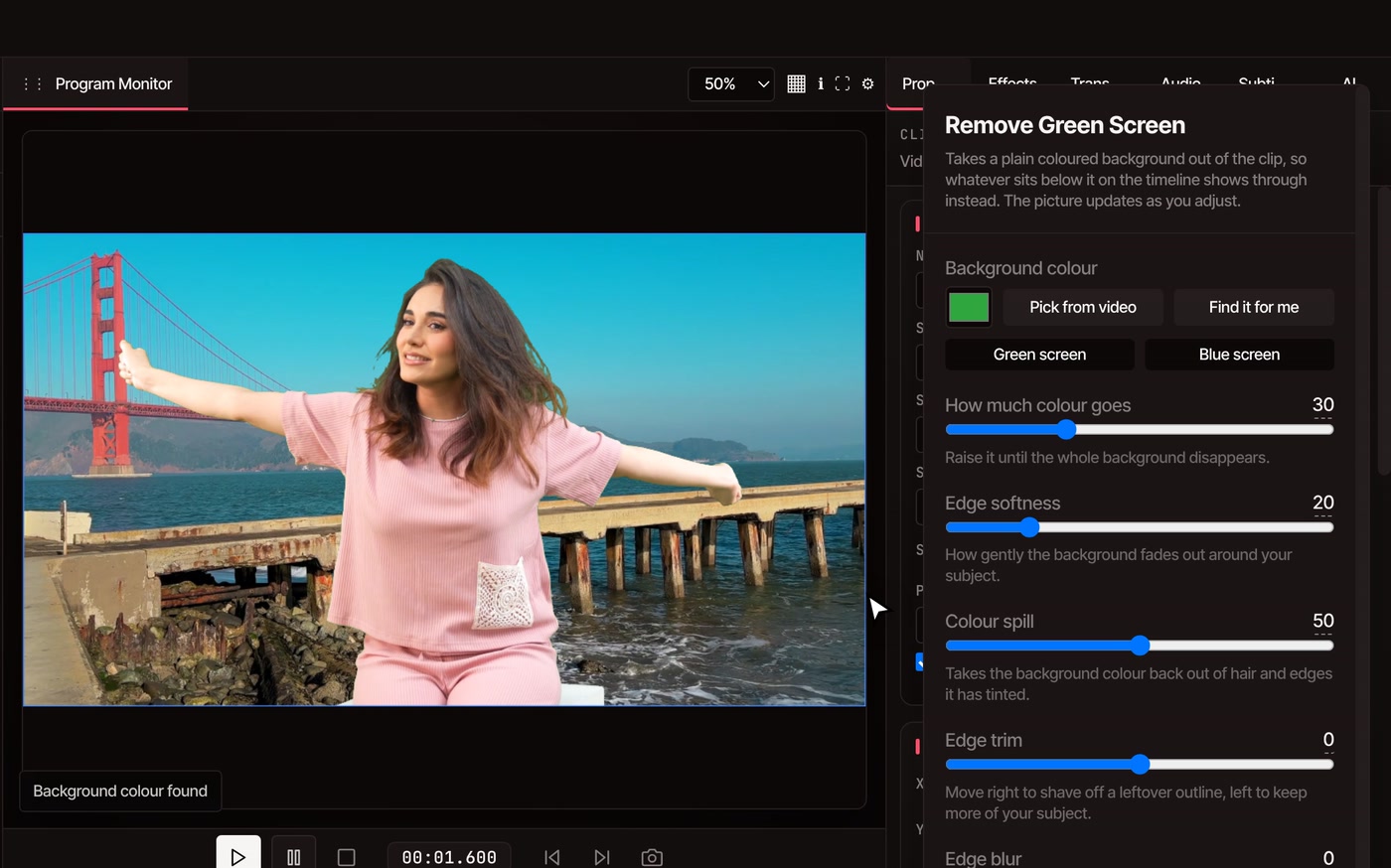
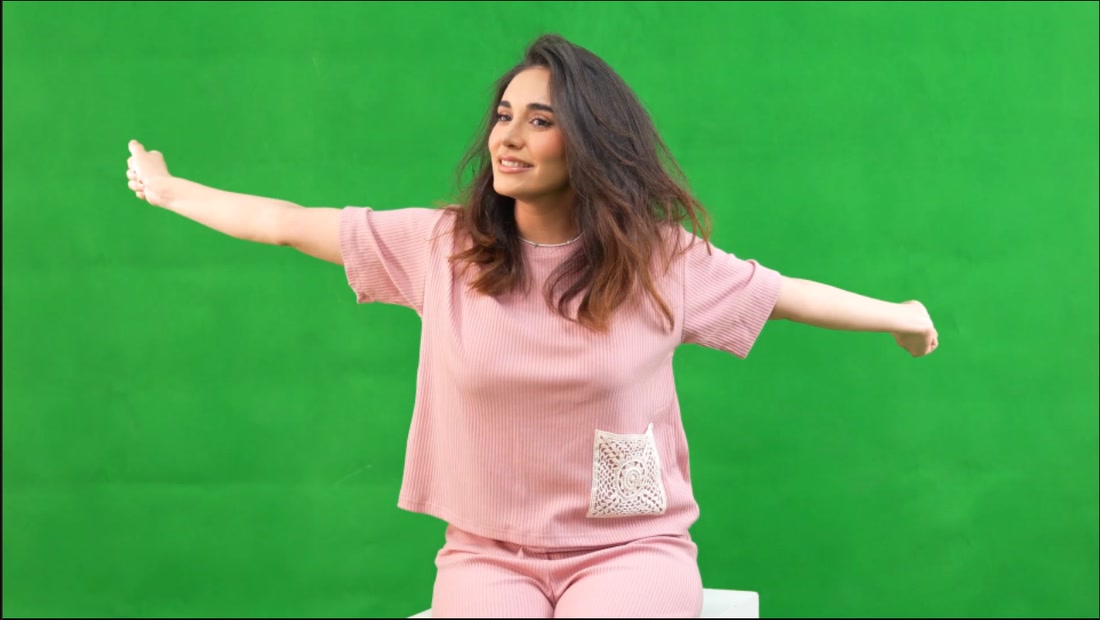
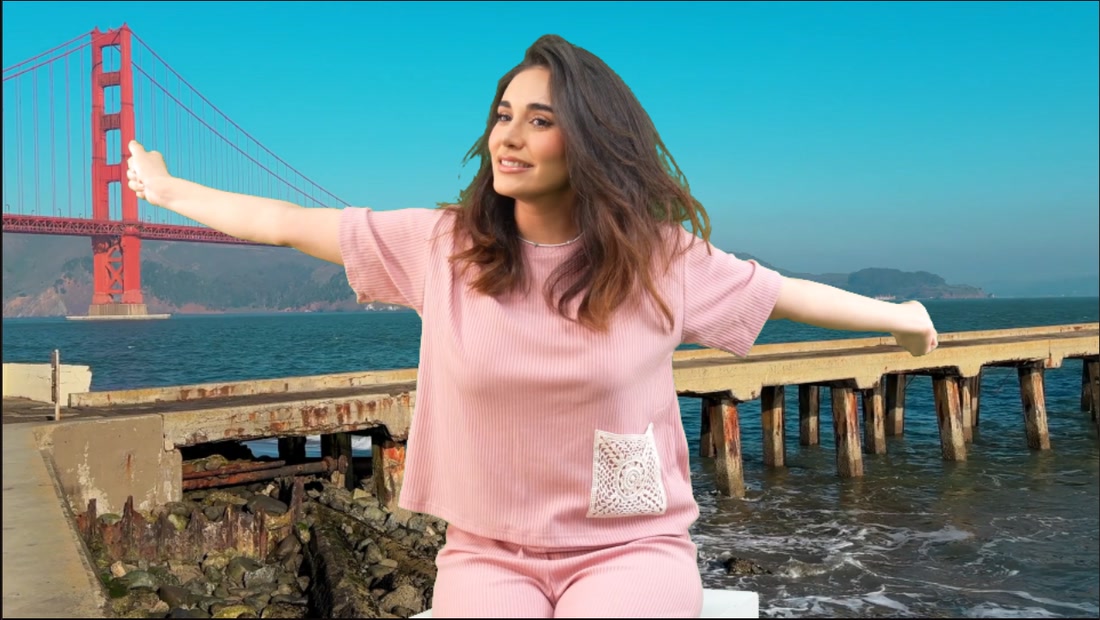
The result
One frame, before and after.
What you can change
What the panel controls, in plain words.
-
Any screen colour
Green screen and Blue screen buttons cover the usual studio backdrops. Pick from video lets you click the exact colour in the picture, and Find it for me reads it again.
-
Soft, clean edges
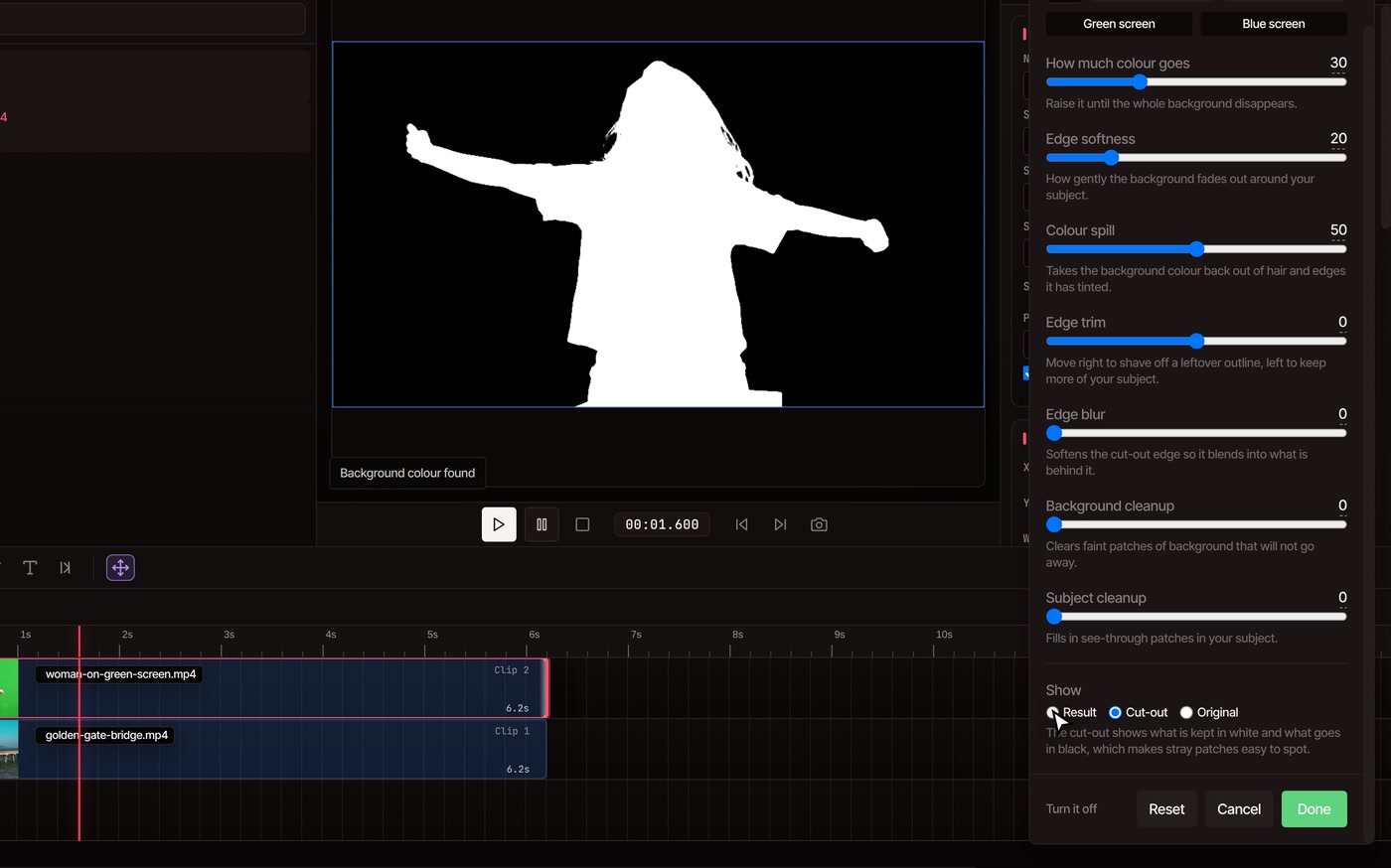
Edge softness sets how gently the screen fades out around the person. Edge blur melts the outline into the new background. Edge trim shaves off a leftover line, or keeps more of the person.
-
Green off the hair
Light bounces off the screen and tints hair and shoulders. Colour spill takes that colour back out of them.
-
A cut-out view to check it
Show › Cut-out turns the picture white where it is kept and black where it goes, so stray patches stand out. Background cleanup clears faint patches that will not go. Subject cleanup fills see-through patches in the person.
-
Several clips at once
Select more than one clip and the same settings apply to all of them, which suits shots filmed against the same screen.
-
Video or photos
It works on video clips and on photos. A keyed clip is still an ordinary clip: move it, scale it, fade it or put a title over it.
Before you film
What makes a clean key.
-
Only the screen colour goes.A stool, a light stand or the edge of the wall stays in the picture. Let the screen fill the frame.
-
Keep green out of what people wear.Anything close to the screen colour goes too, clothes and props included.
-
Light the screen evenly and stand away from it.That keeps the colour the same across the screen and keeps green light off hair and shoulders.
-
A dark, dull screen is harder.Black clothes and dark hair sit close to it and can start to go too. Lower How much colour goes a little at a time and watch the Cut-out view.
Questions
Questions about green screen editing.
Is the green screen tool really free?
Yes. Remove Green Screen works on the free plan with no account, and nothing you export carries a watermark. You can export up to 8K, at any length.
How do I put a new background behind the person?
Put it on a video track below the green screen clip. It can be a clip from your computer, a photo, or free stock footage from the Stock tab. Once the green is gone, whatever is on the lower track shows through.
Does it work with a blue screen or another colour?
Yes. Press Blue screen, or click the colour you want gone with Pick from video. It takes out whatever colour you give it, so keep that colour out of the person and their clothes.
Why is there a green edge or a stray patch left?
Switch Show to Cut-out so the leftovers are easy to see. Raise How much colour goes until the background is solid black. Use Colour spill for green on hair and skin, Edge trim to shave off a thin outline, and Background cleanup for faint patches that will not go.
Can I export with a transparent background?
Yes, as long as nothing is on a track below it. In File › Export Video choose WebM and tick Transparent background, and the space where the screen was stays see-through. Other formats fill it with black.
Does my video get uploaded?
No. The green is taken out on your own computer, using its graphics, and your footage stays there. If your browser can’t do that, the editor tells you and suggests the latest Chrome or Edge.
Is this the same as Remove Background?
No. Green screen takes out one colour, so it needs footage filmed against a plain screen, and you can adjust it live. Remove Background finds the person in ordinary footage with no screen at all.
Can the AI assistant do it for me?
On Pro, yes. Ask the AI assistant to take the green screen out of a clip and it reads the colour off the clip and applies the same tool. Afterwards you can adjust it or turn it off in the panel. Doing it yourself is free.
Also in the editor
- Remove video background No green screen? Cut a person out of ordinary footage.
- Keyframe animation Move, scale or fade the person you keyed out.
- Color correction Match the light on the person to the backdrop behind them.
- Motion graphics templates Add a name tag or title over your finished shot.
- Online video editor The whole editor around it: timeline, effects and export.
- AI assistant Ask for the green screen to go and it makes the edit. Pro.
Lose the green. Pick any backdrop.
Free in your browser, with nothing to install and no watermark on what you export.