Free video compressor
Compress video online, without uploading it.
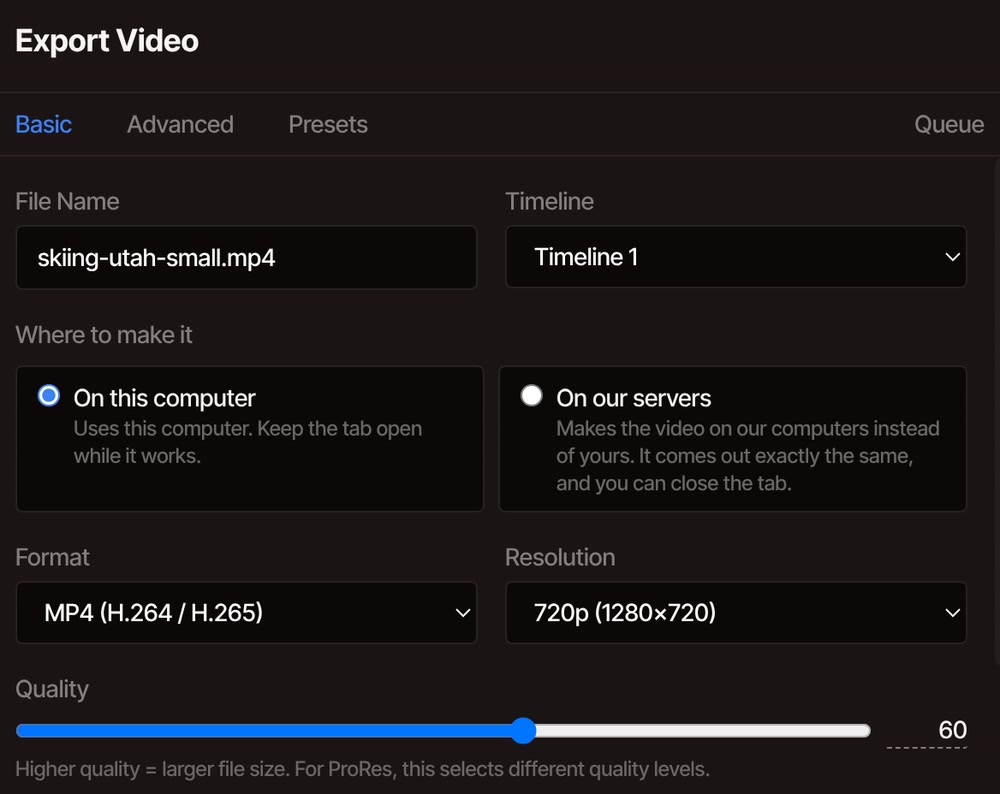
Export your video at a smaller size and a lower quality setting and the file shrinks. In the recording, a 42.5 MB clip comes out at 3.0 MB at 720p and quality 60. It all runs on your own computer, so the video stays with you.
- Free, no account
- No watermark
- Any length
How it works
Shrink a video in the export window.
-
01
Import your video and drag it onto the timeline.Use the Import button in the media library. The library shows each file's size, so you know what you are starting from.
-
02
Open File, then Export Video.Name the file and keep the format on MP4.
-
03
Pick a smaller Resolution and drag Quality down.720p at quality 60 is a good first try. Both are on the first tab.
-
04
Click Export.Keep the tab open while it works. When it finishes, your browser saves the new file.
What changes the size
Every setting that makes the file smaller.
-
Resolution
The list runs from 4K down to 360p. Original keeps your project's size, which is 1920 by 1080 unless you changed it, so a 4K clip already comes out at 1080p by default. Fewer pixels means fewer bits to store.
-
Quality
A slider from 1 to 100 that starts at 80. It sets how many bits each second of video gets, so the file grows and shrinks with it. Dropping from 80 to 60 takes about a quarter off.
-
Frame rate
In the Advanced tab. Project Default is 30 frames a second unless you changed the project, so a 60 fps clip comes out at 30. Choosing 24 instead of 30 takes a fifth off the target.
-
Sound
In the Advanced tab. Audio Bitrate goes from 96 to 320 kbps and starts at 192, and Mono is an option. Going from 192 to 128 saves about half a megabyte a minute, which matters less than the picture.
-
An exact bitrate
In the Advanced tab, set Rate Control to Target Bitrate and type how many kbps the picture gets. The exporter aims for that number and ignores the Quality slider.
-
Two one-click presets
In the Presets tab, Web Optimized is 720p at quality 72 with 128 kbps sound. Twitter/X is 720p at quality 78. Both export MP4.
How small it gets
Work out the size before you export.
The export picks how many bits each second of video gets from three things: the resolution, the frame rate and the Quality slider. So the size is easy to predict. A minute of video at the default 30 frames a second comes out like this.
| Resolution | Quality 80 | Quality 60 | Quality 40 |
|---|---|---|---|
| 1080p | 56 MB | 42 MB | 28 MB |
| 720p | 25 MB | 19 MB | 12 MB |
| 480p | 11 MB | 8 MB | 6 MB |
| 360p | 6 MB | 5 MB | 3 MB |
A file that is already small can get bigger
The table comes from your settings, not from your original. A video recorded at a lower bitrate than the export aims for grows when you export it again. In our test, a 1.5 MB, 9-second 1080p clip came out at 5.5 MB at the default settings, and still at 1.6 MB at 720p and quality 40. Check the size the media library shows for your file, then aim below it. Files from cameras and some phones, recorded at far higher bitrates, are the ones that shrink a lot.
Aim for a size
Need it under a limit?
In the Advanced tab, set Rate Control to Target Bitrate and type the kbps for the picture. To find the number, take the size you can afford in megabytes, multiply by 8000, divide by the seconds, then subtract the sound bitrate, which is 192 kbps unless you change Audio Bitrate in the same tab.
Gmail accepts attachments up to 25 MB on a personal account, per Google's help page in September 2026. For a 90-second video, 25 x 8000 / 90 leaves about 2200 kbps in total, and with Audio Bitrate set to 128 kbps that leaves about 2000 for the picture. Enter 1500 to be safe: that gives a file of about 18 MB. Bitrate targets came out between 5% and 26% over in our tests, and even 26% over stays under 25 MB.
WhatsApp, Discord and other chat apps set their own limits and change them from time to time. Look up the current number in the app, then use the same sum.
Questions
Before you shrink it.
Is compressing a video here really free?
Yes. You can compress without an account, there is no watermark, and there is no limit on how long the video is. Exporting runs on your own computer. The paid plans add things like the AI assistant and cloud exports, and you do not need any of them to make a file smaller.
Is my video uploaded anywhere?
No. The video is opened and exported on your own computer, so the file never travels to a server. It only leaves your computer if you choose to save it to cloud storage, or pick the paid option to make the video on our servers.
How much quality do I lose?
Some, and you choose how much. Lower quality and a smaller resolution both trade detail for size, and you see it first in busy, fast-moving scenes like water, grass or crowds. Try 720p at quality 60, play the result, and only go lower if it still looks fine to you.
Why did my file get bigger?
The export works to a bitrate set by the resolution, frame rate and quality you pick, not by the size of your original. If your video was already recorded at a lower bitrate than that, exporting it again can make it bigger. Compare the sizes in the media library, and lower the settings until the new file is smaller. In our test, a 1.5 MB clip came out at 5.5 MB at the default settings.
Does H.265 make a smaller file?
H.265 is in the Advanced tab, but it is not the shortcut it sounds like here. In our test on a 10-second clip at 720p and quality 60, H.265 took about five times as long to export and the file was bigger than the H.264 one, 5.0 MB against 3.0 MB. For small files, keep H.264, which is the default, and use Target Bitrate when you need an exact size. H.265 files also do not play on some older devices and apps.
How do I get a video under an email or chat limit?
Work out the bitrate that fits and type it in as a Target Bitrate. The section above has the sum and an example for email. WhatsApp, Discord and other chat apps set their own limits and change them, so check the number in the app first, then use the same sum.
Can I change the format as well as the size?
Yes, the same export window has MP4, WebM, MOV and GIF. If you mostly want to change the format, for example MOV or WebM to MP4, the video converter page covers that. If you would rather type a command, the Tools menu also has an FFmpeg tool, and this guide to using it in your browser walks through it.
Also in the editor
- Trim video Cutting what you do not need is the quickest way to a smaller file.
- Resize video Change the shape and size of the picture for TikTok, Reels or YouTube.
- Video converter Change the format, such as MOV or WebM to MP4.
- Online video editor Edit the whole video first, then export it smaller.
- Screen recorder Record your screen, then trim and shrink the file in one place.
- FFmpeg in your browser A guide to running commands on your files, with no install.
Make it smaller, keep it yours.
Free, no watermark, and no account needed to start.