Screen, webcam and voice
Free screen recorder with webcam, straight onto your timeline.
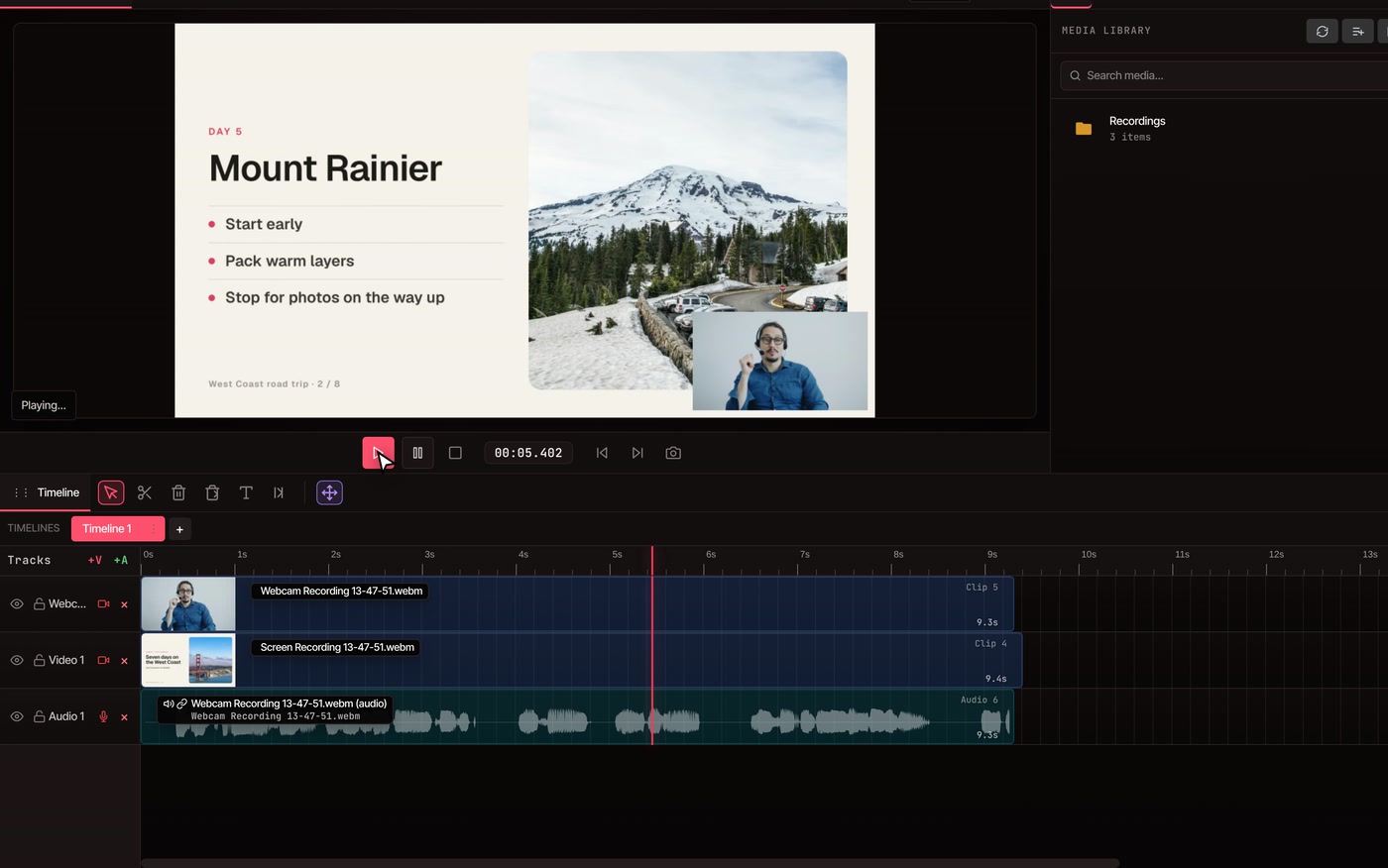
Record your screen, your webcam or both, right in your browser. Pick Screen + Webcam and your face sits in the corner, with your voice recorded alongside. Stop, and the recording is already on your timeline, ready to cut and export without a watermark.
- Free, no account
- No watermark
- Nothing to install
How it works
Press record on a track, and it lands right there.
-
01
Click the record button on a video track.It sits next to the track's name. The one on an audio track records your voice only.
-
02
Choose Screen, Webcam or Screen + Webcam.Your browser asks which screen, window or tab to share, and the first time, for your camera and microphone.
-
03
Talk it through while the timeline plays.Recording starts playback, so you can narrate slides, a demo or footage already in your edit.
-
04
Click the button again to stop.The recording lands on that track at the playhead, with its sound on an audio track. It's also kept in the Recordings folder.
What gets recorded
Your screen, your face and your voice.
-
A screen, a window or a tab
Your browser offers the choice each time you record. Share one window to keep the rest of your desktop private. In Chrome and Edge you can share a single tab, sound included.
-
Your webcam in the corner
Screen + Webcam puts the camera on its own track above the screen recording, a quarter of the frame wide in the bottom-right corner. Move it or resize it like any other clip.
-
Your microphone
Your voice records with the webcam, on its own audio track. A screen-only recording uses your microphone when the screen you share has no sound of its own.
-
Commentary over your edit
Recording plays your timeline from the playhead, so you can react to a clip or narrate footage that's already there, in time with it.
-
Nothing to import
No file to dig out of your downloads. Each recording lands at the playhead, linked to its sound, and stays in the Recordings folder of your media library.
-
Kept on your computer
Recording happens on your own computer. Your footage only goes online if you save it to cloud storage.
Questions
Before you press record.
Is the screen recorder really free?
Yes. You can record and edit without an account or a paid plan, and nothing you export carries a watermark. Every plan exports up to 8K. The paid plans add AI features; recording doesn't need one.
Which browsers can record?
Chrome, Edge, Brave and Arc, on a desktop or laptop computer. Firefox can edit your videos in VidTL but can't record in it yet, and the editor doesn't run on phones.
Can it record the sound from my computer?
When you share a tab in Chrome or Edge, you can include its sound. Whether sharing a whole screen or a window brings sound depends on your browser and your computer. Your microphone is always recorded when the webcam is on.
Can I record just part of my screen?
Share a single window, or a single tab in Chrome and Edge, instead of the whole screen. Afterwards, Auto Zoom can push in on the moments where you click and type.
Where does my recording go?
Onto the track where you pressed record, starting at the playhead, with its sound on an audio track. It's also kept in the Recordings folder of your media library. It all stays on your computer unless you save it to cloud storage.
Can I move the webcam or change its size?
Yes. The webcam is an ordinary clip on its own track, so you can drag it to another corner, resize it, trim it or hide it.
I'm on a Mac and my screen won't share. What now?
The first time, macOS asks you to let your browser record the screen. Allow it in System Settings under Privacy & Security, then reopen the browser and press record again.
How do I save it as an MP4?
Open File › Export Video and choose MP4, MOV, WebM or GIF, at any size up to 8K. Recordings are kept as WebM files until then, so you can edit them first.
Next, in the same editor
- Auto zoom Zooms in on a screen recording wherever you click and type.
- Auto captions Captions for everything you said, timed word by word.
- Webcam recorder Just you, talking to the camera, recorded onto a track.
- Voiceover recorder Talk over the video while it plays, onto an audio track.
- Tutorials and courses From a screen recording to a finished lesson.
- Product demos Walkthroughs with zooms, captions and titles.
Record it now, edit it right after.
Free in your browser, with nothing to install and no watermark on what you export.