Free auto zoom
Auto zoom for screen recordings, no keyframes by hand.
Select your recording, open Tools › Auto Zoom and press Find Activity. VidTL spots the typing, the menus that open and the messages that appear, then zooms in on each one and eases back out. It runs on your own computer, with no account and no watermark.
- Free, no account
- No watermark
- Nothing to install
How it works
Pick the recording, press Find Activity.
-
01
Get the recording on the timelineRecord it with the screen recorder, or drop in a video file you already have.
-
02
Click the recording to select itAuto Zoom works on the selected video clips, so you can do several at once.
-
03
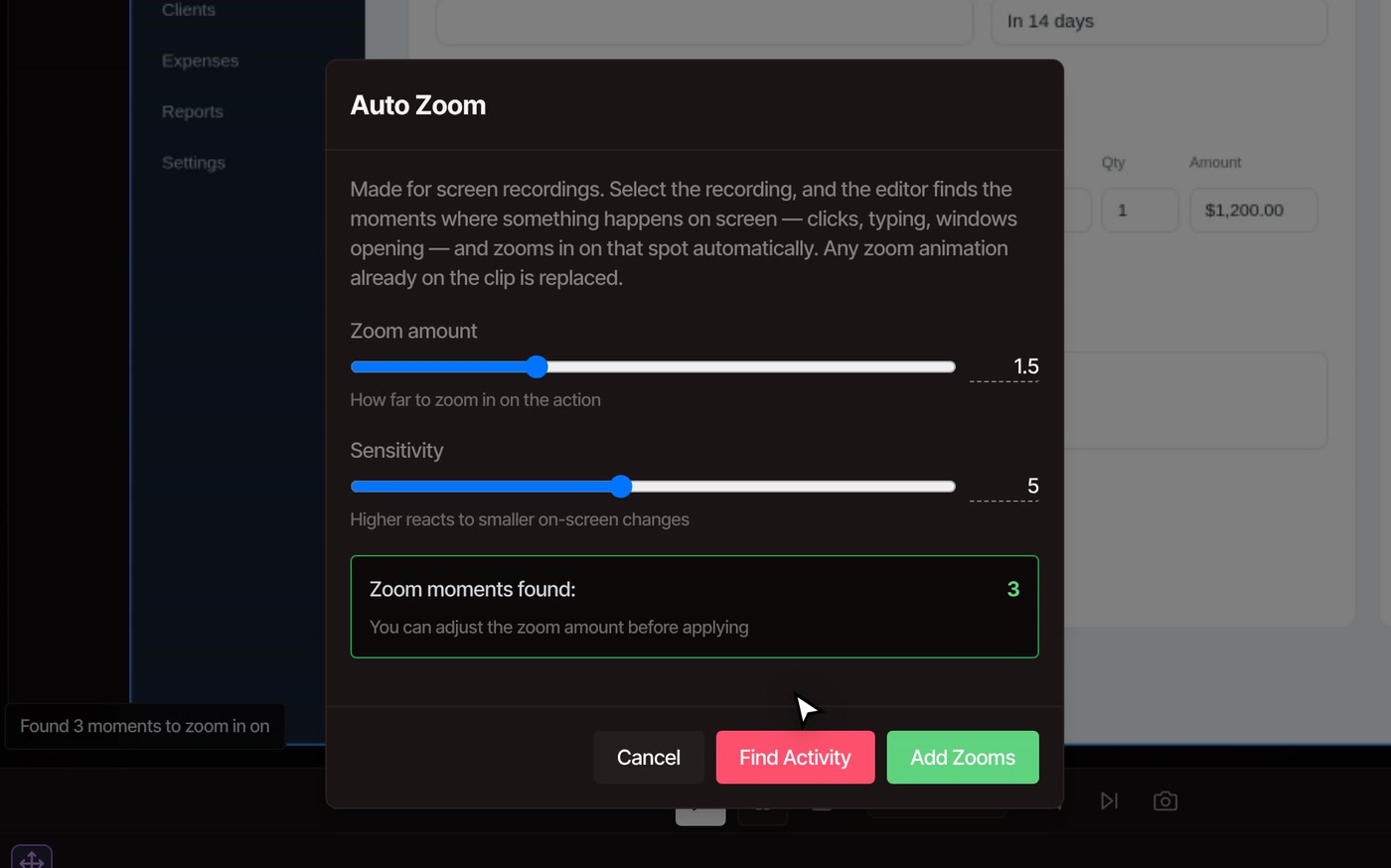
Open Tools › Auto Zoom and press Find ActivityThe editor watches the recording faster than it plays and reports how many zoom moments it found.
-
04
Press Add ZoomsChange the zoom amount first if you like. The zooms land on the clip. Play it back to see them.
What it zooms in on
It watches the screen, not your mouse.
-
Typing, menus and messages
It looks for a spot on the screen that keeps changing: text being typed, a list or menu opening, a message sliding in. Each zoom begins just before the change and eases back out a moment after it.
-
Clicks count when something changes
VidTL does not track your pointer. A click gets a zoom when it makes something happen on screen, like a menu opening or a message appearing. A pointer wandering about, scrolling, or a change that fills the whole screen gets none.
-
Only the strongest moments
At most one zoom for every 8 seconds of recording, and never more than 30 on one clip. A 24-second recording gets up to three, so the result stays calm instead of jumpy.
-
You set how far and how picky
Zoom amount runs from 1.2 to 2.2 times, and starts at 1.5. Sensitivity runs from 1 to 10, starts at 5, and decides how small a change still counts. Raise it if moments were missed.
-
Zooms you can still edit
Each zoom is a set of ordinary keyframes on the clip’s size and position, shown as diamonds on the timeline. Move them, delete them, or add your own. Keyframe animation covers how.
-
Replaces earlier zoom motion
Auto Zoom clears any size and position animation already on that clip before it writes its own, so skip it on a clip you framed by hand. One undo brings everything back.
Questions
Before you zoom.
Is auto zoom really free?
Yes. Auto Zoom is in the Tools menu for everyone: no account, no paid plan, no watermark on what you export. On a Pro plan you can also ask the AI assistant to run it for you in plain words.
Can it zoom a recording I made in another app?
Yes. Any screen recording you can drop into the editor works, whoever recorded it. It does best on recordings of apps and web pages, where most of the screen sits still and one spot changes at a time. Footage where the whole picture keeps moving, like gameplay, gives it little to hold on to.
Why did it find fewer moments than I expected?
It keeps only the strongest moments, at most one for every 8 seconds, so a short recording can only get a few. If a quiet change was missed, raise Sensitivity and press Find Activity again.
Can I change a zoom afterwards?
Yes. The zooms are ordinary keyframes, so you can move or delete them like any other. Running Auto Zoom again replaces them, which is the quick way to try a different zoom amount.
How long does it take?
It watches the recording faster than it plays, on your computer, and the button shows how far along it is. A short recording takes a few seconds, and a long one takes longer.
Does my recording leave my computer?
No. Auto Zoom runs in your browser on your own machine. Footage leaves your computer only if you save to cloud storage or use a tool that runs on VidTL’s servers.
Next, in the same editor
- Screen recorder Record your screen, with your webcam if you like, straight onto the timeline.
- Tutorial videos Turn a recording into a finished lesson with captions and titles.
- Product demos Walkthroughs of your app with zooms, captions and a voiceover.
- Voiceover recorder Talk over the recording while it plays, onto an audio track.
- Keyframe animation Fine-tune the zooms, or animate size and position yourself.
- Auto captions Add captions to what you say in the recording.
Record it once, let it zoom itself.
Free in your browser. Nothing to install, and no account to start.