Product demo video maker
Make a product demo video from one screen recording.
Record your walkthrough in the browser, then let Auto Zoom push in on the menus, forms and cards where something happens. Add a title, captions and your voice, and export an MP4 with no watermark.
- Free, no account
- No watermark
- Nothing to install
How it works
Record once, then polish it.
-
01
Record your walkthrough.Press the record button on a video track and choose Screen or Screen + Webcam. Or drop in a recording you already have.
-
02
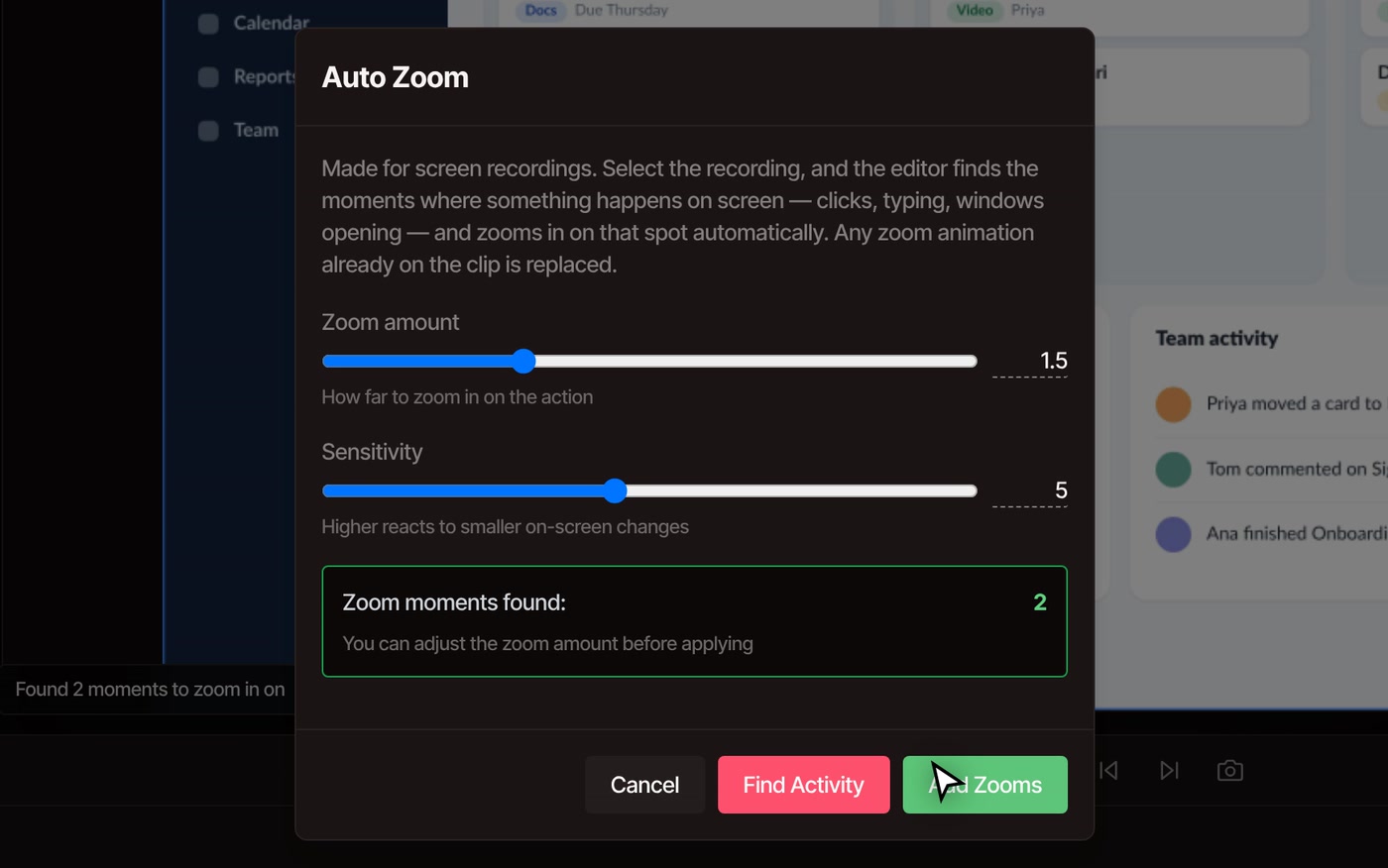
Select the recording and open Tools › Video › Auto Zoom.Press Find Activity, then Add Zooms. Each zoom is a set of ordinary keyframes you can still move.
-
03
Add a title.Pick the Text tool, click the picture where the words go and type. The Graphics tab has ready-made name tags and lower thirds.
-
04
Add captions or a voice if you want them.Record your voice over the playing timeline, or write captions from what you said.
-
05
Export.File › Export Video, as MP4, MOV or WebM, at up to 8K, with no watermark.
What goes into a demo
Everything a walkthrough needs, in one editor.
-
Record the walkthrough
Screen, Screen + Webcam or webcam only, from the record button on a track. Your voice is recorded with the webcam. The screen recorder has the details.
-
Zoom in where it matters
Auto Zoom reacts to what changes on screen: typing, a menu opening, a card moving. It never zooms more than about once every eight seconds, so the result stays calm.
-
Titles and name tags
Type a title straight onto the picture, restyle it in the Properties panel, or take a name tag from the Graphics gallery. Add text to video shows both.
-
Your own voice, or a typed one
Record yourself over the playing timeline for free, on an audio track you can trim and move. On Pro, AI voice over turns a script into a voice.
-
Captions from what you say
The editor writes captions timed to your words and you fix any word by typing. Auto captions are free with a free account.
-
Cut the fumbles
Trim the false start, split out the pause, or run Remove Silence to close the gaps while you were thinking. Everything stays on one timeline.
Free, with a Pro option
Recording, Auto Zoom, titles, trimming and export are free. Pro adds the voice from a script and an AI assistant.
You do not need an account to record, zoom, add titles or export. Captions need a free account with a confirmed email. On Pro you can type a script and get a voiceover, or ask the AI assistant to add titles and captions for you. Every plan exports without a watermark, at any length.
See plansQuestions
Before you record a demo.
Is the product demo video maker free?
Yes. You can record your screen, zoom, add titles, cut and export without an account, and nothing you export has a watermark. Captions are free with a free account. Pro adds voiceovers from text and the AI assistant.
What do I need to record my screen?
A desktop or laptop computer and a browser: Chrome, Edge, Brave, Arc or Firefox. The editor does not run on phones. Your browser asks which screen, window or tab to share, and for your camera and microphone the first time.
Can I use a recording from another app?
Yes. Drop any screen recording into the editor and run Auto Zoom on it. It works best on apps and web pages, where most of the screen sits still and one spot changes at a time. Footage where the whole picture keeps moving gives it little to hold on to.
Will Auto Zoom follow my mouse?
No. It watches the screen, not the pointer. A click gets a zoom when it makes something happen, like a menu opening or a card moving. A pointer drifting around, scrolling, or a change that fills the whole screen gets none.
Can I change the zooms afterwards?
Yes. They are ordinary keyframes on the clip, so you can move or delete them, and Zoom amount and Sensitivity can be changed before you press Add Zooms. Running Auto Zoom again replaces them, and one undo brings the old ones back.
How do I add a voiceover to my demo?
Record your own: press record on an audio track and talk while the timeline plays, free. On Pro you can instead type a script and pick a voice. Either way the voice is an ordinary clip you can trim and move.
Does my recording leave my computer?
Not for recording, zooming, titles or export: that all happens on your computer. Footage leaves it only if you save to cloud storage or use a tool that runs on VidTL’s servers, like Pro’s faster captions.
What can I export?
MP4, MOV, WebM or GIF, at up to 8K. Use the resolution list in the export window to pick a size, for example 1080p for a website or 4K for a launch page. A short GIF is handy for docs and release notes.
Next, in the same editor
- Screen recorder Record your screen, with your webcam if you like, straight onto the timeline.
- Auto zoom How Auto Zoom picks its moments, and how to tune it.
- Add text to video Titles, name tags and lower thirds on the picture.
- Auto captions Captions timed to your words, free with a free account.
- AI voice over Type a script and get a voiceover. Part of Pro.
- Tutorial videos Turn a recording into a finished lesson with chapters.
Record it once, polish it right here.
Free in your browser, with nothing to install and no watermark on your export.