Text to speech for video
Type a script. Get a voiceover.
Write what you want said, pick a voice, and VidTL speaks it onto an audio track under your video. It is part of Pro. Edit the result afterwards like any other clip.
- Pro and Studio
- 20+ languages
- Nothing to install
How it works
Make a voiceover in four steps.
-
01
Put your video on the timeline and click where the voice should start.The voiceover lands at the playhead.
-
02
Choose Tools › Generate › Text to Speech (API).A box opens with a list of voices and a place for your script.
-
03
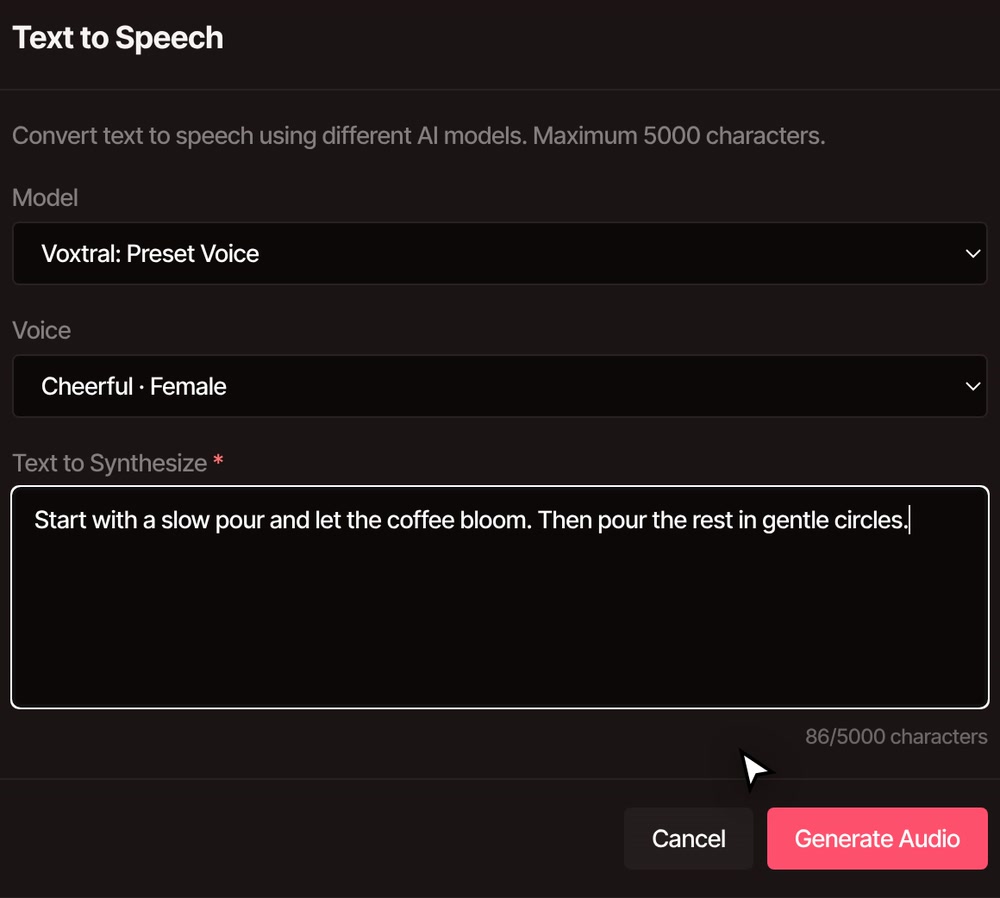
Pick a voice, then type or paste your script.Up to 5,000 characters at a time. A counter under the box keeps track.
-
04
Press Generate Audio.Progress shows in the status line. When it finishes, the voiceover is on an audio track, ready to play.
Listen
Hear what it actually sounds like.
This is the voiceover from the recording above, exported from the editor as it came out. Press play and judge the voice yourself.
“Start with a slow pour and let the coffee bloom. Then pour the rest in gentle circles.”
The script, as typed. Nothing was edited afterwards.
What you get
Voices, languages, and what you control.
-
Ready-made voices
Casual, cheerful and neutral English voices, plus a male and a female voice for Spanish, French, German, Italian, Dutch, Portuguese and Hindi, and a male Arabic voice. Other lists add American and British English, Chinese, Japanese and Korean voices.
-
More than 20 languages
One choice in the box reads 23 languages, including Arabic, Chinese, Dutch, French, German, Hindi, Japanese, Korean, Portuguese, Russian, Spanish, Swahili and Turkish. You pick the language before you generate.
-
Describe the voice
Some choices take a description in place of a name, such as “female, young, low pitch, British.” Others take a note on the delivery, such as “speak with a happy tone.”
-
An ordinary clip
The voiceover is named after the first words of your script and sits on an audio track like any recording. Trim it, move it, change its volume, or delete it and try again.
-
You choose where it goes
It starts at the playhead. For a long script, make it in pieces and place each one after the last, so you can fix a line without redoing the rest.
-
Your video stays put
Only the words of your script are sent to VidTL to be spoken. The video itself never leaves your computer for this.
Part of Pro
Voiceovers from text come with Pro and Studio.
Each voiceover uses some of your plan’s weekly AI credits, more for a longer script. The free Hobby plan has no voiceovers from text, but it still edits and exports with no watermark, at any length, and you can record your own voice over a video or import a recording you made elsewhere.
See plansQuestions
Questions about AI voice overs.
Is AI voice over free?
Not in the free plan. Voiceovers from text are part of Pro and Studio, and each one uses some of your weekly AI credits. The Hobby plan still edits and exports with no watermark, and you can record your own voice or import a recording. The plans are here.
Can the voiceover sound like me?
Yes. On Pro you can copy a voice from a clip, a file or a recording and speak new lines in it. Voice cloning has the details. Only copy your own voice, or one you have permission to use.
How long can a script be?
Up to 5,000 characters for each voiceover. For something longer, generate it in pieces and place each one after the previous clip on the timeline.
Can I add captions to the voiceover?
Yes. Generate subtitles from the voiceover clip and the editor writes them from the sound, as it does for any recording. This guide shows how.
Can the AI assistant make it for me?
On Pro, yes. Ask the AI assistant to narrate your video and it speaks the lines and places them on the timeline. You can undo what it did like any other edit.
Also in the editor
- AI voice cloning Speak new lines in your own voice, or one you have permission to use.
- Voiceover recorder Rather talk it yourself? Record over the video while it plays.
- Auto caption generator Put the words of your voiceover on screen.
- AI music generator Describe a mood and get a track to sit under the voice.
- AI video editing assistant Ask for narration, cuts and titles in plain words.
- Plans See what Pro and Studio include.
Give your video a voice.
Type the script, pick a voice, and it lands on your timeline.