How to Add AI Captions to Video Automatically - Online For Free
VidTL transcribes your video's audio and places word-level captions on the timeline, free, in your browser. You review the text, style it, and export.
Typing and timing subtitles by hand runs 5-10 minutes per minute of video. Automatic caption generation skips that: the tool reads the audio track and writes out captions with word-level timestamps in a few clicks.
This guide covers the full path, from importing a video to exporting the captioned file.
Why automatic captions matter
Captions reach viewers who are deaf or hard of hearing, and anyone watching with sound off. On social platforms, captioned videos tend to hold attention better, and the transcribed text gives search engines something to index.
The main trade-off is accuracy. Automatic transcription is fast but not perfect, so a review pass is part of the workflow.
Step-by-step: add captions to video automatically
1. Open VidTL and import your video
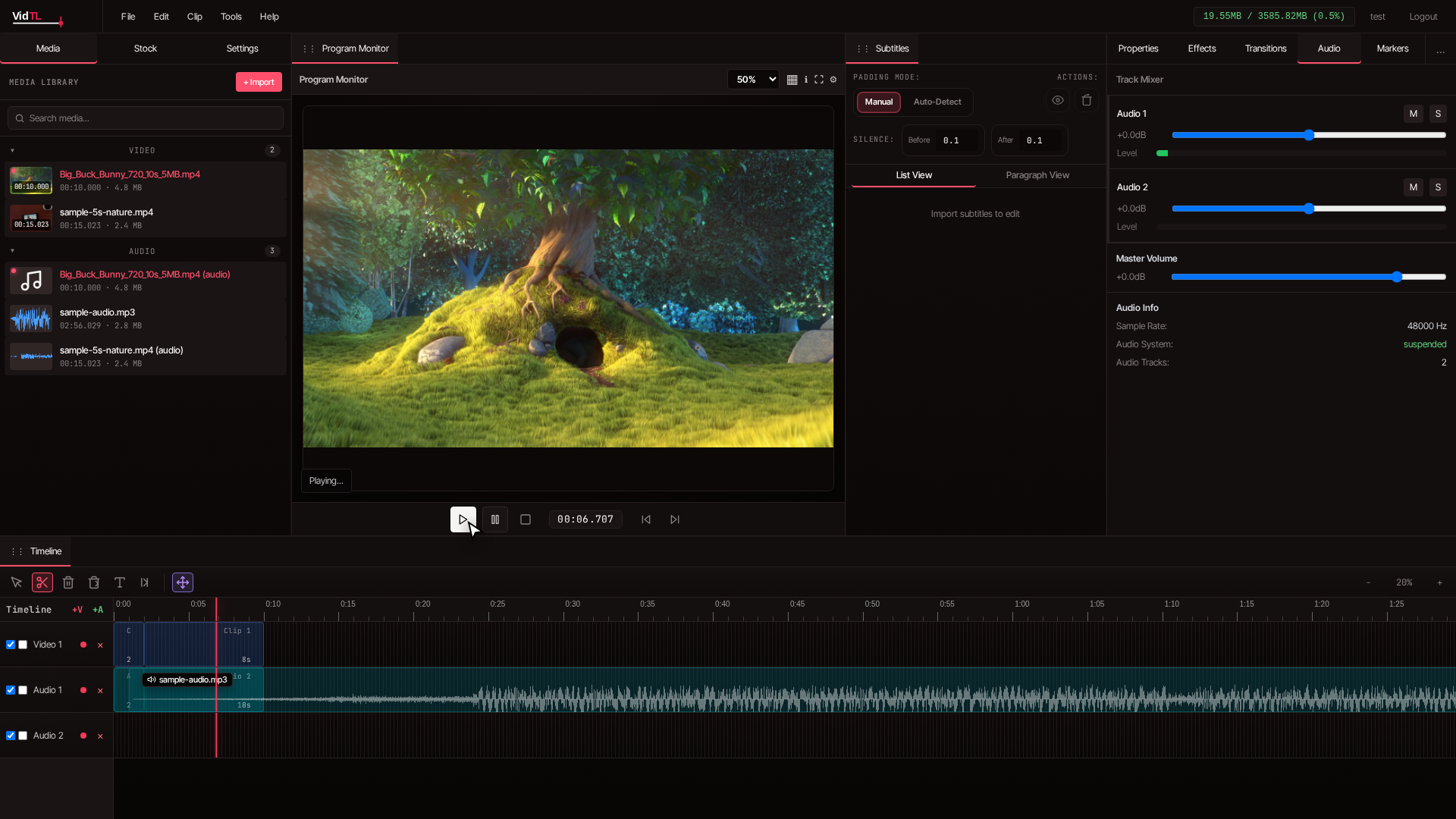
Open the VidTL editor in your browser. You'll see a media library on the left, a preview window in the center, and a timeline at the bottom.
Click the Import button in the Media Library panel and select your video file. VidTL accepts MP4, MOV, WebM, and AVI.

Once imported, the video shows up as a thumbnail in the Media Library with its filename, duration, codec, and file size.
2. Add the video to the timeline
Drag the video from the Media Library onto the timeline. It lands on the first video track, and if the file has audio, a linked audio clip appears on the matching audio track.
The timeline shows waveforms on audio tracks, so you can see where speech sits.

3. Generate automatic captions
Click the video clip on the timeline to select it. A colored border marks the selection.
In the top menu bar, open Tools and choose Generate Subtitles (Free). This runs the built-in speech recognition in your browser.
The free option is first come, first served. For longer videos, Generate Subtitles (Priority) uses priority cloud processing and finishes faster.

A progress dialog appears while the engine transcribes the audio with timestamps. Speed depends on demand and the model you pick.
A 5-minute video takes about 3-6 minutes on a typical modern computer. You can keep working while it runs.
4. Review and edit the captions
When processing finishes, caption clips appear on the timeline, each word or phrase timed to the audio.
Open the Subtitles tab in the left sidebar to edit them. The editor has two views.

List View shows each caption with its start time. Click an entry to jump to that point, or click the text to edit it.
Paragraph View shows the captions as flowing text, which makes it easier to read the whole transcript and spot errors. Click any word to edit it.
Transcription is typically 98-99% accurate on clear audio. Fix misheard words, especially technical terms, names, and accented speech.
5. Customize caption appearance
Select a caption clip on the timeline and open the Properties panel on the right. From there you can change how the captions look.
Text options cover font family and size, color and opacity, bold, italic, underline, and alignment.
Background and effect options cover background color and opacity, stroke or outline color and width, shadow, and position and padding.
For social media, white text with a black stroke or a semi-transparent black background stays readable over most footage.
6. Export the captioned video
When the captions look right, go to File and choose Export Video. Set the resolution, frame rate, and quality you want.
VidTL renders the captions into the video file. A progress bar tracks the render, and you can download the finished video when it completes.
If you need a separate caption file, download the subtitles as an SRT text file and upload it to platforms like YouTube instead of burning them in.
Tips for better automatic captions
- Use clear audio. Record in a quiet room with a good microphone. Background music and noise lower accuracy.
- Speak clearly. A moderate pace and clear pronunciation produce fewer errors than mumbling or rapid speech.
- Check technical terms. Jargon, brand names, and technical words often come out phonetically, so review and correct them.
- Add punctuation. Automatic captions may miss periods, commas, and question marks. Add them to make the captions easier to read.
Manual vs automatic captions
| Aspect | Manual captions | Automatic captions |
|---|---|---|
| Time required | 5-10 minutes per minute of video, over 1 hour for a 15 minute video | 30 seconds plus processing time plus review |
| Accuracy | 100% if done carefully | 98-99%, requires review |
| Effort level | High, constant attention needed | Low, just review and correct |
| Timing precision | Depends on skill | Word-level timing |
| Cost | Free but time-consuming | Free with VidTL |
| Best for | Short videos, creative captions | Any length, standard transcription |
Frequently asked questions
Can I add captions to video automatically for free?
Yes. The Generate Subtitles (Free) option runs speech recognition at no cost, with no limits on video length or usage.
How accurate are automatically generated captions?
Typically 98-99% with clear audio. Accuracy depends on audio quality, speaker clarity, background noise, and accent. Technical terms and proper nouns may need correction, so review the captions before publishing.
What video formats work with automatic caption generation?
VidTL supports MP4, MOV, WebM, AVI, and MKV. The speech recognition works with any video that has an audio track, so any file with clear spoken words can be captioned.
Can I export captions as a separate file instead of burning them in?
Yes. Export the captions as an SRT file from the subtitle editor and upload it to YouTube, Vimeo, or Facebook, where viewers can toggle captions on or off. You can also burn them into the video for permanent captions.
How long does it take to generate automatic captions?
It depends on video length and the quality you select. The free version takes roughly 2-3 minutes for a 5-minute video on a typical modern computer. The priority option processes a 15-minute video in about 30 seconds.
Open VidTL in your browser, import your video, and click Generate Subtitles to caption your next project.