
For classrooms and students
A video editor for school that needs no install.
VidTL opens in the browser on a school laptop or desktop, so a student can start a video project in the next minute. No software to install, no account to make, and no watermark on the finished video. The clips stay on the computer.
- Nothing to install
- No account to start
- No watermark
A class project
From a folder of clips to a video to hand in.
-
01
Open the editor and bring in your clipsPress Import in the Media Library, or search the Stock tab for free videos and photos.
-
02
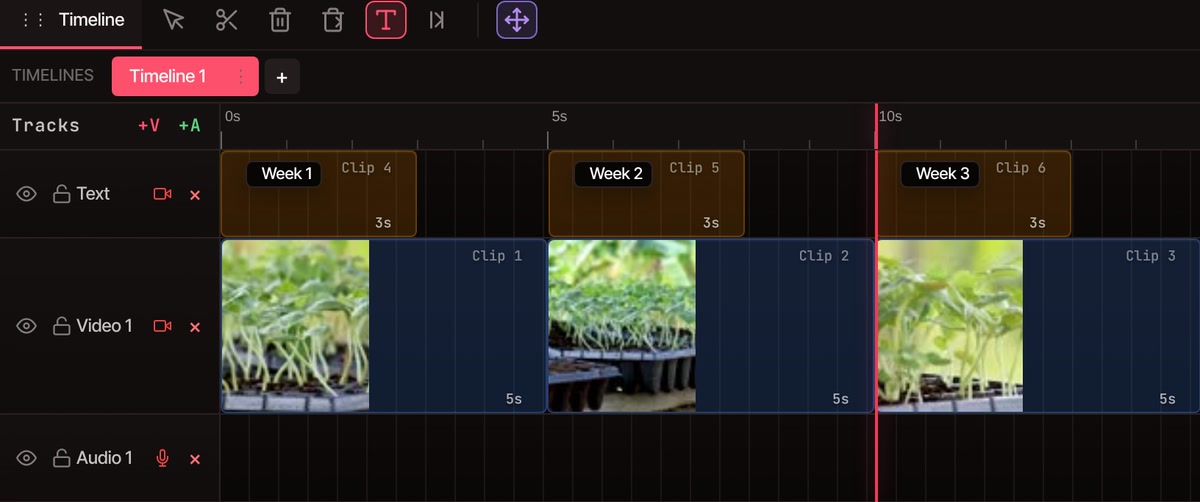
Put them in orderAdd all clips to timeline lays them end to end, ordered by name or by date. Drag them to rearrange.
-
03
Add wordsPick the Text tool, click the picture and type. Change the size and colour in the Properties panel.
-
04
Export the MP4File, then Export Video. The file lands in the browser’s downloads, ready to upload to your teacher.
What students get
Enough for a book report, a science film or a debate.
-
Record it yourself
Record your screen, your webcam and your voice in the browser, then cut the recording on the same timeline. The browser asks permission for the camera and microphone the first time. More on the screen recorder.
-
Free clips and photos
The Stock tab searches free stock videos and photos from Pexels and adds them to your project. Your own files come in with Import.
-
Titles and labels
The Text tool puts words on the picture. The Graphics tab has ready-made titles and name tags you retype. More on adding text.
-
Captions
Write captions for what people say, so classmates can follow with the sound off or read along. Free with a free account that has a confirmed email. How captions work.
-
Cut, split and add music
Trim and split clips, stack them on several tracks and lay a soundtrack under them. Made a mistake? Undo is in the Edit menu. Adding music.
-
Any length, no stamp
A documentary can run as long as it needs to. Nothing is stamped on the picture, and exports go up to 8K on every plan.
On school computers
Four things to check before the first lesson.
Nothing to install means IT has nothing to approve on the computer itself. The browser and the network still matter.
-
A current browser
Chrome, Edge, Brave, Arc and Firefox all run VidTL well, and Safari works for lighter editing. It needs a laptop or desktop: on a phone it shows a “Desktop computer required” message. For Chromebooks, read the Chromebook page.
-
The school’s web filter
The editor opens from vidtl.com. If the page won’t load, ask your IT team to allow that address. If stock clips won’t load, your own files still import as normal.
-
Camera and microphone
Recording needs the browser’s permission. If the school has turned the camera or microphone off, recording won’t work, but importing video and audio files still does.
-
Saving between lessons
In Chrome and Edge the editor asks you to pick a folder where your work saves by itself. Otherwise File, then Save Project, downloads a project file you can reopen with Open Project. If the computer clears itself at log-off, copy that file and the finished MP4 to your school drive first.
Where the footage goes
Editing and exporting happen on the computer in front of the student.
Footage leaves the computer only if someone saves to cloud storage or uses a tool that runs on VidTL’s servers, such as priority captions. The free captions run on the computer too. Exporting “on this computer” is the default, and it needs the tab to stay open until it finishes.
See what each plan includesQuestions
From teachers and students.
Is VidTL free for students?
Yes. The free plan has no length limit on videos, no watermark and exports up to 8K, and a student does not need an account to start. The paid plans add the AI assistant, voiceovers from text and AI music and video, which most school projects don’t need.
Does it work on school Chromebooks and locked-down computers?
It runs in the browser, so there is nothing to install or approve. It works as long as the computer has a current browser and can open vidtl.com. How smoothly long or high-resolution video plays depends on the computer, and the Chromebook page says what to expect there.
Do students need an account?
Not to edit and export. A free account with a confirmed email adds captions written on the computer and saving projects online. Each student would need their own account for that, and it is up to your school whether to use them.
Can a teacher manage a class or see students’ work?
No. VidTL has no class lists, assignments or teacher dashboard. Each student works on their own computer and hands in the exported MP4 the way your class already collects work.
Are my students’ videos uploaded anywhere?
Not unless someone chooses it. Editing and exporting happen on the computer. Files leave it only when saved to cloud storage or sent to a tool that runs on VidTL’s servers.
Keep going
- Video editor for Chromebook What a school Chromebook handles well, and what it struggles with.
- Screen recorder Record a presentation, a demo or a webcam talk straight onto the timeline.
- Auto caption generator Add captions to a project so everyone in the room can follow it.
- Add text to video Titles, labels and name tags for a report or a presentation.
- Add music to video Lay a soundtrack under a project and fade it out at the end.
- Online video editor The whole editor: tracks, effects, titles and exports.
Start the project. Install nothing.
Open the editor in a browser, bring in some clips and have an MP4 before the lesson ends.