Webcam recorder
Free webcam recorder online, with the editor right behind it.
Press record on a video track, choose Webcam and talk. Your camera and microphone record together in your browser, and when you stop, the clip is already on your timeline with its sound. Trim it, caption it and export it without a watermark.
- Free, no account
- No watermark
- Nothing to install
How it works
Record on a track, and it lands right there.
-
01
Click the record button on a video track.It sits beside the track's name. The recording starts wherever the playhead is.
-
02
Choose Webcam.The first time, your browser asks to use your camera and microphone. Say yes.
-
03
Talk to the camera.The timeline plays while you record. The preview shows you live, and a red clip grows on the timeline.
-
04
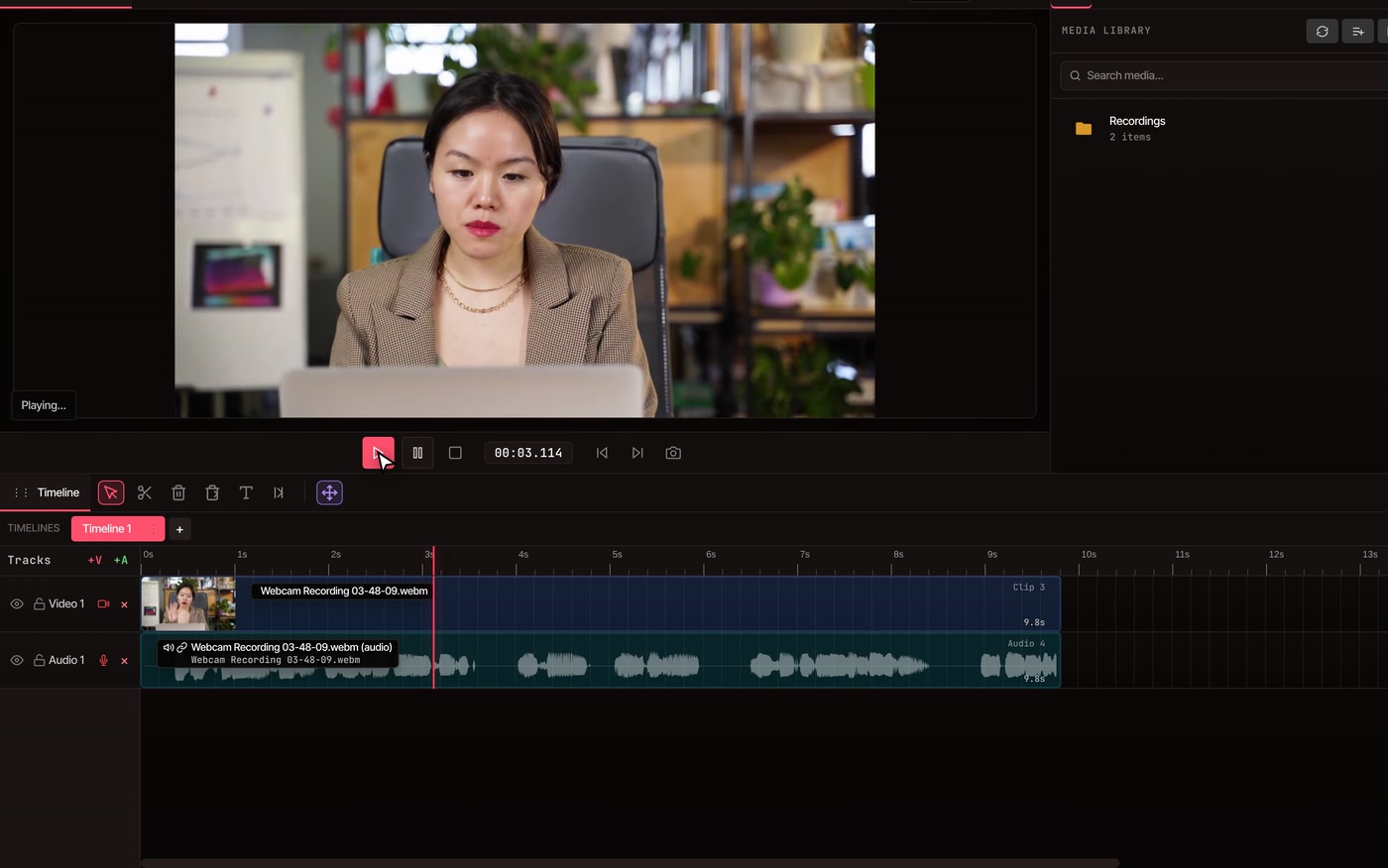
Click the button again to stop.The clip lands at the playhead with its sound on an audio track, and it's kept in the Recordings folder of your media library.
What you get
Your face and your voice, ready to edit.
-
Picture and sound together
The camera and microphone record as one take. The sound arrives on its own audio track, linked to the video, so the two move together when you drag or cut.
-
Up to full HD
The editor asks your camera for 1920 by 1080 video. A camera that can't give that records at the best size it has.
-
Record over footage you have
Recording plays your timeline from the playhead, so you can react to a clip or talk over it in time. Wear headphones so the clip's sound doesn't leak into your microphone.
-
One take or many
Each recording is a new clip. Move the playhead and record again for another take, then keep the best one. Every take also waits in the Recordings folder of your media library.
-
Your face over your screen
Screen + Webcam records both at once and puts you in the bottom-right corner. The screen recorder covers it.
-
Edit right after
Trim the start, add captions to what you said, clean up the sound or take out the wall behind you, then export.
Questions
Before you look at the lens.
Is the webcam recorder really free?
Yes. You can record and edit without an account or a paid plan, and nothing you export carries a watermark. Every plan exports up to 8K. The paid plans add AI features; recording doesn't need one.
Which browsers can record?
Chrome, Edge, Brave, Arc and Firefox, on a desktop or laptop computer. If your browser can't record video, the editor says so and suggests Chrome, Edge or Firefox. The editor doesn't run on phones.
Do I need a microphone?
Yes. The editor asks for your camera and microphone together, so a camera with no microphone won't start recording. If you don't want the sound afterwards, mute or delete it on its audio track.
My camera won't start. What now?
If you said no to the permission prompt, the editor tells you the webcam was denied. Allow the camera and microphone for vidtl.com in your browser's site settings, then press record again. If another app, such as a video call, is using the camera, close it first.
How long can I record?
The editor sets no time limit. The recording is held in your computer's memory until you stop, so for a very long session record it in parts. Clicking the record button again, or pausing playback, ends the recording.
Where does my recording go?
Onto the track where you pressed record, starting at the playhead, with its sound on an audio track. It's also kept in the Recordings folder of your media library. Recording happens on your computer. If you're signed in, the finished recording is also copied to your online media library.
Can I record just my voice?
Yes. The record button on an audio track records the microphone alone. The voiceover recorder page shows how.
How do I save it as an MP4?
Open File › Export Video and choose MP4, MOV, WebM or GIF, at any size up to 8K. Recordings are kept as WebM files until then, so you can edit them first.
Next, in the same editor
- Screen recorder Record your screen with your webcam in the corner.
- Voiceover recorder Talk over the video while it plays, onto an audio track.
- Auto captions Captions for everything you said, timed word by word.
- Remove background Take the room out from behind you.
- Remove background noise Clean up the hum and room sound in a recording.
- Trim video Cut the start and end of your take.
Hit record, then edit it right here.
Free in your browser, with nothing to install and no watermark on what you export.