Free video trimmer
Trim a video online. Start, end or middle.
Drag a clip’s edges in to cut off the start or end, or split it at the playhead and delete the part you don’t want. The rest closes up on its own.
- No account to start
- No watermark
- Your video stays on your computer
How it works
Three moves, no export in between.
-
01
Drag an edge in.Grab the left or right edge of a clip on the timeline and pull it toward the middle. Whatever you pull past is cut off. Press Close Gaps if it leaves empty space.
-
02
Split at the playhead.Click the ruler to put the playhead where the part begins, then press S. Do it again where the part ends.
-
03
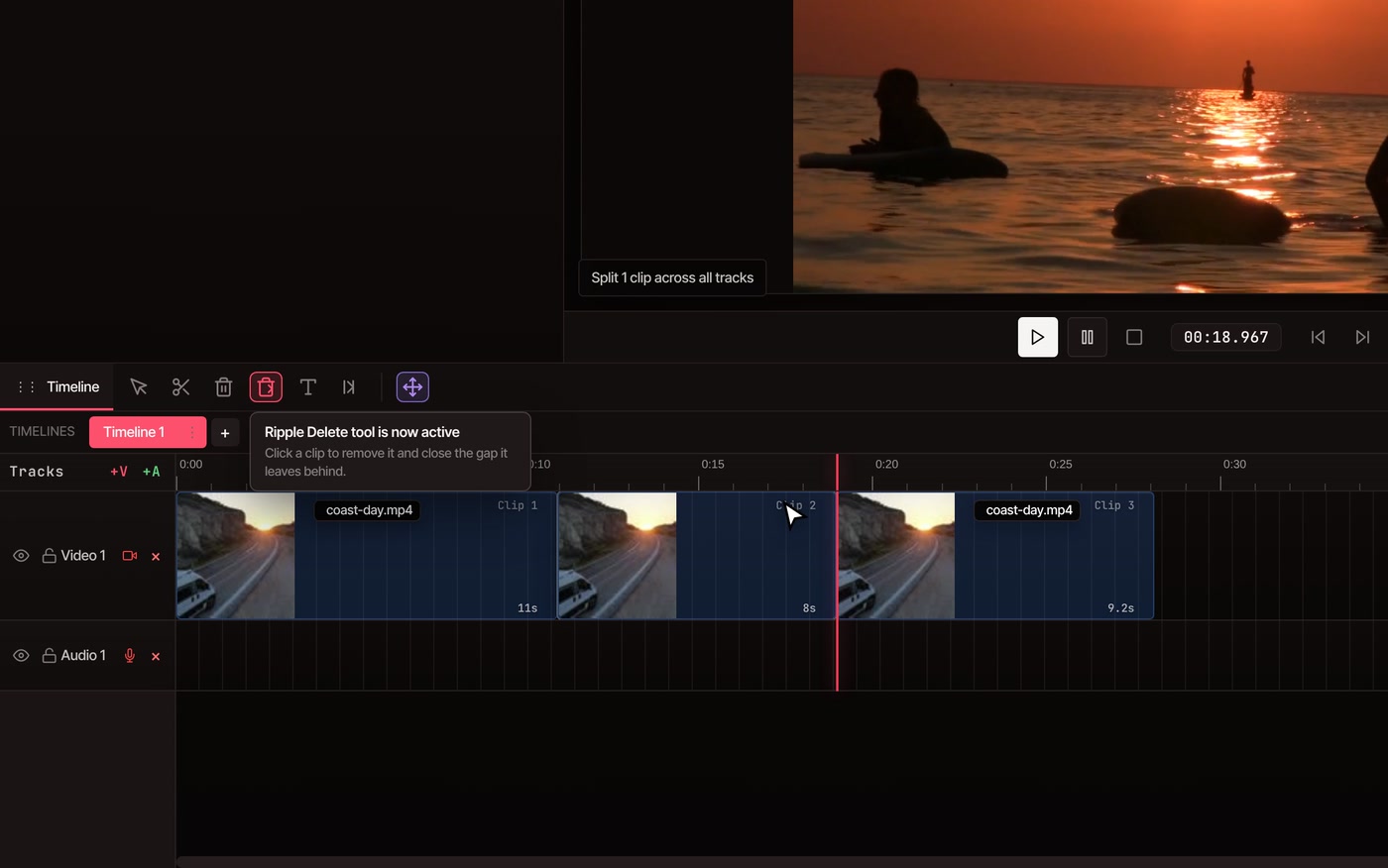
Ripple Delete the part.Press R for the Ripple Delete tool and click the part. It goes, and everything after it moves up to fill the hole.
Other cuts
The cut you came for, worked out.
-
Cut out the middle
Split at the start and the end of the part, then Ripple Delete it. The two sides join with no gap. Pick the Delete tool (D) instead if you want to leave the hole.
-
Trim to an exact length
Select the clip and open Clip Properties. Source Start and Source End take seconds to the thousandth, so a 15-second cut is a 15-second cut.
-
Cut the start or end
Pull the left edge in to lose the opening, or the right edge in to lose the ending. Nothing is deleted from your file until you export.
-
Split without the pointer
Put the playhead anywhere and press S. With nothing selected it splits every clip under the playhead. Select a clip first to split only that one.
-
Cut where you click
Press C for the Cut tool and click a clip to split it right there. Hold Alt to cut just that clip and not the ones linked to it.
-
Undo any of it
Every trim, split and delete can be undone, so you can try a cut and step back. Export when it plays the way you want.
Questions
Trimming, answered.
Is the video trimmer really free?
Yes. Trimming, splitting and deleting parts need no account, and the finished video has no watermark. Exports go up to 8K at any length.
Does my video get uploaded?
No. You edit and export on your own computer, so the footage stays there. It only leaves if you choose to save to cloud storage or use a tool that runs on VidTL’s servers.
Does trimming change the original file?
No. Your original is never touched. Trims and cuts are edits on the timeline, and you save a new video when you export.
How do I cut out the middle of a video?
Put the playhead at the start of the part and press S, move it to the end and press S again. Then press R and click the part in between. It is removed and the clips after it move up.
Can I trim on my phone?
Not today. The editor needs a desktop or laptop computer. Chrome, Edge, Brave, Arc and Firefox all run it well, and Safari works for lighter editing.
After the cut
- Merge videos Join the trimmed pieces into one video.
- Compress video Make the trimmed file smaller before you send it.
- Resize video Fit it to TikTok, Reels or YouTube after you cut.
- Edit video by text Cut by deleting words from a transcript instead.
- Remove silence Cut the quiet gaps out for you.
- Online video editor Everything else the editor does, from the same timeline.
Cut it down. Keep the good part.
Open the editor and start trimming. No account, no watermark, nothing to install.