Text-based video editing
Edit video by editing the transcript.
VidTL writes out what’s said in your video, word by word. Select a false start or a filler word, check the cut in red on the timeline, then delete it. The picture, sound and captions go with it.
- Free with a free account
- No watermark
- Nothing to install
How editing by text works
How to edit video by editing text.
-
01
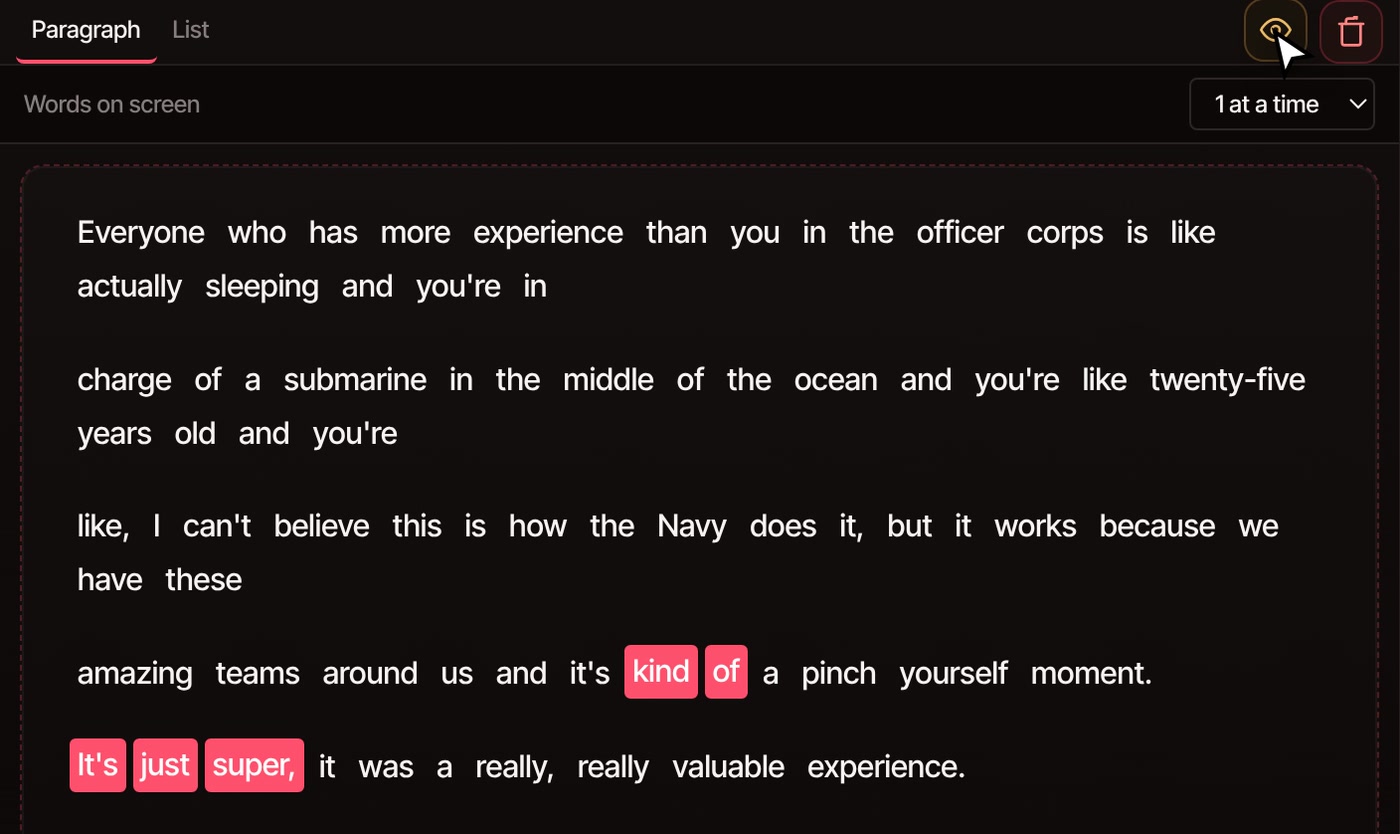
Write the transcriptSelect your clip and choose Tools › Generate › Generate Subtitles. Each word lands in the Subtitles panel with its own timing.
-
02
Pick the words to cutDrag across a false start, or click single words to add them. Ctrl-click or Cmd-click a word to take it back out.
-
03
Preview, then deletePreview Cuts, the eye button, shows each cut in red on the timeline. Delete Selected, the bin, makes the cuts and closes the gaps.
Rather try it first? Try it on a real clip right on our homepage, no sign-up needed.
When you press delete
What happens when you delete a word.
-
Every track is cut together
Picture, sound and captions are cut at the same moments and the gap closes up, so nothing drifts out of sync.
-
The pause goes too
Words picked side by side come out as one cut, with the pause between them. A pause longer than two seconds stays, in case something happens on screen.
-
You see it first
Preview Cuts marks each cut in red on the timeline, with how long it is, before anything is removed.
-
Undo puts it back
Press Ctrl+Z, or Cmd+Z on a Mac, and the words come back with their picture and sound.
-
Music can play on
Locked tracks are left alone. Lock your music track and it plays straight through the cuts.
-
Wrong word? Retype it
In List view, fix a misheard word by typing it, or change when it starts and ends.
What it costs
Free with a free account. Pro writes transcripts faster.
Sign up and confirm your email, and Free Processing writes the transcript on your own computer. It takes longer and works best in Chrome or Firefox. Pro adds Priority Processing, which runs on VidTL’s servers and is faster and more accurate, and the AI assistant, which can find and cut filler words for you. Picking words, deleting them and exporting are free on every plan, with no watermark.
See plansQuestions
Questions about editing by text.
Is editing video by text free?
Yes, with a free account. Sign up, confirm your email, and Free Processing writes transcripts on your own computer at no cost. Cutting and exporting are free on every plan too, with no watermark and exports up to 8K.
Which languages does it understand?
English and 17 more, including Spanish, French, German, Portuguese, Hindi, Chinese and Japanese. With Free Processing you pick the language spoken, or choose Detect automatically. Priority Processing works out the language by itself. The transcript is written in the language spoken, and it’s most accurate on clear English speech.
Does my video get uploaded?
Not with Free Processing, which writes the transcript on your computer. Priority Processing sends the sound, not the picture, to VidTL’s servers. Cutting and exporting always happen on your computer.
Does the transcript catch every “um”?
Not always. It can skip a quick “um” or “uh”, or write a stutter like “if I, if I” only once, which leaves no word to pick. Cut those out on the timeline instead, with Split at Playhead and Ripple Delete.
Can I get a deleted word back?
Yes. Press Ctrl+Z, or Cmd+Z on a Mac, and the words come back with their picture and sound.
Do the captions have to stay in my video?
No. Hide the subtitle track with the eye button on it, and the words won’t show on the picture or in your export. They stay in the Subtitles panel, so you can keep cutting by text.
Can I use a subtitle file I already have?
Yes. Import an SRT file and its lines show up in the Subtitles panel, no account needed. An SRT file times whole lines rather than single words, so deleting one cuts the whole line.
Can VidTL cut the filler words for me?
On Pro, yes. Ask the AI assistant to remove the filler words and it makes the cuts as ordinary edits you can check and undo. On the free plan, you pick them in the transcript yourself.
Keep going
- Subtitle editor Fix a misheard word by typing it. The timing stays put.
- Auto captions Captions for the whole video, timed word by word.
- Remove filler words Ask the AI assistant to cut the filler words for you. Pro.
- Remove silence Take out every long pause in one go, free.
- AI assistant Say what to change and it makes the edit. Pro.
- VidTL vs Descript Thinking of Descript? See how the two compare.
Cut the stumbles. Keep the story.
Free with a free account. It opens in your browser, with nothing to install and no watermark.