Online subtitle editor
Edit SRT subtitles in your browser.
Bring in your .srt file and every line lands on the timeline over your video. Retype a wrong word, change when a line starts or ends, and watch it on the picture before you export.
- Free, no account to start
- No watermark
- Exports the video, not an SRT
How it works
How to edit subtitles in four steps.
-
01
Put your video on the timelineImport it, then add it at the very start. Lines from the file are placed at the times written in it, counted from the start of the timeline.
-
02
Import the .srt fileChoose File › Import Media and pick the file. Each line becomes a subtitle on the timeline, and a message under the preview says how many were added.
-
03
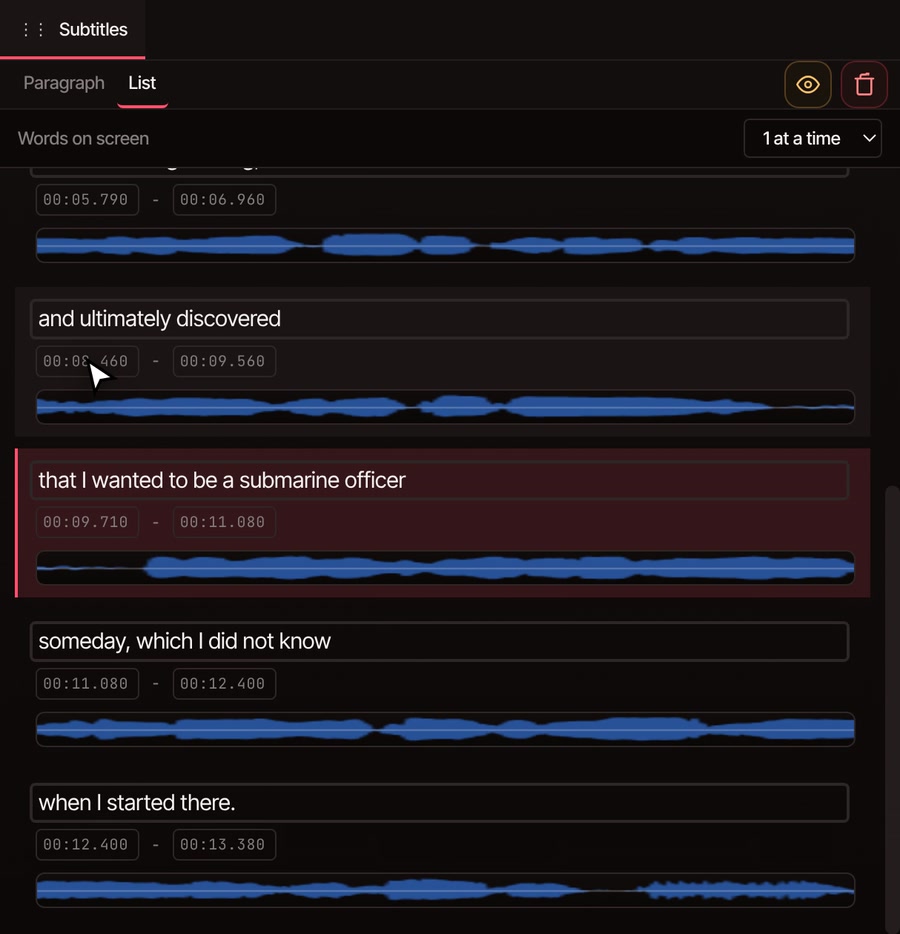
Switch the Subtitles panel to ListEvery line gets a box for its words and two for when it starts and ends. Click one, type, and press Enter. Esc puts it back the way it was.
-
04
Play it, then exportThe line under the playhead lights up in the list while it shows on the picture. File › Export Video draws the subtitles into the finished video.
On every line
Fix the words, the timing and the look.
-
Retype any word
Click a line’s words and type. Double-click one word to replace only that word. The line’s start and end stay exactly where they were.
-
Move a line in time
Type a new start and the whole line moves, keeping its length. Type a new end and only the end moves. Times are minutes, seconds and thousandths, like 00:08.060.
-
Style the lines
Click a line and the Properties panel shows its size, font, text colour, background colour, alignment and position. Copy to All gives every other line, and any title, the same look.
-
Take a line out
Click the line on the timeline and press Delete. Leave the bin button above the list alone for this: it cuts that moment out of the video as well.
-
Check it on the picture
Subtitles sit at the bottom of the picture. Play a stretch to see how a line reads, and move it in Properties if it covers something.
-
Undo any step
Every change to a line’s words or times is its own step in the undo history, so a wrong guess costs one undo.
What you get back
A video with your subtitles on it, not an SRT file.
File › Export Video draws the subtitles on the picture and makes an MP4, WebM, MOV or GIF with no watermark, at any length. Hide the subtitle track with the eye button beside it to export without them.
VidTL reads an SRT file in but has no button to save one out. If what you need is the corrected .srt file itself, for YouTube or a player, VidTL can’t give you that.
Questions
Questions about editing subtitles.
Can I edit an SRT file here for free?
Yes. Import the .srt with File › Import Media, change the words and times, and export the video without a watermark. You don’t need an account for any of that.
Can I save the edited subtitles as an SRT file?
No. VidTL has no button to save subtitles out as a file of their own. They are drawn into the video when you export it.
Which subtitle files can I open, and where do the lines land?
Only .srt files. Other kinds, such as .vtt and .ass, aren’t read. Lines land at the times written in the file, counted from the start of the timeline, so put your video at the start first.
What if I don’t have a subtitle file yet?
Let VidTL write one from the speech. Pick the clip and choose Generate Subtitles; it times every word, and it is free with a free account whose email is confirmed. Captions written this way come one word to a box, so you fix a word in its own box. The auto caption generator page shows how.
Does my video get uploaded?
No. Importing, editing and exporting happen on your own computer. Your footage only leaves it if you save to cloud storage or use a tool that runs on VidTL’s servers.
Keep going
- Auto caption generator No subtitle file? Write one from the speech, free with a free account.
- Word-by-word captions Big captions that come up one word at a time.
- Edit video by text Delete words from the transcript and the video cuts with them.
- Add text to video Put a title or a note on the picture.
- Add AI captions, step by step A written walkthrough for captioning a whole video.
- Online video editor The rest of the editor around your subtitles.
Fix the words. Keep the timing.
Free, no watermark, and nothing to install.