Captions, one word at a time
Word by word captions for Shorts, Reels and TikTok.
VidTL writes down every word in your video and shows them one at a time, each as it is said. Make the words as big as you like, pick a font and a colour, and export a vertical video with the captions already in it.
- Free with a free account
- No watermark
- Exports 1080×1920
How it works
How to make word by word captions.
-
01
Write the captionsSelect your clip and choose Tools › Generate › Generate Subtitles. Every spoken word lands on the timeline with its own timing, showing one at a time. The auto caption generator page has the details.
-
02
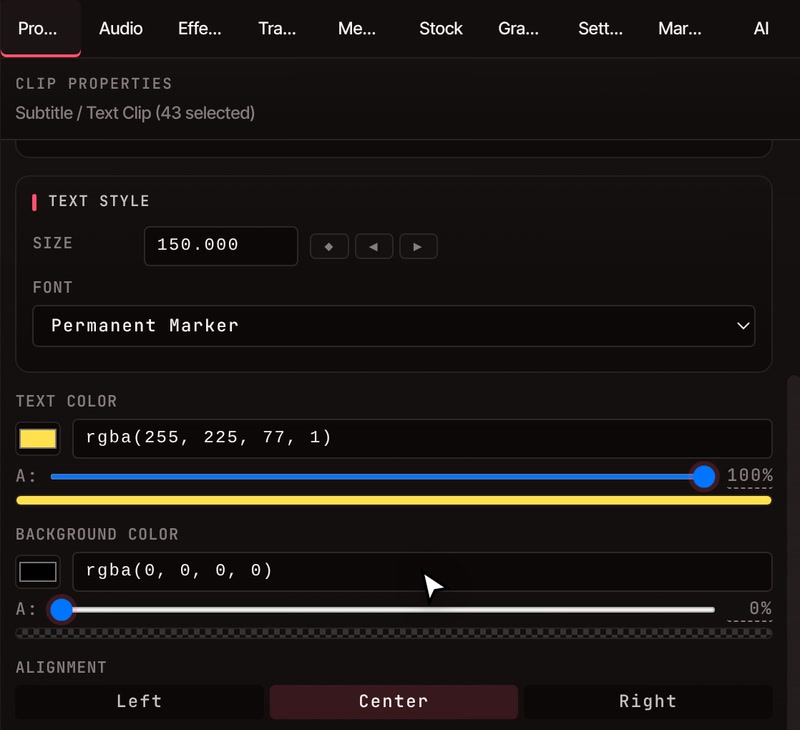
Set the look onceClick a caption on the timeline. In the Properties panel, type a Size, choose a Font and type a Text Color. Set the Background Color to 0% to leave the words on the picture. The change goes to every caption from that clip.
-
03
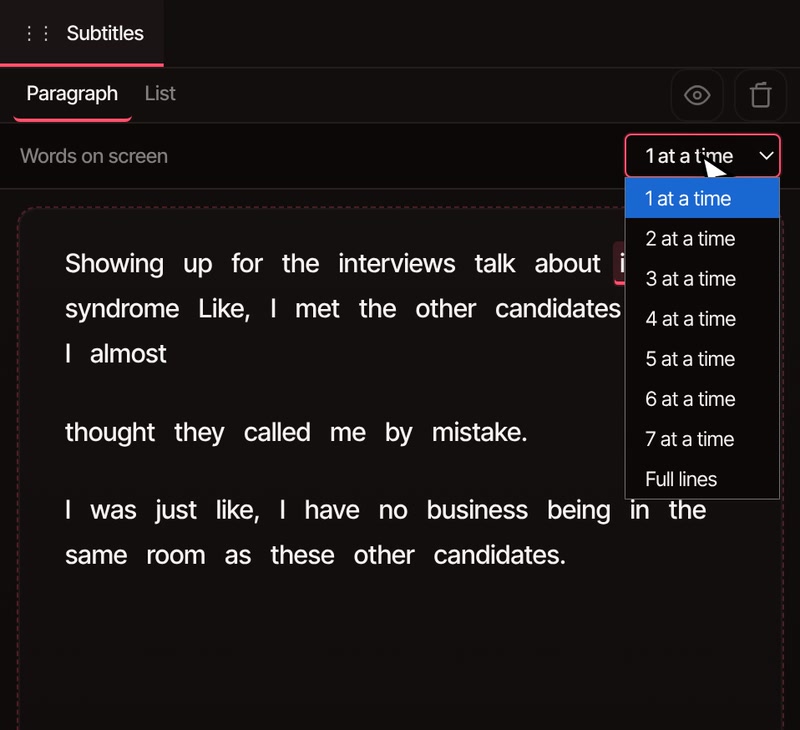
Choose how many words showIn the Subtitles panel, Words on screen goes from 1 at a time to 7 at a time, or Full lines.
-
04
Export it verticalPick 1080x1920 in the Settings tab, then File › Export Video and the TikTok preset. The captions are part of the picture.
What you can change
Make them look the way you want.
-
One word or a few
Captions start out one word at a time. Words on screen shows up to 7 together, or Full lines of up to 8. A line still ends at the end of a sentence, at a pause, or before it would run off the picture.
-
Size and font
Sizes run from 8 to 200. Choose from six standard fonts, which come from your computer, or eleven hand-lettered ones that come with VidTL, such as Permanent Marker, Pacifico and Caveat.
-
Colour and background
Type any colour for the words. The box behind them has its own colour and see-through slider, so it can be a solid plate or not there at all.
-
One change, every caption
Click one caption and the clip’s other captions are picked with it, so a new size or colour lands on all of them at once. You don’t restyle each word.
-
Fix a word by typing
Switch the Subtitles panel to List, click a word and type the right one. Its timing stays put, and you can change when it starts and ends. The subtitle editor page goes further.
-
Eighteen languages
Free Processing writes captions in English, Spanish, French, German, Japanese and 13 more. It writes what is said in the language it is said, and does not translate.
Export
Built for vertical video.
The captions are drawn on the picture, so they are in the MP4 you export, with no watermark on any plan. The export dialog has a TikTok preset and an Instagram Story preset, both 1080×1920 at 30 frames per second. Shorts and Reels use the same vertical shape.
Want a widescreen copy as well? Under Also create these sizes, tick Vertical 9:16, Widescreen 16:9 or Square 1:1 and one file downloads for each, from the same edit.
A landscape video has to be made vertical first. The Settings tab has a 1080x1920 button, and the resize video page shows how to fit the picture to it. The editor itself needs a desktop or laptop computer.
Free with a free account
Writing the captions is free once you have confirmed your email. Pro writes them faster.
Free Processing runs on your own computer, so your video stays put. Pro adds Priority Processing, which runs on VidTL’s servers. Choosing how many words show, restyling them and exporting cost nothing on any plan, and nothing is watermarked.
See plansQuestions
Questions about word by word captions.
Can I get word by word captions for free?
Yes, with a free account. Sign up, confirm your email, and Free Processing writes the words on your own computer at no cost. Styling the captions, choosing how many show at once and exporting are free on every plan, with no watermark.
Does the word being spoken light up in a different colour?
No. VidTL shows one word at a time, or a few words together as a line, and it does not highlight the word being said inside a line. Showing one word at a time is the closest it gets to that look.
Can each word pop, slide or fade in?
Not as one setting for every word. The Transitions panel has Fade In, Zoom In, Scale Up and slides that you can drop on a caption, but each one goes onto a single caption at a time.
Why do two words sometimes show as one?
A line never grows wider than most of the picture, and it ends at the end of a sentence or at a pause. With very large letters, two long words won’t fit side by side, so the second one waits for the next line. Lower the Size a little to fit more words.
Can the AI assistant change it for me?
On Pro, the AI assistant can write the captions and set how many words show at once. It does that through the same Words on screen setting, so you can undo it or change it by hand. Size, font and colour are set in the Properties panel.
Can I turn the captions off for one export?
Yes. Hide the caption track with the eye button next to it and the export leaves them out. The words stay on the timeline, so you can bring them back.
Keep going
- Auto caption generator How the words get written, in which languages, and what it costs.
- Subtitle editor Fix a misheard word by typing it. The timing stays put.
- TikTok video editor The whole edit for a vertical video, from cuts to captions to export.
- Resize video Turn a landscape video into a vertical or square one.
- Add text to video Titles and name tags that sit alongside your captions.
- Edit video by text The same words double as a transcript: delete one and the video cuts with it.
Every word, right on cue.
Free with a free account. It opens in your browser, with nothing to install and no watermark.