For TikTok, Reels and Shorts
A TikTok video editor that runs in your browser.
Set the frame to 1080×1920, fill it with your footage, add captions that come up one word at a time, and export. Instagram Reels and YouTube Shorts use the same tall shape, so one edit covers all three.
- No watermark
- Nothing to install
- On a laptop or desktop
How it works
From a widescreen clip to a TikTok in four steps.
-
01
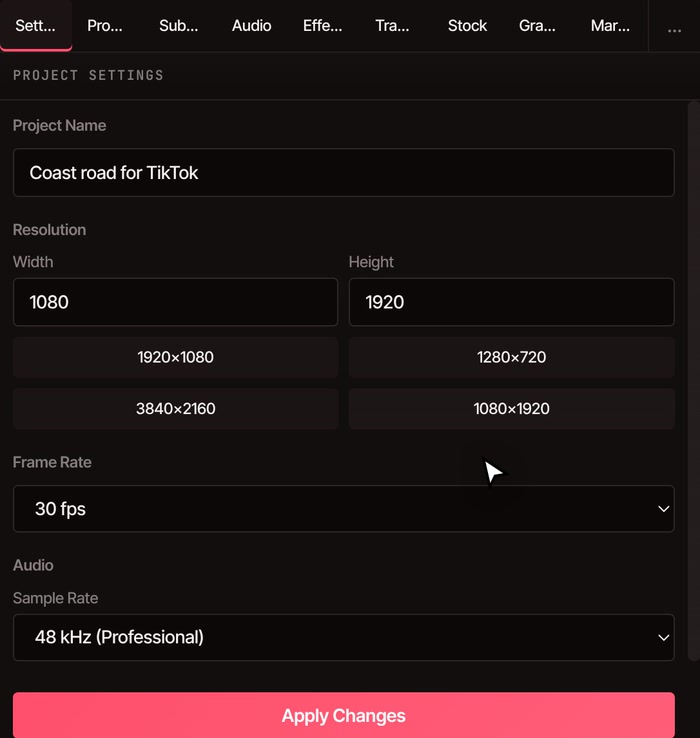
Make the frame verticalIn the Settings tab, press the 1080×1920 button, then Apply Changes. The preview turns tall, with your widescreen clip sitting in the top of it.
-
02
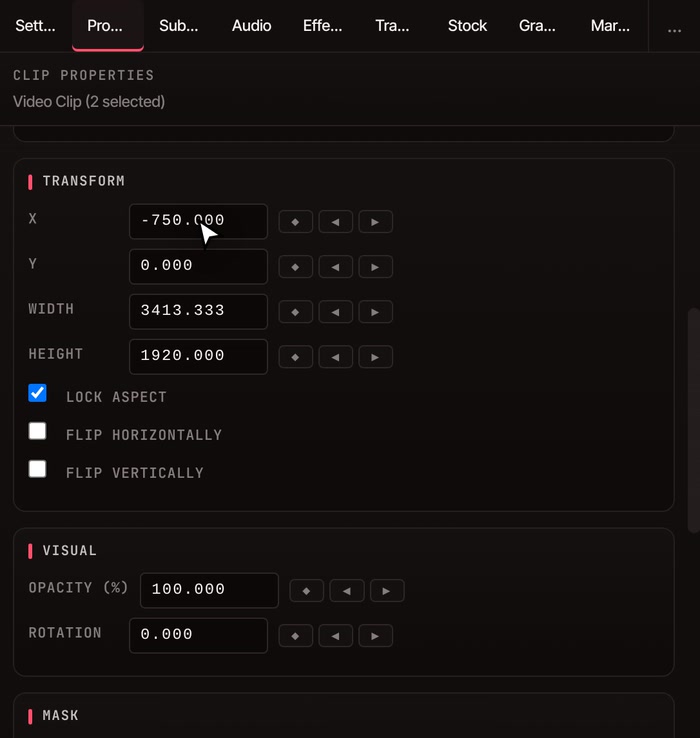
Fill the frameClick the clip, scroll Properties to Transform and type 1920 in Height. Width follows, because Lock Aspect is on. Type an X to slide the picture sideways.
-
03
Add captionsWith the clip selected, open the Subtitles panel and press Generate Subtitles. Choose Free Processing, the language and a speed. The words appear one at a time.
-
04
Make them big, then exportClick one caption on the timeline, set a Size and Font, and the change goes to all of them. Then File › Export Video, the Presets tab, TikTok.
Your footage
Start from the footage you already have.
-
Filmed upright on a phone
Add the clip and VidTL offers to change the project to match it, so the video comes out the way you filmed it. Choose Match this video. When you start a new project you can also pick Vertical (9:16) in the size list.
-
Filmed widescreen
Fill the frame as shown above. Or skip that and tick Vertical 9:16 under Also create these sizes when you export: the picture is scaled to fill the new size and centred, so the edges are trimmed. A widescreen copy can come out of the same edit.
-
Subject off to one side
Type a new X to slide the picture until the subject is in the middle. To have VidTL follow a moving subject for you, use Track Moving Object and Keep It Centered, covered on the auto reframe page.
-
Edited on a computer
VidTL runs in the browser on a laptop or desktop, and on a phone it asks for a computer instead. Film on your phone, move the clips across, make the edit here, then post the exported file from whichever device you like.
The rest of the edit
Everything a short needs, in one place.
-
Captions, one word at a time
Generate Subtitles puts every spoken word on the timeline, shown one at a time. Choose how many words show together, and set the size, font and colours once for all of them. The word by word captions page has the full set of choices.
-
Cut the pauses
VidTL finds the pauses in a talking video and cuts them out in one click, which keeps a short tight. Remove silence from video shows how.
-
Music under it
Drag in a song, trim it and fade it out, as add music to video shows. Or let VidTL cut your clips to the beat.
-
Clips from stock
The Stock panel searches free stock footage from inside the editor, and you can search it without an account. Drop a clip on the timeline to cover a cut or open your video.
Free, with a free account for captions
The vertical frame, the edit and the TikTok export are free on every plan, with no watermark.
Writing the captions needs a free account with a confirmed email; Free Processing then runs on your own computer. Pro adds Priority Processing, which is faster and more accurate, and the AI assistant that can set the size and write the captions from a typed request.
See plansQuestions
Before you start.
Can I edit TikTok videos in VidTL for free?
Yes. Setting a vertical frame, filling it with your footage, cutting, adding text and exporting an MP4 are free on every plan, with no watermark. Writing the captions is free too once you have a free account with a confirmed email.
Can I edit on my phone?
No. VidTL needs a laptop or desktop computer, and on a phone it shows a message asking for one. Film on your phone, move the clips to your computer, edit and export there, then post the finished file.
What size should a TikTok video be?
VidTL’s TikTok preset exports an MP4 at 1080×1920, 30 frames per second. Reels and Shorts use the same tall 9:16 shape, so the same file works for them. Open File › Export Video and choose the Presets tab.
Can I turn a widescreen video into a vertical one?
Yes. Set the project to 1080×1920 in the Settings tab and make the clip taller in Properties, or tick Vertical 9:16 when you export. To keep a moving subject in the frame, see auto reframe video. The resize video page covers the sizes.
How long can a TikTok be?
VidTL puts no limit on length on any plan. TikTok, Reels and Shorts each set their own, and those change, so check the app’s current limit before you export.
Can the AI assistant make it for me?
On Pro, the AI assistant can switch the project to 1080×1920, write the captions and set how many words show at once. Each change lands on the timeline, where you can undo or adjust it by hand.
Also in the editor
- Word by word captions Make the words big and bold, and choose how many show at once.
- Auto reframe video Turn widescreen into vertical and keep your subject in the middle.
- Resize video Export vertical, square and widescreen copies from one edit.
- Remove silence from video Cut every pause in a talking clip in one click.
- Sync video to beat Cut your clips so every change lands on the music.
- Add music to video Put a song under your video, trim it and fade it out.
Your next TikTok, made on your computer.
It opens in your browser, with nothing to install and no watermark on the export.