Auto reframe video
Widescreen to vertical, subject kept in frame.
Click your subject once and VidTL follows it through the whole clip, keeping it in the middle of the picture. Then export a 9:16 vertical version for TikTok, Reels or Shorts. It runs in your browser, with nothing to install.
- Free, no account
- No watermark
- Video stays on your computer
How it works
Pick your subject, then export vertical.
-
01
Right-click your clip and choose Track Moving ObjectPut the playhead on a frame where your subject is easy to see first. Tracking starts there and runs both ways. The same button is under Mask in the clip's properties.
-
02
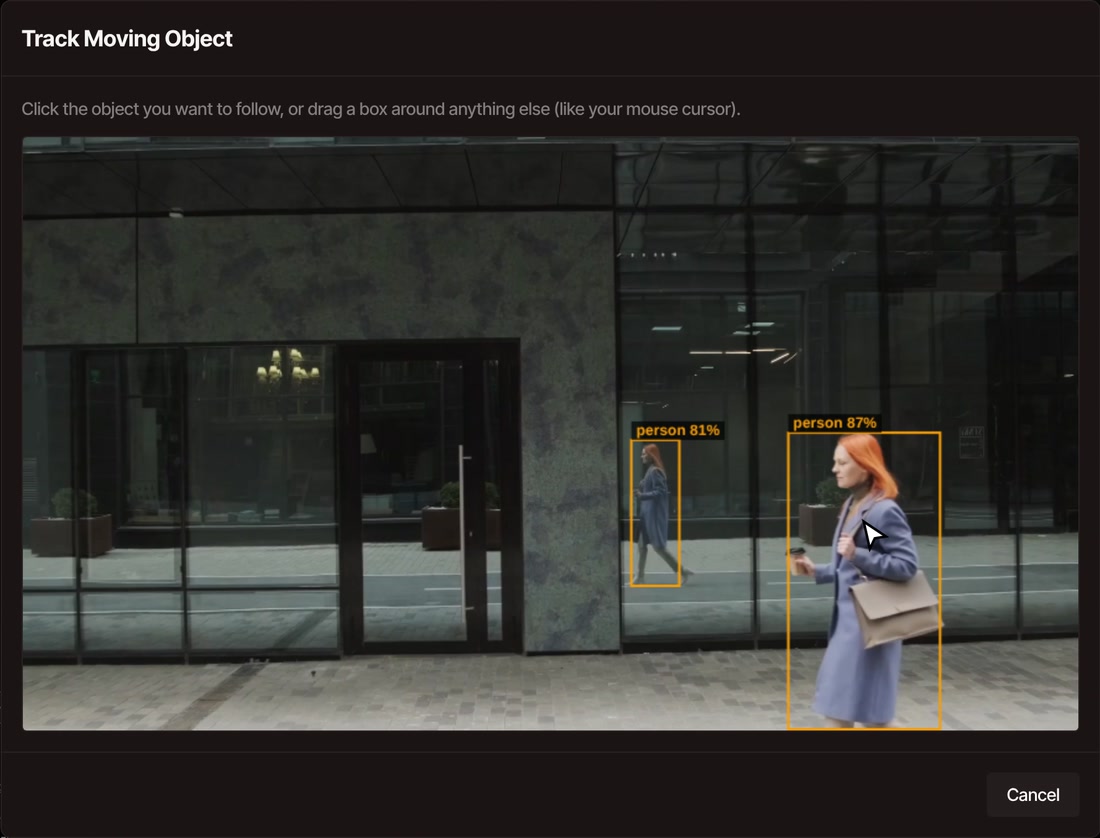
Click your subjectVidTL outlines the people, animals, vehicles and other everyday objects it recognizes. Click one. If yours isn't outlined, drag a box around it.
-
03
Choose Keep It Centered, then a zoomSubtle (1.5x), Standard (2x) or Close-Up (3x). VidTL follows the subject through the clip and moves the picture so it stays in the middle.
-
04
Export it as verticalOpen File, then Export Video. Under Also create these sizes, tick Vertical 9:16 (1080×1920) and click Export.
The result
The same walk, in two shapes.
What to know
What it follows, and where it stops.
-
It follows who you pick
VidTL tracks the one subject you click for the whole clip. If it doesn't outline what you want, such as a mouse cursor in a screen recording, drag a box around it.
-
The zoom gives it room
To keep a subject in the middle, VidTL zooms in and slides the picture. At Standard (2x) it can center your subject while it stays in the middle half of the frame. Past that it holds at the edge of the picture instead of showing empty space. Close-Up (3x) reaches further out, and Subtle (1.5x) not as far.
-
Vertical comes from the middle
The vertical export fills 1080×1920 from the middle of your widescreen picture and trims the sides, so reframe first and keep the project widescreen. A vertical file is a narrow slice of the wide shot, and it looks softer than the original. Footage filmed in 4K holds up better than 1080p.
Smart Zoom is part of Pro
Smart Zoom punches in on the most important words in a talking video. It doesn't change the shape of your picture.
You find it in the AI Prompts menu. Tracking, Keep It Centered and the vertical export on this page are free, with no account and no watermark. For screen recordings, Auto Zoom zooms in on clicks and typing.
See plansQuestions
Questions about reframing.
Is there a one-click auto reframe?
Not as one button. You click your subject once and choose Keep It Centered, and VidTL follows it through the whole clip on its own. Then you export the vertical size.
Is it free?
Yes. Tracking, Keep It Centered and the vertical export are free with no account, and exports have no watermark on any plan. Smart Zoom, which does something different, is part of Pro.
Does my video get uploaded?
No. Following your subject and exporting both happen on your own computer. The first time you track, VidTL loads what it needs to recognize objects, which can take a moment.
What if it loses my subject?
Undo it, move the playhead to a frame where the subject is clear, and track again. If the subject isn't outlined, drag a box around just that subject. A subject that leaves the frame or changes shape quickly is the hardest to follow.
Can I make square and widescreen versions too?
Yes. Tick Square 1:1 (1080×1080) or Widescreen 16:9 (1920×1080) next to Vertical 9:16 and you get one file for each. The extra sizes are not available for GIF. Resize video covers them in full.
Can I reframe a video on my phone?
The editor needs a desktop or laptop computer. If you filmed on your phone, move the clip to your computer, reframe it there, and send the vertical file back.
Also in the editor
- Resize video Export vertical, square and widescreen versions in one run.
- TikTok video editor Edit for Shorts, Reels and TikTok, from reframe to export.
- Word-by-word captions Add bold captions to your new vertical video.
- Blur face in video The same tracking, used to blur a face or a license plate.
- Auto zoom Zoom in on clicks and typing in a screen recording.
- AI video editing assistant Ask for the edit in plain words. Smart Zoom is one of its tools.
Wide in, vertical out.
Free, no watermark, and your video never leaves your computer.