Free music editor for video
Add music to video right in your browser.
Drag a song onto an audio track under your clips, pull its end back to match the video, fade it out and export. There is nothing to install, no account to start, and no watermark on the result.
- Free, no account
- No watermark
- MP3, WAV, M4A and more
How to add music
From a song file to a finished soundtrack.
-
01
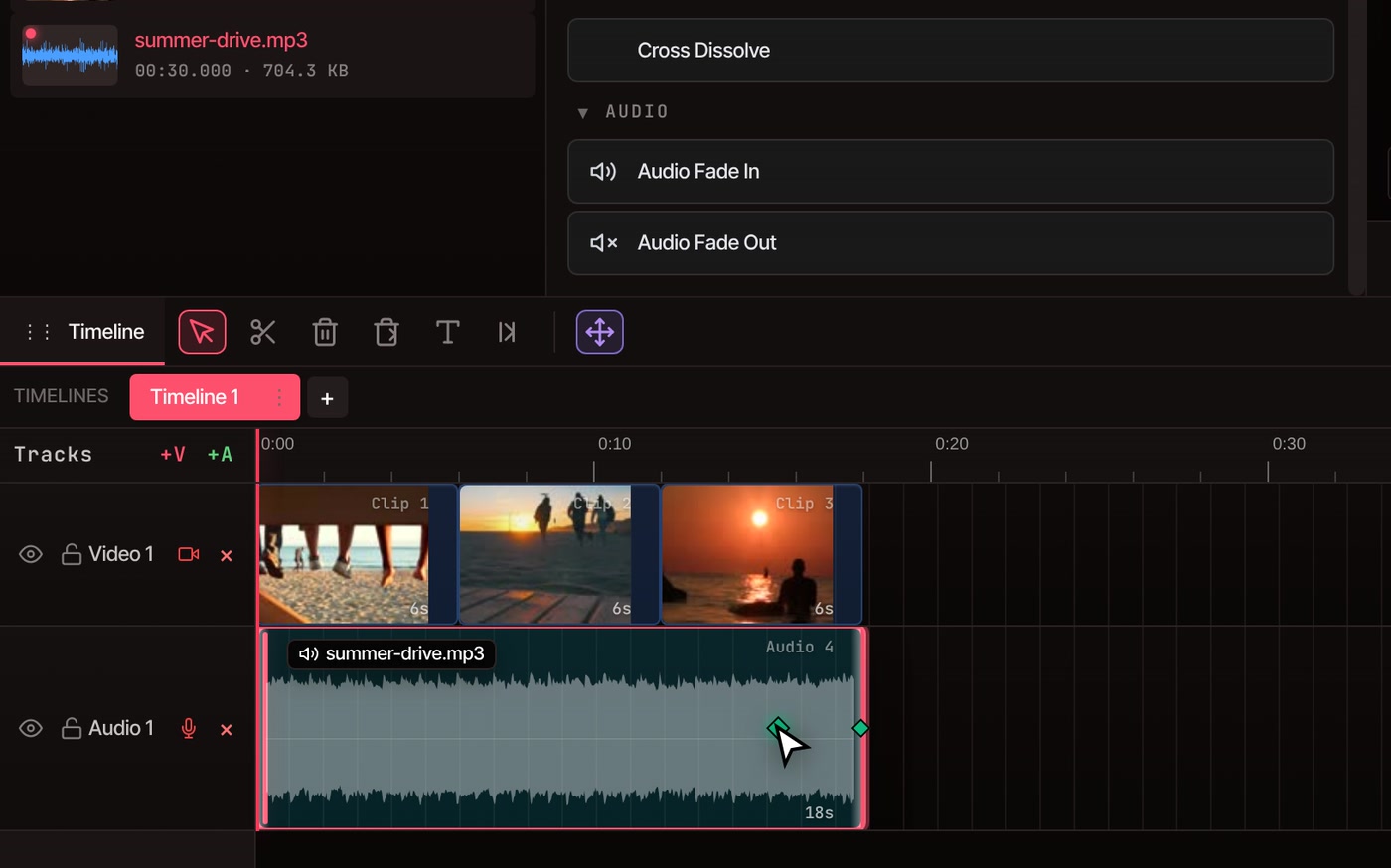
Bring in your songDrop an MP3, WAV, AAC, OGG, Opus, M4A or FLAC file into the media library. Drag it onto an audio track, or click it to place it at the playhead.
-
02
Trim it to your videoDrag the right edge of the song back until it meets the end of your last clip. The edge snaps into place. Skip this and the exported file runs as long as the song.
-
03
Set the volumeSelect the song, open Properties and change Volume (dB). 0 is the file as it came, and lower numbers are quieter. The Audio tab has a slider for the whole track.
-
04
Fade it outOpen Transitions and drop Audio Fade Out on the right half of the song. Dropping it on the left half fades the start instead. A fade lasts one second, and dragging its first marker to the left makes it longer.
-
05
ExportChoose File, then Export Video. MP4, MOV and WebM keep the music, mixed in with any sound already in your clips. A GIF has no sound.
Hear the difference
The same ending, with and without a fade.
The song stops where the video stops, in the middle of whatever it was playing.
The last eight seconds of the edit shown above, exported from the editor. The fade is about two and a half seconds long.
Finding music
Where to get music you may use.
-
Files you already have
Any MP3, WAV, AAC, OGG, Opus, M4A or FLAC file: something you recorded, or a track you hold a license for. If you paid for it, check that the license covers video.
-
Free and royalty-free libraries
Look for music marked royalty-free or Creative Commons, then read its license. Some ask for a credit line in your description, and some rule out ads or paid work. The editor's Stock tab finds free songs from Jamendo too. Each one asks for a credit, which VidTL saves next to your export, ready to paste into the description.
-
Music written for you
Under Tools, then Generate, Generate Music turns a description into a song of up to 5 minutes, or into background music of up to 2 minutes. It is part of Pro, and the finished track lands on your timeline. Everything else on this page is free.
Songs from the charts are the ones to stay away from. Owning a copy of a song does not give you the right to publish it in your video, and platforms may mute or take down videos that use one. VidTL’s terms say you keep ownership of what you generate, subject to the rights of others.
Fine-tuning
Treat the song like any other clip.
-
Trim, move and split
Drag either edge to shorten the song or start it later, and drag the whole clip to move it. Press S at the playhead to split it in two. Edges snap to the edges of other clips and to the playhead, and every change can be undone.
-
Set the level
Each clip has its own Volume (dB) in Properties. The Audio tab adds a slider with mute and solo for every track, and one for the whole project. Keep speech and music on separate tracks and you can turn one down without touching the other. Normalize audio evens out a voice that drifts loud and quiet.
-
Fade in and out
Audio Fade In and Audio Fade Out put two small markers on the clip. Drag a marker to change when the fade starts or stops. The fade is part of the export, so what you hear in the editor is what ends up in the file.
-
Cut to the beat
Select the song and your picture clips, then open Tools and choose Cut to the Beat. It finds the hits in the music and re-times your clips so every cut lands on one. Sync video to beat shows how.
Questions
Before you start
Is adding music to a video really free?
Yes. Bringing in a song, trimming it, setting its volume, fading it and exporting are all free, with no account and no watermark. Only Generate Music, which writes a track for you on VidTL’s servers, is part of Pro. See the plans for what Pro includes.
What if the song is longer or shorter than my video?
If it is longer, drag its end back to the end of your last clip. The exported file runs as long as the longest clip on any track, so a song left long makes a long file. If it is shorter, drag the file onto the track again right after the first copy. Clips have no loop option, so each repeat is its own clip.
How do I keep the music quiet enough to hear someone talking?
VidTL does not lower the music for you when a voice comes in, so you set it by hand. Put the song’s Volume (dB) below the voice, starting around -10, and play it back to judge. If you want it louder in the gaps, split the song with S and give each piece its own volume.
Can I replace the music that is already in my video?
Yes. A video’s sound sits on its own audio track under the picture. Select that clip and tick Mute in Properties, or use the M button for its track in the Audio tab, then add your song. If someone is talking over the old music, Voice Isolation keeps the voice and takes out the rest.
Is my music uploaded anywhere?
No. Adding, trimming, fading and exporting happen on your own computer. Your files leave it only if you save a project to cloud storage or use a tool that runs on VidTL’s servers, such as Generate Music.
Also in the editor
- AI music generator Describe the mood and get a track written for your video. Part of Pro.
- Sync video to beat Cut your clips so every change lands on a hit in the song.
- Normalize audio Even out loud and quiet parts so music and voice sit well together.
- Voice isolator Take the old music out from behind a voice before you add your own.
- Trim video The same edge dragging and splitting, for your picture clips.
- Online video editor Add titles, captions and effects in the same timeline.
Give your video a soundtrack.
Free, no account to start, no watermark, and your files stay on your computer.