Free voice isolator
Isolate the voice in your video.
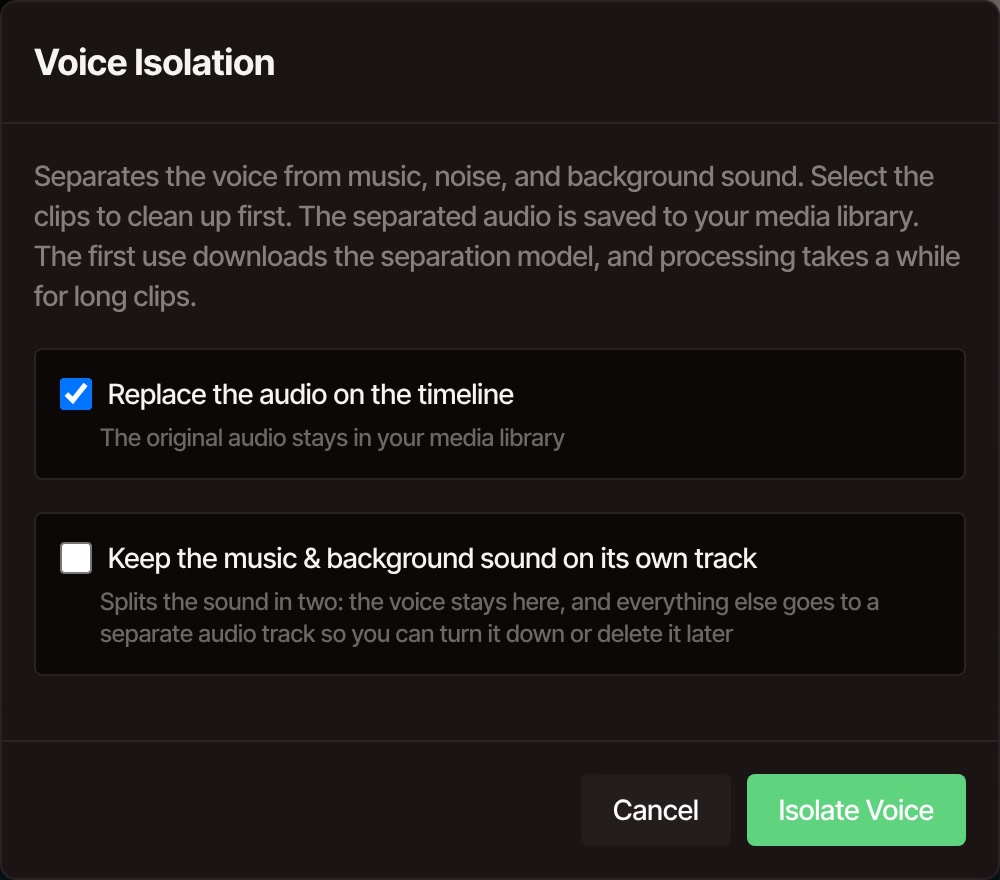
Select a clip, open Tools, and choose Voice Isolation. The voice isolator keeps the voice and takes out the music, noise and background sound under it, then puts the clean voice back on your timeline.
- Free, no account
- No watermark
- Stays on your computer
Listen for yourself
Music under a voice, then the voice alone.

A voiceover with music playing over it, the way it arrives in the editor. There is never a quiet moment, because the music never stops.

The same clip after Voice Isolation, exported from the editor. The voice is there, and the gaps between phrases are quiet.
The sample is a narration made with VidTL's voiceover tool, mixed with a track made by VidTL's music tool, so you can hear the music leave.
Voice Isolation
Four steps to a voice on its own.
-
01
Open your videoDrop the file into the editor and add it to the timeline. An audio file works too.
-
02
Click the clip you want cleanedThe tool works on what is selected. Select several clips to clean them in one run.
-
03
Open Tools, then Voice IsolationYou will find it under Audio. Choose whether to keep the music on its own track.
-
04
Press Isolate VoiceA progress bar shows how far along it is. The voice-only sound replaces the old sound on the timeline.
Pick the right tool
Voice Isolation, or something simpler?
-
Voice Isolation
For music, traffic or a busy room behind someone talking. It pulls the voice away from everything else, and it can keep that background on its own track so you can turn it down instead of deleting it. It is the slowest of the audio tools.
-
Noise Suppression
For hiss, static or a steady hum when nothing else is playing. It is faster than Voice Isolation, so start here if the only problem is noise. Remove Background Sound, next to it in the menu, takes out one steady sound such as a fan.
-
Normalize Audio
For a clean voice that is too loud in places and too quiet in others. It does not remove anything, so use it after the voice is isolated if the levels still jump around.
Voice Isolation separates a voice from music and noise. It is not made to pick one speaker out of two people talking at once. It runs on your own computer, the original sound stays in your media library, and you can undo it.
Questions
Before you try it
Is the voice isolator really free?
Yes. Voice Isolation is free to use with no account, and exports have no watermark. The AI assistant, which can run it when you ask, is part of Pro.
Is my video uploaded anywhere?
No. The sound is separated on your own computer, and your footage only leaves it if you choose to save to cloud storage. The first time you use it, the editor downloads what it needs to do the job, roughly 65 MB, so allow a minute before it starts.
Can I keep the music instead of deleting it?
Yes. Tick "Keep the music & background sound on its own track" before you press Isolate Voice. The clip keeps only the voice, and everything else goes to a separate audio track that you can turn down or delete later.
How long does it take?
Longer than the other audio tools, and the longer the clip, the longer the wait. A progress bar shows how far along it is. With a long recording, try a short stretch first to see whether it sounds right.
Does it work on audio files, not just video?
Yes. Select an audio clip on the timeline, or a video clip that has sound, and the tool treats both the same way. If nothing with sound is selected, the editor asks you to pick a clip first.
What if I don't like the result?
Undo it. The change shows up in your history as "Isolate voice", and the original sound stays in your media library either way. If the only problem was steady noise, try Noise Suppression instead.
Can the AI assistant do it for me?
Yes, on a Pro plan. Ask it to remove the music behind the voice and it runs this same tool on your clips. See what the AI assistant can do.
Also for your sound
- Remove background noise Take out hiss, hum and room noise when nothing else is playing.
- Normalize audio Even out the loud and quiet parts of a clean voice.
- Add music to video Lay a track you may use under the clean voice, and fade it out.
- Remove silence Cut the dead air out of a talking video in one pass.
- Podcast video editor Clean up a recorded conversation and cut it down to the good parts.
- Online video editor Cut, caption and export the whole video in the same place.
Keep the voice, lose the rest.
Free, no account, no watermark, and your video stays on your computer.