Podcast video editor
Cut your podcast video to whoever is talking.
Add each camera's recording and VidTL lines them up by sound, then cuts between them as people speak. Clean up the audio, add captions and export, all in your browser, with no install and no watermark.
- No account to start
- No watermark
- Any episode length
Multiple cameras
Sync the cameras, then cut to the speaker.
-
01
Put every camera's recording on the timeline.They can start at different moments. Add each file as it came off the camera.
-
02
Select them all, then open Tools and choose Multi Cam Smart Sync.Under Multi-Camera. VidTL listens to each camera's sound and slides the clips until they match. Each camera gets its own track, and the clips are linked so they move together.
-
03
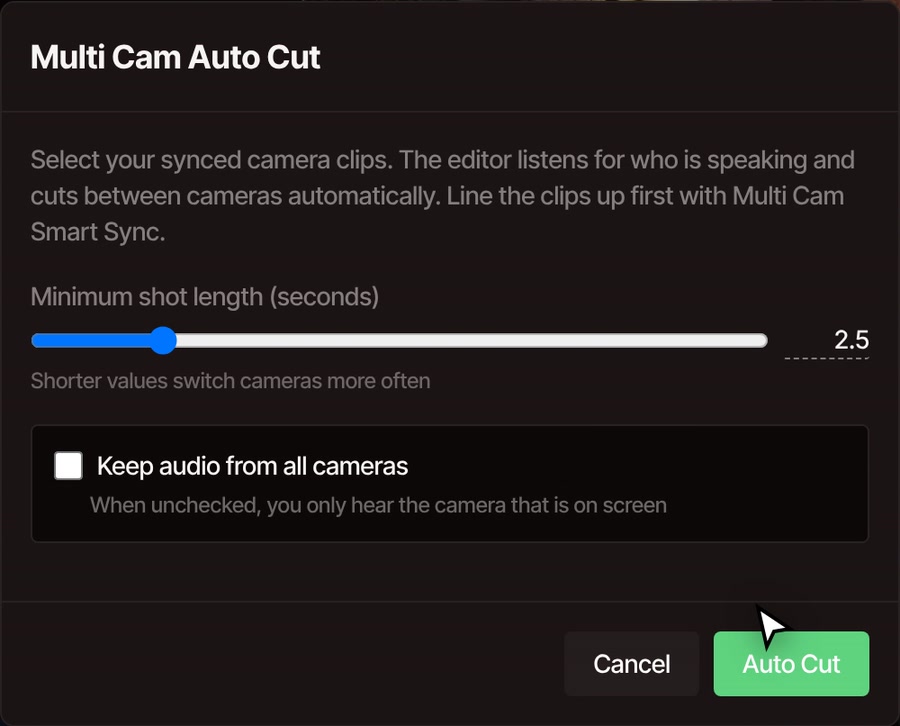
With the cameras still selected, choose Multi Cam Auto Cut.Set the shortest shot, from 1 to 10 seconds (it starts at 2.5), and tick Keep audio from all cameras if you want every microphone. Then press Auto Cut.
-
04
Play it back and fix any cut by hand.Each shot is an ordinary clip, so you can drag its edges. Undo brings the full multicam back.
After the cut
Everything else an episode needs.
-
Pauses and dead air
Remove Silence finds every long pause, marks it in red so you can check it, then cuts it out and closes the gap on every track. It is free and needs no account. On Pro, the AI assistant can also take out the ums, uhs and repeated words it finds in the transcript.
-
Sound that matches
Noise Suppression takes out steady noise and static. Remove Background Sound takes out a hum, like a fan, from a stretch where nobody is talking. Voice Isolation keeps the voice and drops the music. Normalize Audio brings a quiet guest and a loud host to the same level. All of it is in Tools, under Audio.
-
Captions and a transcript
Generate Subtitles writes the whole episode out as text, timed word by word, and you can fix a word or delete a sentence in the Subtitles panel. Free Processing needs a free account with a confirmed email. Priority Processing is part of Pro.
-
Clips for social
Open the AI Prompts menu and choose Highlight Reel, and the AI assistant picks the strongest moments of a long conversation and puts them back to back. It is part of Pro. To pull one clip out yourself, split the timeline at the start and end of it.
-
Levels at export
Tick Normalize loudness when you export, and VidTL balances the volume of the whole file automatically. Exports are video files in MP4, WebM or MOV, up to 8K, with no watermark.
-
Your files stay with you
Editing and exporting happen on your own computer. Footage leaves it only if you save to cloud storage or use a tool that runs on VidTL's servers, such as Priority Processing captions.
Free and Pro
Pro adds the AI assistant: filler words cut for you, and highlight reels from a long recording.
The free plan still syncs and cuts your cameras, removes silence, cleans up the sound and exports without a watermark. You can also delete words from the transcript by hand with a free account.
See plansQuestions
Podcast editing, answered.
Is the podcast editor free?
The editing is. Multi Cam Smart Sync, Multi Cam Auto Cut, Remove Silence, the audio clean-up tools and export are free with no account and no watermark. Captions need a free account with a confirmed email. The AI assistant, which cuts filler words and builds highlight reels, is part of Pro.
How does it know who is talking?
Auto Cut measures how loud each camera's sound is, moment by moment, and keeps the camera that is loudest. It works best when each camera's microphone is closest to its own speaker. If every camera hears the voices equally, or everyone shares one microphone, there is nothing to tell them apart, and you will need to cut by hand.
What if my cameras did not start together?
That is what Multi Cam Smart Sync is for. It matches the cameras by their sound, so a camera that was started late still lands in the right place. A clip with no matching sound is placed after the others instead, and the status bar tells you how many clips were synced.
Can I edit a full-length episode?
Yes. Every plan edits video of any length. Everything runs on your computer, so a very long recording works as well as your computer can handle it.
Can I export just the audio?
Not yet. VidTL exports video: MP4, WebM or MOV. If your podcast host wants an MP3, export the video and convert it with another tool.
Does it work on a phone or tablet?
No. The editor needs a desktop or laptop computer and shows a message on phones. It runs in Chrome, Edge, Brave, Arc and Firefox, and Safari works for lighter editing.
Also in the editor
- Multicam video editor More on lining up angles by sound and cutting between them.
- Remove silence from a podcast A step-by-step walkthrough for a recorded conversation.
- Remove filler words Cut the ums and uhs once the cameras are cut.
- Auto caption generator Captions for the whole episode, timed word by word.
- Remove background noise Clean up room noise and hum in a recording.
- AI highlight reel Turn a long conversation into a short clip.
Cut your next episode in one sitting.
Open the editor and sync your first two cameras. It is free and needs no account.