Auto caption generator
Add captions to a video without typing them.
Pick your clip and VidTL listens, then writes out every word timed to the speech. Show the words one at a time or a few at a time, fix any word by typing, and choose the size and colour.
- Free with a free account
- No watermark
- 18 languages
How it works
How to add captions to a video.
-
01
Click your clipSelect the video on the timeline. To caption several clips in one go, select them all.
-
02
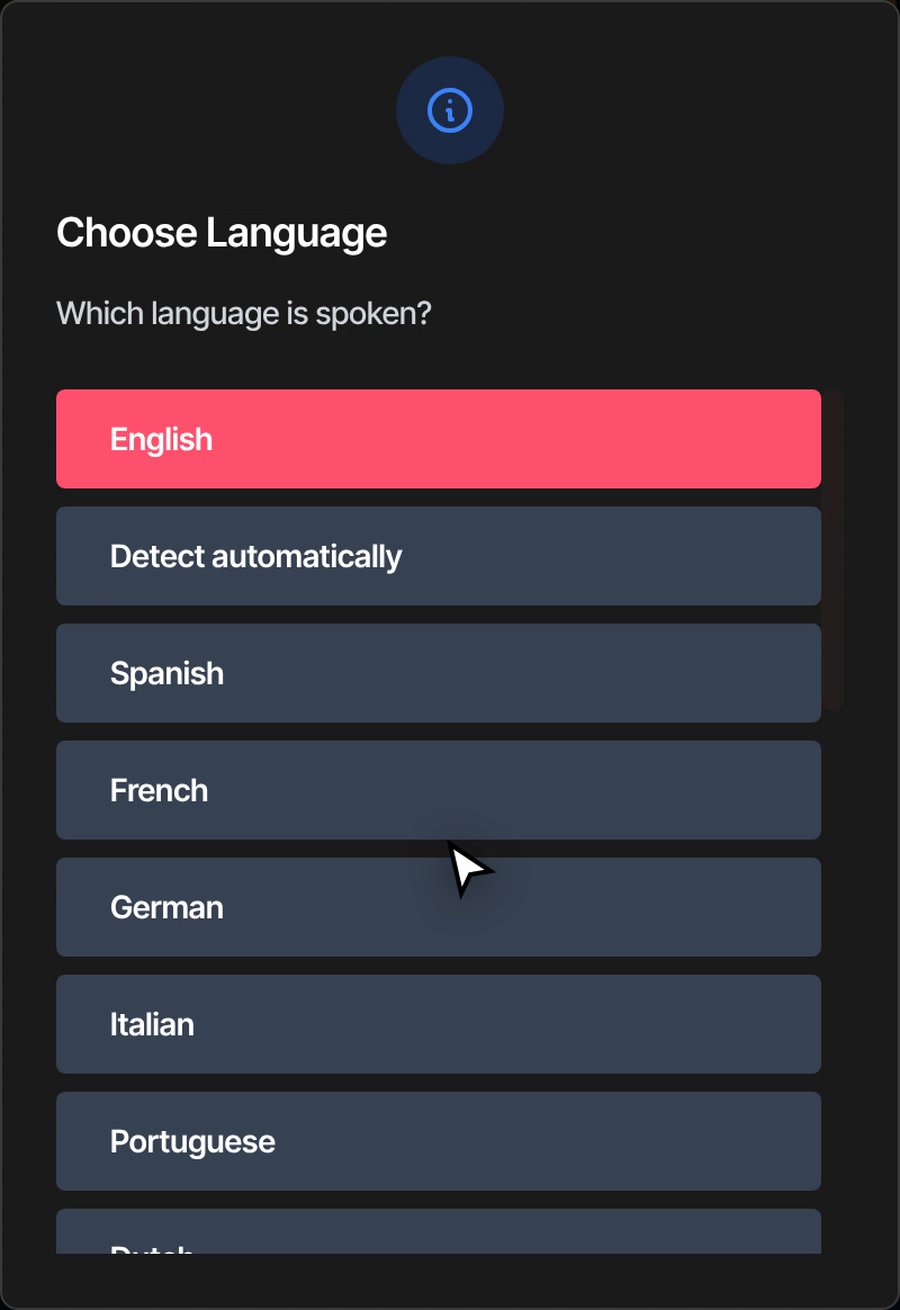
Choose Generate SubtitlesOpen Tools › Generate › Generate Subtitles, or press the same button in the Subtitles panel. Pick Free Processing, the language spoken and a speed.
-
03
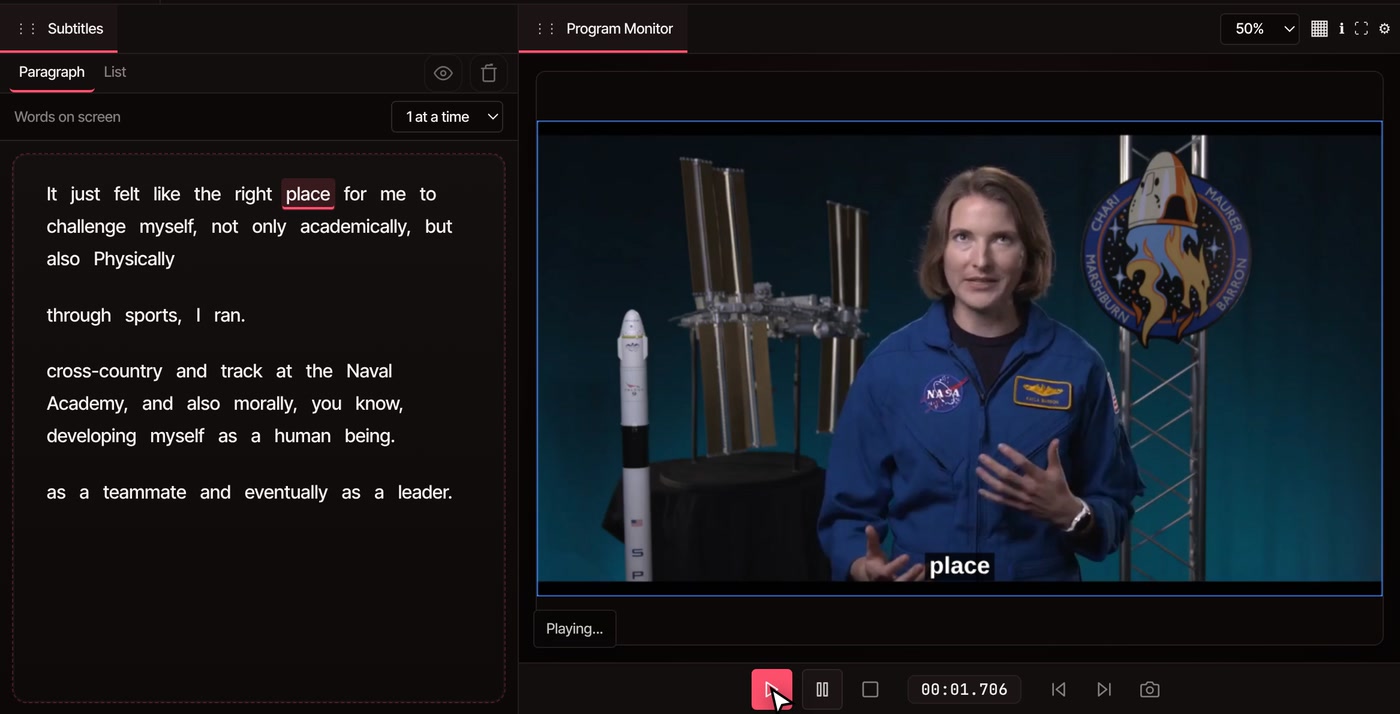
Read the captionsEvery word lands in the Subtitles panel and on its own track on the timeline, timed to the speech. Press play to see them on the picture.
Prefer a written walkthrough? Read how to add AI captions to a video automatically.
After they are written
Make them look the way you want.
-
One word or a few
Words on screen shows 1 to 7 words at a time, or full lines of up to 8. One at a time suits Shorts, Reels and TikTok. A line still ends at the end of a sentence or a pause.
-
Fix a word by typing
Switch the Subtitles panel to List, click a word and type the right one. You can change when it starts and ends too.
-
Your size and colour
Click a caption and the Properties panel shows its size, font, text colour, background and position. Captions made from one clip are linked, so one change restyles them all.
-
Part of your export
Captions are part of the picture when you export, with no watermark. Hide the subtitle track with its eye button to export without them.
-
Your own subtitle file
Already have an SRT file? Drop it in and its lines appear on the timeline and in the Subtitles panel, no account needed. VidTL can’t save captions out as an SRT file yet.
-
Edit by the words
The captions are also a transcript. Select words and press delete, and the picture and sound are cut with them.
Languages
Captions in 18 languages, or let VidTL pick.
Tell VidTL which language is spoken before it starts: English, Spanish, French, German, Italian, Portuguese, Dutch, Polish, Russian, Ukrainian, Turkish, Arabic, Hindi, Indonesian, Vietnamese, Chinese, Japanese or Korean. Not sure? Choose Detect automatically.
It writes what is said, in the language it is said in. It does not translate. English is where it is strongest: on clear English speech the words are very accurate, while other languages need more fixing and their word timing is looser. Crosstalk, mumbling, music over the voice and noisy rooms cost accuracy in any language, so read the captions through once.
What it costs
Free with a free account. Pro is faster.
Sign up and confirm your email, and Free Processing writes captions on your own computer at no cost. It is slower on long videos and works best in Chrome or Firefox. Pro adds Priority Processing, which runs on VidTL’s servers, is faster and more accurate, and works out the language by itself. It uses your weekly AI credits. Every plan exports without a watermark, at any video length.
See plansQuestions
Questions about auto captions.
Is the auto caption generator free?
Yes, with a free account. Sign up, confirm your email, and Free Processing writes captions on your own computer at no cost. Exports have no watermark and any length is fine. Without an account you can still edit and export, and you can drop in an SRT file you already have.
Does my video get uploaded?
Not with Free Processing, which works on your computer. Priority Processing sends the sound, not the picture, to VidTL’s servers. Editing and exporting always happen on your computer.
How accurate are the captions?
Very accurate on clear English speech. Other languages, background music, several people talking at once and noisy rooms all make more mistakes. Read the captions through once and fix any word by typing it; the timing stays put.
Can I download the captions as an SRT file?
Not yet. Captions are saved into the exported video. You can bring an SRT file in, but VidTL has no button to save one out.
Can I use them for Shorts, Reels and TikTok?
Yes. Captions show one word at a time until you change it, and you can make them large and any colour. The word-by-word captions page covers that look, and Resize video covers the vertical shape.
Why did it find no captions?
If the clip has no speech, or the sound is very quiet, you will see a message saying no subtitles were generated. Check that you can hear the voice in the clip, and try Priority Processing on Pro.
Can the AI assistant add them for me?
On Pro, yes. Ask the AI assistant to add captions to everything and it writes them as ordinary captions on your timeline that you can restyle, fix or undo.
Keep going
- Word-by-word captions Big, bold captions that come up one word at a time.
- Subtitle editor Fix a misheard word by typing it. The timing stays put.
- Edit video by text Delete words from the transcript and the video cuts with them.
- AI assistant Say what to change and it makes the edit. Pro.
- Add AI captions, step by step A written walkthrough of the same job.
- Resize video Make it vertical for Shorts, Reels and TikTok.
Every word captioned. You fix the odd one.
Free with a free account. It opens in your browser, with nothing to install and no watermark.