Free beat sync
Sync video to the beat. Every cut on a hit.
Put a song and your clips on the timeline, and VidTL cuts the clips so every change lands on a hit in the music. Prefer to cut by hand? It can drop a marker on each hit instead.
- No account to start
- No watermark
- Your song stays on your computer
How it works
Four steps from song to cut.
-
01
Put the song and your clips on the timeline.The song goes on an audio track and the clips on a video track, in the order you want to see them. Pictures work as well as video.
-
02
Select all of them.Drag a box over the timeline, or press Ctrl+A. The song and the clips have to be selected together.
-
03
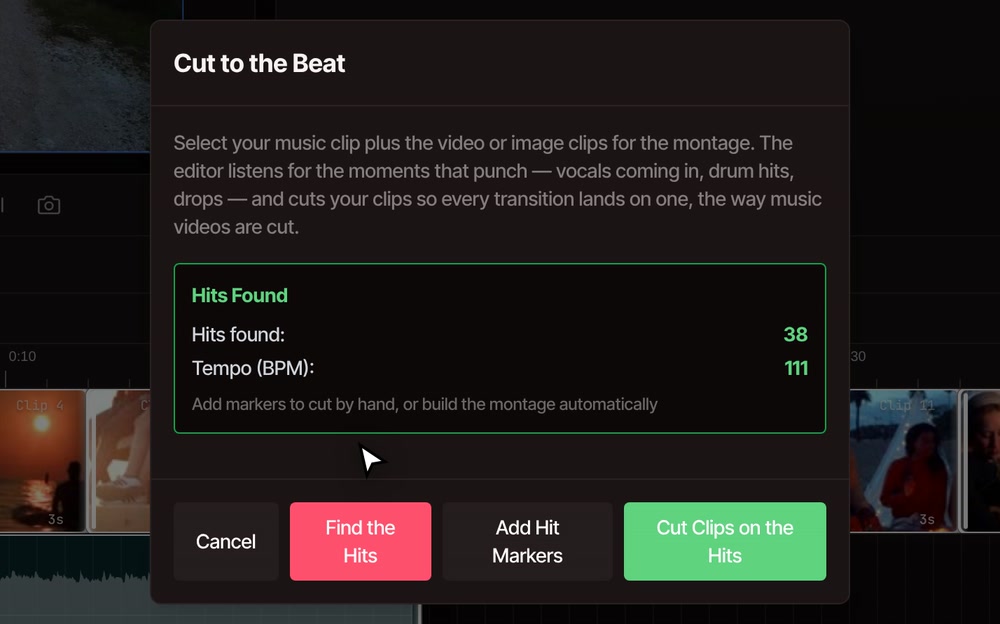
Open Cut to the Beat and click Find the Hits.It’s in the Tools menu, under Cut & Trim. VidTL listens to the song, then shows how many hits it found and the tempo.
-
04
Cut the clips, or add markers.Cut Clips on the Hits re-times your clips so each cut lands on a hit. Add Hit Markers leaves the clips alone and puts a flag on the ruler at each cut.
The result
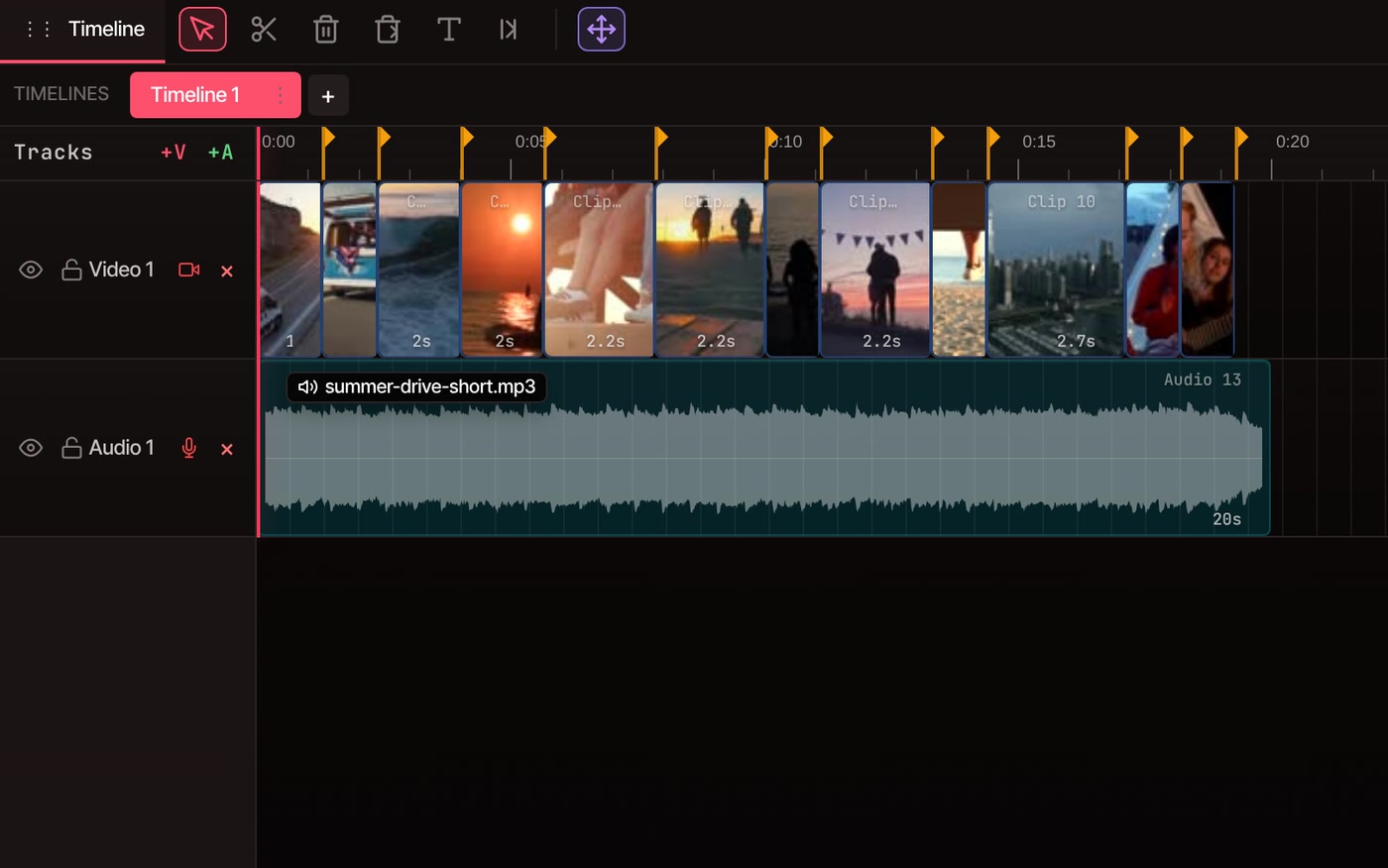
38 hits in the song. 12 cuts on them.
That’s the song in the video above: 20 seconds at about 111 beats per minute. VidTL doesn’t cut on every hit. It looks ahead one shot at a time and cuts on the strongest hit in reach, so the shots run from about a second to just under three, and every cut lands on something you can hear.
The orange flags are what Add Hit Markers places. After Cut Clips on the Hits, every clip ends right under one.
What to expect
How it picks the cuts, and what it does to your clips.
-
It listens for hits
Drum hits, drops, accents and a voice coming in all count. VidTL checks low, middle and high sound separately, so a word over a loud bassline still shows up.
-
It cuts like a music video
Cuts land at least 0.6 seconds apart, and VidTL aims for one within every 3 seconds. In a quiet stretch with no hit, the shot runs on to the next one, so it can be longer.
-
Clips go in timeline order
Each selected clip is used once, starting where the song starts. A clip keeps its own start point and is cut short at its hit, so any trim you made stays.
-
Short footage plays whole
VidTL never stretches footage. If a clip is too short to reach its hit, it plays in full. That one cut is off the beat, and the next clip lines back up on the following hit.
-
Markers for cutting by hand
Add Hit Markers labels each cut Hit 1, Hit 2 and so on, and lists them with their times in the Markers panel. Its previous and next buttons step the playhead flag to flag, and S splits there.
-
One undo puts it back
Cut Clips on the Hits is a single step. Press Ctrl+Z and every clip goes back to where it was, so you can try a different song and compare.
Questions
Beat sync, answered.
Is syncing a video to a beat free?
Yes. Cut to the Beat needs no account, and the video you export has no watermark. The song is analyzed on your own computer, so it isn’t uploaded anywhere.
Does it cut on every beat?
No. It cuts on the strongest hit in each stretch, the way a music video is cut, so you get a cut every second or two rather than one per beat. A cut on every beat of a steady track isn’t something it does today.
What do I need to select first?
The song’s clip on an audio track, and the video or picture clips you want cut, all at once. The song needs to be its own audio file, such as an MP3 or WAV. If it isn’t selected, VidTL asks you to select it. If it finds no clear hits, it says so and leaves your clips alone.
What if I have fewer clips than the song needs?
Each clip is used once, so the cuts stop when the clips run out and the song carries on. Add more clips and run it again. The 20-second song in the demo took 12 clips.
Can I adjust the cuts afterward?
Yes. The clips stay ordinary clips on the timeline, so you can drag an edge to trim, move a clip, or swap one for another. Ctrl+Z undoes the whole cut in one go.
Where do I get a song?
Bring your own audio file: MP3, WAV, M4A and similar all import as music. On the Pro plan, VidTL can also make music for you, which is how the song in the demo was made. Adding music to a video covers the rest.
Also in the editor
- Music video maker Beat-cut clips are the start of a music video. See what else goes into one.
- Add music to video Lay a song under your clips, trim it and fade it out.
- AI music generator No song yet? Describe the mood and get a track to cut to (Pro).
- Split video Cut one long clip into parts first, then cut those to the beat.
- Merge videos Line up the clips you want to cut, end to end on one timeline.
- AI video editing assistant On Pro, ask it in plain words to cut your clips to the music.
Cut your video to your song.
Free to start, nothing to install, and no watermark on what you export.