Free video splitter
Split a video online. By hand or by scene.
Put the playhead where the cut goes and press S. The clip becomes two clips you can move, delete or keep. Or let Scene Detection find every camera change in a long recording and split there for you.
- No account to start
- No watermark
- Your video stays on your computer
How to split a video
Put the playhead, press S.
-
01
Put your video on the timeline.Click + Import in the Media panel, or drag your file onto it, then drag the video down to the timeline.
-
02
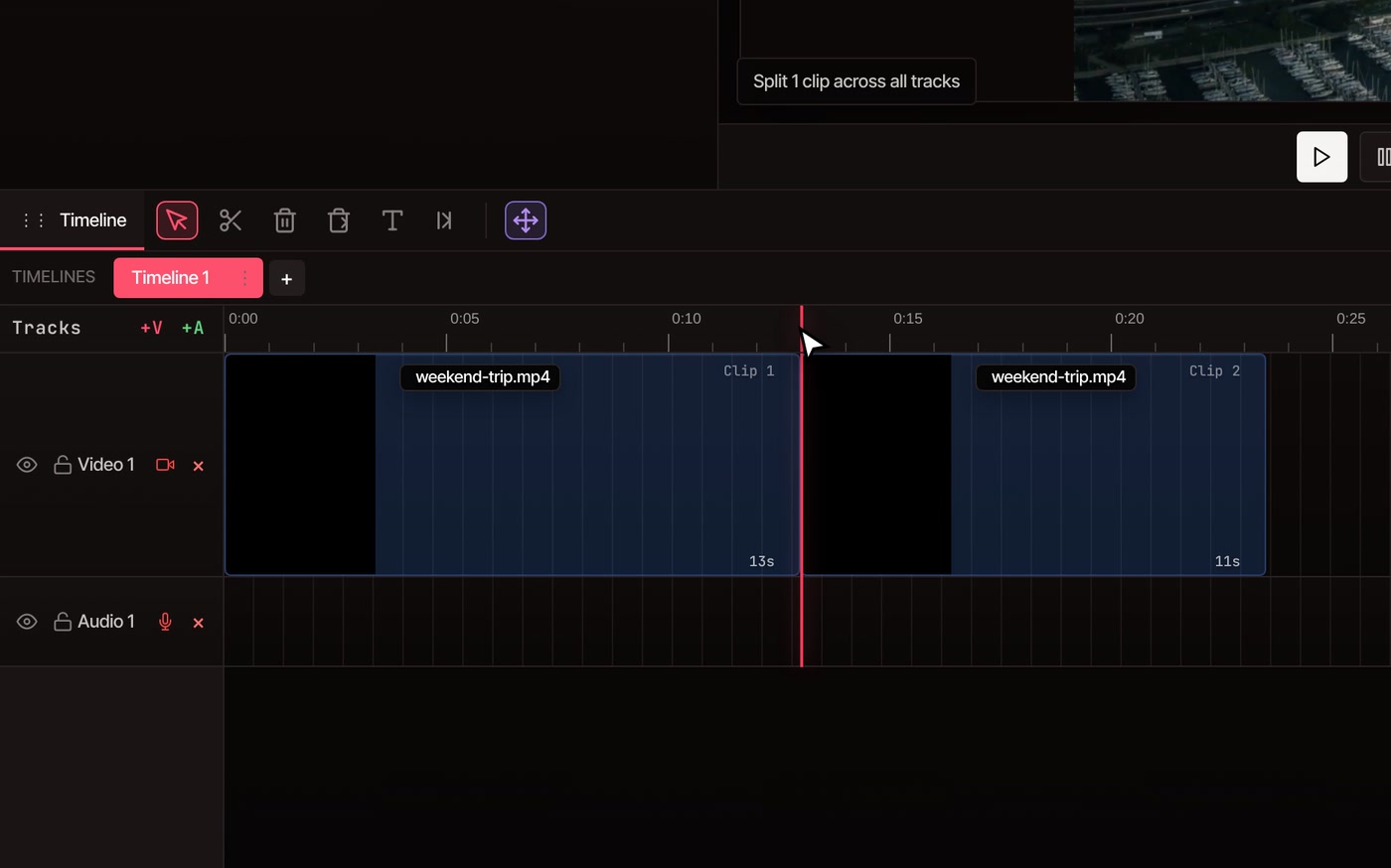
Move the playhead to the cut.Click the time ruler or drag the red line. The left and right arrow keys step one frame at a time, and the time shows beside the play buttons.
-
03
Press S.The clip splits there. With nothing selected, S splits every clip under the playhead, on every track. Select a clip first to split only that one and the clips linked to it.
More ways to split
Pick the way that fits the job.
-
Split where you click
Press C for the Cut tool and click a clip. It splits right where you clicked, with the clips linked to it. Hold Alt to cut only the clip you clicked.
-
Split every track at once
Press Shift+S at the playhead, or Shift+click with the Cut tool. Every clip under that point is cut, on every track, whatever is selected. Clips on a locked track are left alone.
-
Split from the menu
Select a clip and choose Edit › Cut. It splits the selected clip at the playhead, the same as S. Despite the name, nothing goes to a clipboard.
-
Land on the exact frame
Click the ruler to get close, then tap the left or right arrow key to move one frame at a time. Press S when the picture is the one you want to cut on.
-
Keep, move or delete a part
After a split every part is its own clip. Drag it somewhere else, delete it, or press R and click it to Ripple Delete it and close the gap behind it.
-
Undo any split
Each split is one step in the undo history. Choose Edit › Undo, or press Ctrl+Z (Cmd+Z on a Mac), and the clip is back in one piece. Your original file is never touched.
Scene Detection
Long recording? Split it at every camera change.
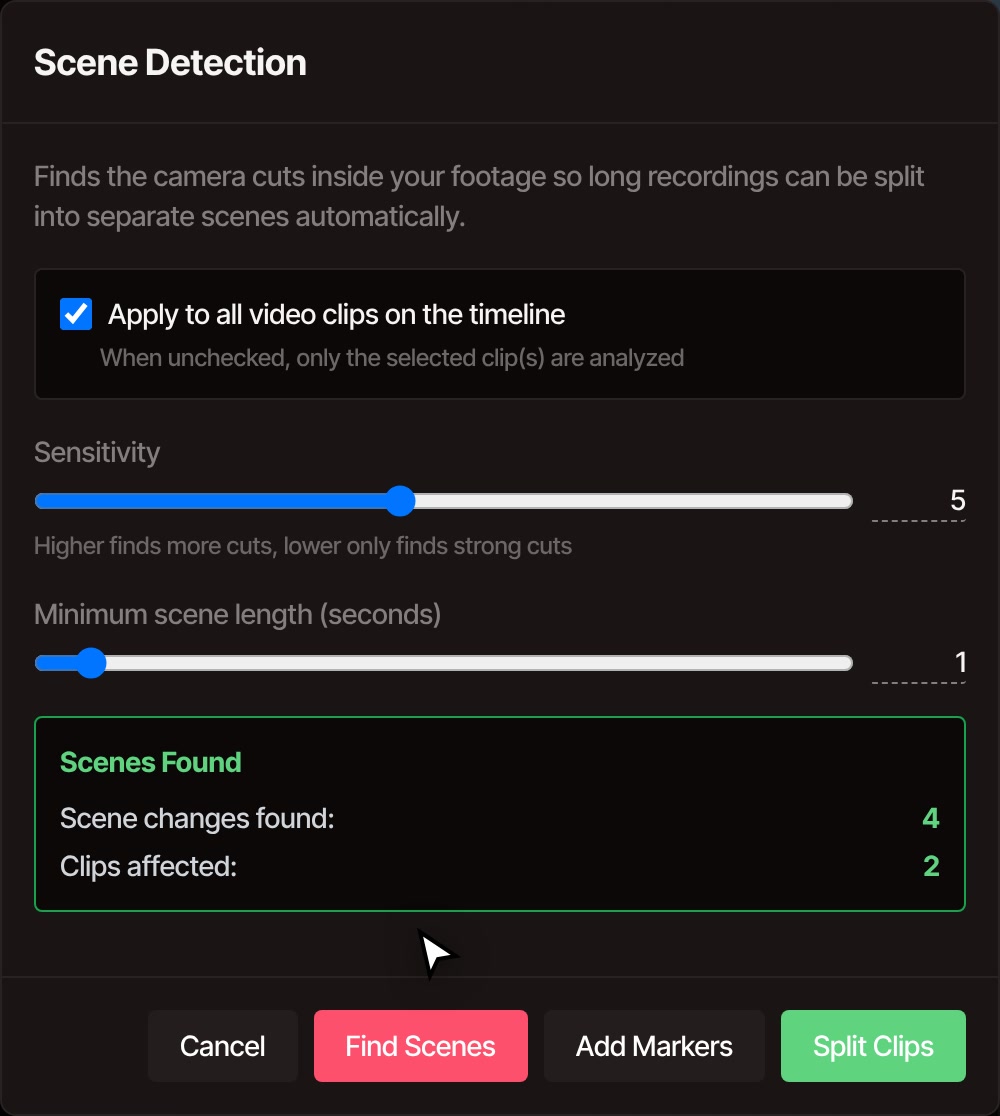
Put the video on the timeline and open Tools, then Scene Detection under Cut & Trim. Find Scenes watches the footage at high speed on your computer and tells you how many scene changes it found. Split Clips cuts the video at each one. Add Markers drops a marker at each one instead and leaves the clips whole.
- Sensitivity, 1 to 10Higher finds more cuts, lower finds only the strong ones. It starts at 5.
- Minimum scene lengthFrom half a second to 10 seconds, so a flash or a quick jump does not become a part of its own. It starts at 1 second.
- Apply to all video clipsOn when nothing is selected. Turn it off to look only at the clips you selected.
It looks for sudden jumps in the picture, so it finds hard cuts. A slow dissolve, or a new topic inside one long shot, can slip past it. On a busy computer a cut can land a moment after the change, so look through the parts when it is done. If it finds too few or too many, change Sensitivity and press Find Scenes again before you split. It works on video clips only.
Save the parts
Each part as its own file.
Chapters, short clips, one video per scene. You do not need to split the clips first: the export cuts at your markers.
-
01
Mark where each part begins.Move the playhead and press M to add a marker. Its name ends up in that part’s file name. Scene Detection’s Add Markers button puts one at every scene change.
-
02
Open File › Export Video and tick the box.It is called Split into separate files at markers.
-
03
Export.Each section between markers downloads as its own video, named like trip_part1.mp4 and trip_part2_Intro.mp4. Your browser may ask whether to allow several downloads.
Two limits. It is not available for GIF, and it cannot be combined with exporting extra sizes in the same run.
Questions
Splitting, answered.
Is the video splitter really free?
Yes. Splitting, Scene Detection and saving each part as its own file need no account, and the finished videos have no watermark. Exports go up to 8K at any length.
Does my video get uploaded?
No. You edit and export on your own computer, so the footage stays there. It only leaves if you choose to save to cloud storage or use a tool that runs on VidTL’s servers.
Does splitting change my original file?
No. A split is an edit on the timeline, and your original stays as it is. You save new videos when you export.
Can I split a video into equal parts?
There is no one-click button for it. Work out where each part should start, move the playhead there and press S, or add a marker there and export with Split into separate files at markers. The time beside the play buttons tells you where the playhead is.
How do I split a video and delete one part?
Split at the start of the part and again at its end. Then press R and click the part in between. It is removed and the clips after it move up to close the gap.
Why didn’t S split my clip?
The playhead has to be inside the clip, not at its first or last frame, and the clip’s track cannot be locked. If you selected other clips, S splits only those. Click the ruler over the clip you want, deselect everything and try again.
Can I split a video on my phone?
Not today. The editor needs a desktop or laptop computer. Chrome, Edge, Brave, Arc and Firefox all run it well, and Safari works for lighter editing.
After the split
- Trim video Cut off the start or end, or take a part out of the middle.
- Merge videos Put the parts back together in a new order.
- Sync video to the beat Cut clips so every cut lands on a beat of your song.
- Remove silence Find the quiet gaps and cut them out in one click.
- Edit video by text Cut a talking video by deleting words from the transcript.
- Compress video Make each part small enough to send.
Split it once. Or at every scene.
Open the editor and drop in a video. No account, no watermark, nothing to install.