Free online music video maker
Make a music video that cuts to the beat.
Put your song and your clips on the timeline, and VidTL listens to the music and cuts every clip on a hit. Then add colour, titles and lyrics, and export. It all runs in your browser, with no watermark.
- Free, no account to start
- No watermark
- Nothing to install
How it works
A song and some clips in, a cut out.
-
01
Put the song and your clips on the timelineThe song goes on an audio track. It has to be an audio file, not the sound from a video. Stock clips are searchable from inside the editor if you need footage.
-
02
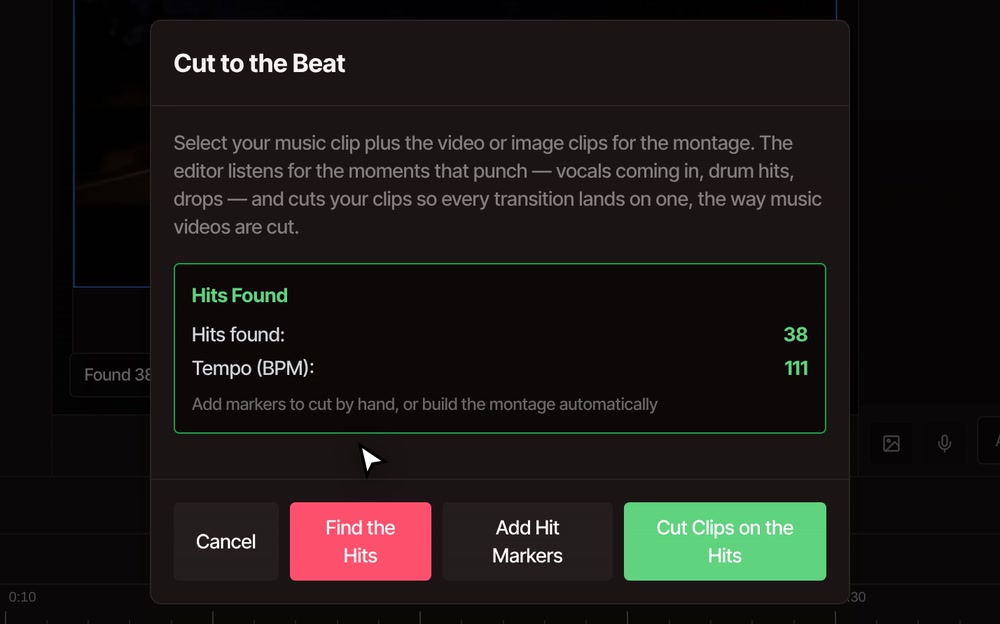
Select them all, then open Tools and Cut to the BeatDrag a box over the timeline, or press Ctrl+A. Press Find the Hits and VidTL listens to the song and tells you how many hits it found and the tempo.
-
03
Press Cut Clips on the HitsYour clips are lined up back to back from the start of the song, and each one ends on a hit. Prefer to cut by hand? Add Hit Markers puts a flag on the ruler at each cut instead.
-
04
Add the look, the title and the lyricsColour, titles, transitions and speed are all in the same editor. Then export.
One look for every shot
Grade the whole video in one move.
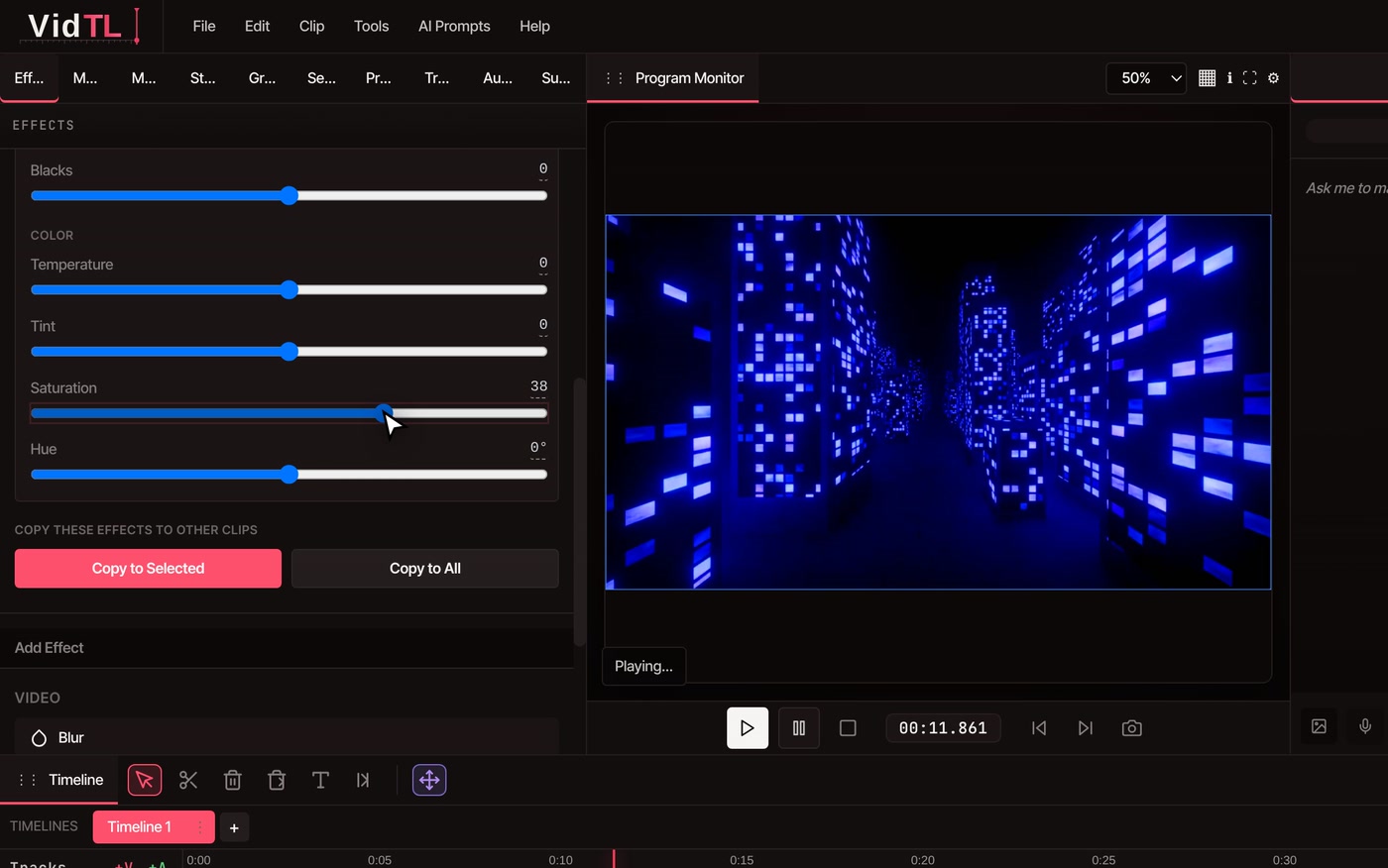
Clips from different places never match, and a music video looks wrong when they don’t. Select every clip, add Color Correction once, and the panel says “12 clips selected - changes apply to all”. Drag Contrast, Saturation or Temperature while the video plays and every shot follows.
Auto sets a starting grade from the picture. The full guide to grading is on the colour correction page.
Also in the editor
Everything after the cut, in the same place.
-
Lyrics and titles
Click the picture with the Text tool and type, or open the Graphics tab and add a ready-made title from Big Bold Title or Elegant Title. Lyrics are typed in by you: the editor does not pull them out of the song.
-
Transitions and motion
Drag fades, zooms, slides and cross dissolves from the Transitions tab onto a clip. Keyframes animate position, size and opacity when you want a shot to push in on the chorus.
-
Slow motion and speed
Change a clip’s speed in its Properties, from a slow-motion shot of the singer to a fast cut-in. The pitch follows the speed unless you unlock it.
-
Footage
Search free stock footage without leaving the editor, or bring your own. Anything shot on a camera, a screen recorder or a webcam goes on the timeline the same way.
-
Vertical or wide
Set the project to 9:16 in Project settings for Shorts, Reels and TikTok, or leave it at 1080p or 4K for YouTube. Exports go up to 8K.
-
Your own computer does the work
Editing and exporting run on your computer, so your song and your footage stay with you. They leave only if you save to cloud storage or use a Pro tool that runs on VidTL’s servers.
Part of Pro
No song or no footage yet? Pro writes the music and generates the shots.
The AI music generator makes an original song from a description, and the AI video generator makes short clips you can cut in. Both are part of Pro and use your weekly AI credits. Everything else on this page, including Cut to the Beat, colour, titles and export, works on the free plan with no watermark.
See plansQuestions
Music videos, answered.
Is the music video maker free?
Yes. Cut to the Beat, colour, titles, transitions and export are all free, with no watermark and no account needed to start. Writing original music and generating video clips with AI are part of Pro.
How does VidTL know where to cut?
It listens to the song for the moments that stand out: drum hits, vocals coming in, drops. Then it looks ahead one shot at a time and cuts on the strongest hit within reach, so shots run from just over half a second to about three seconds. It does not cut on every beat, which would feel frantic.
Can I use a song I did not make?
The editor will take any audio file you have. Whether you can publish the result is a separate question, and platforms may mute or claim a video that uses a song you do not have the rights to. If you want music that is yours to use, Pro can write an original track.
What if a clip is shorter than the gap to the next hit?
It keeps its full length, and the next clip starts after it. The cuts then line up again on the following hit. A clip is never stretched past the end of its footage.
Can I edit lyrics onto the video?
Yes, you type them. Add a text clip for each line with the Text tool, or use a title from the Graphics tab, and place them on the timeline against the song. The editor does not write the lyrics out of the song for you.
Does it work on a phone?
No. The editor needs a desktop or laptop computer, and a phone shows “Desktop computer required”. It runs in Chrome, Edge, Brave, Arc and Firefox, and Safari works for lighter editing. A vertical video for your phone is made on the computer.
Go deeper
- Sync video to beat The Cut to the Beat tool in detail, with hit markers and what it does with short clips.
- AI music generator Describe the mood and get an original song to cut your video to.
- Color correct video Exposure, contrast, temperature and Auto, explained.
- Add text to video Titles and lyric lines, typed straight onto the picture.
- Video transitions Fades, zooms, slides and cross dissolves for the moments between shots.
- Resize video Make the same cut work for YouTube, Reels or TikTok.
Your song. Your clips. Cut on the beat.
Open the editor, drop in a song, and have a first cut in a minute. No account, no watermark.