Free voiceover recorder
Record a voiceover while your video plays.
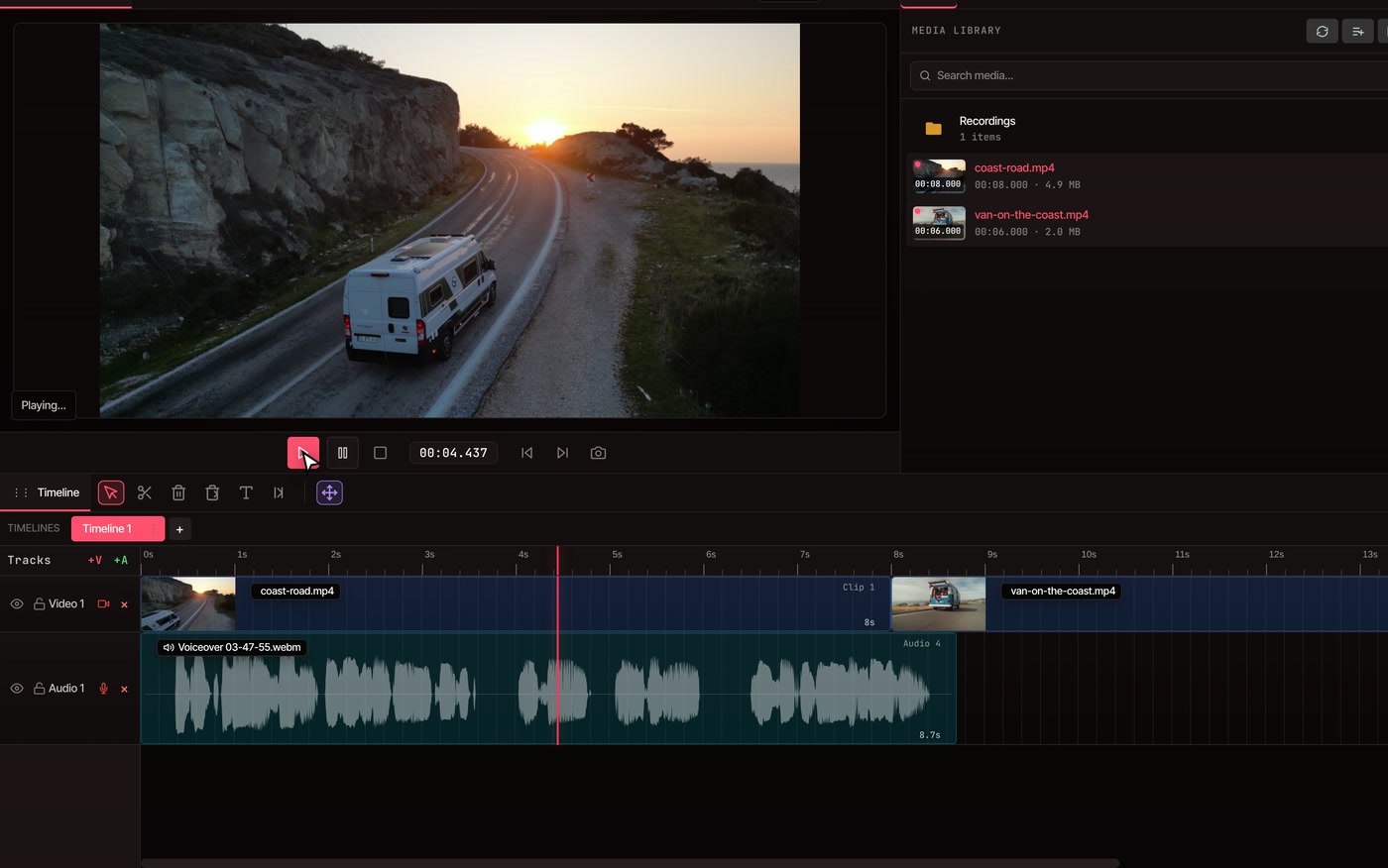
Press the record button on an audio track and talk. Your footage plays as you record, and your voice lands on the track right where you started, in time with the picture. Trim it, clean it up and export with no watermark.
- Free, no account
- No watermark
- Nothing to install
How it works
Press record on an audio track, and talk over the footage.
-
01
Put the video on the timeline and park the playhead.The recording starts wherever the playhead is, so click the ruler at the moment your voice should come in.
-
02
Click the microphone button on an audio track.It sits next to the track's name. If the project has no audio track yet, add one with +A. The first time, your browser asks to use your microphone.
-
03
Talk while the timeline plays.Recording starts playback for you. A red clip grows on the track as you speak.
-
04
Click the button again to stop.Pausing playback stops it too. The recording lands on that track where you started, and is kept in the Recordings folder of your media library.
What you get
A voiceover that is just another clip.
-
Timed to the picture
Recording plays your timeline from the playhead, so you can describe what is on screen as it happens. Nothing to line up afterwards.
-
Lands where you started
The clip is placed at the playhead on the track you recorded from. Record the intro, move the playhead, and record the next part on the same track.
-
Edit it like any sound
Trim it, split it, drag it earlier or later, change its volume. The recording is an ordinary audio clip, so the audio tools work on it.
-
Wear headphones
Your footage plays while you record, and speakers can leak into the microphone. Headphones keep the take to your voice alone.
-
Clean it up afterwards
Take out room noise or even out the loudness once it is on the timeline. See remove background noise and normalize audio.
-
Stays on your computer
Recording happens in your browser, on your own computer. Your voice only goes online if you save to cloud storage.
Questions
Voiceover recording, answered.
How do I record a voiceover for a video online?
Open the editor, add your video, and click the microphone button on an audio track. Talk while the video plays, then click the button again. Your voice is on the track at the spot where you started, and you can export the whole thing as a video.
Do I need an account, and does it cost anything?
No account and no payment. Recording a voiceover is free, and exports have no watermark on any plan.
What if I make a mistake?
Delete the clip, put the playhead back where the line started, and record again. You can also record another take on a second audio track and keep whichever sounds better.
Which browsers can record my voice?
Chrome, Edge, Brave and Arc. Firefox and Safari have not been tested for voice recording, so try a short take before you commit to a long one. In any browser you need to allow the microphone when it asks.
Can I record my screen or my face too?
Yes. The record button on a video track records your screen, your webcam, or both, with your voice. See the screen recorder and the webcam recorder.
Can I add a voiceover without using my own voice?
Yes. Type a script and pick a voice with AI voice over. That is part of Pro, and recording your own voice stays free.
Also in the editor
- Screen recorder Record your screen with your webcam and voice, straight onto the timeline.
- Webcam recorder Record yourself on camera, or put your face over the screen.
- Remove background noise Take the hum and room noise out of your recording.
- Normalize audio Even out the loudness between your voice and everything else.
- AI voice over Type a script and get a spoken voiceover, no microphone needed.
- Auto caption generator Turn what you said into captions on the video.
Record your voiceover over the footage.
Free, no watermark, and nothing to install.