
Video editor for Windows
A free video editor for Windows.
No download: VidTL opens in Edge, Chrome, Brave or Firefox on your Windows PC. No account to start and no watermark on what you export. It even opens iPhone videos that your PC can’t play.
- Nothing to install
- No watermark
- Exports up to 8K
Phone video on Windows
iPhone video opens, even if your PC can’t play it.
-
01
Bring the video in.Press Import in the Media tab, or drag the file in. A .MOV or .MP4 from an iPhone works. It stays on your PC.
-
02
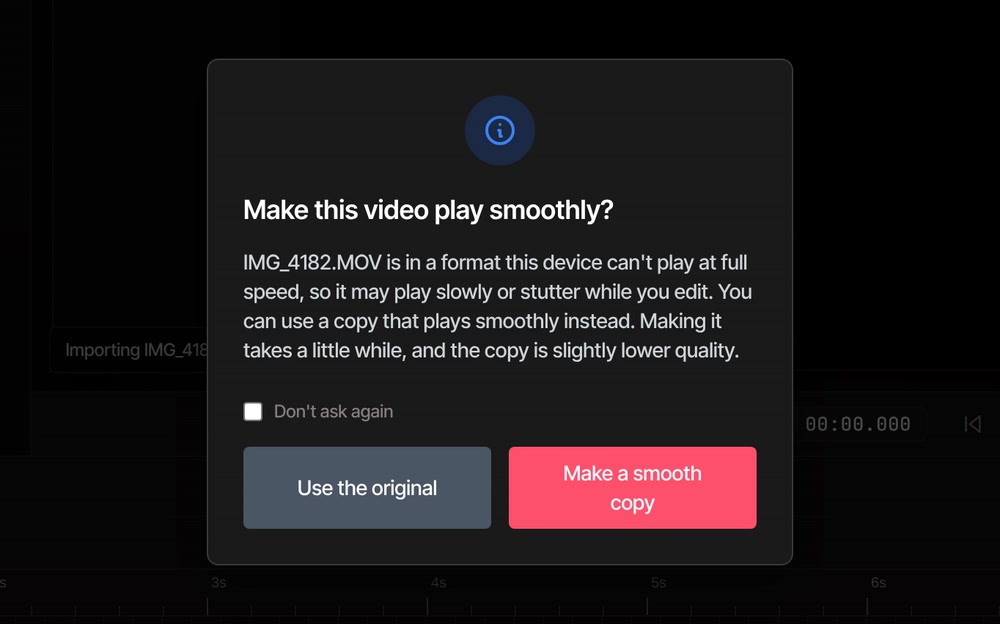
Answer the question, if you get one.If your PC can’t play the video at full speed, VidTL asks “Make this video play smoothly?” Choose Make a smooth copy, or Use the original to keep full quality and put up with some stutter.
-
03
Wait for the copy.The status line shows its progress. The copy lands in the media library as an MP4 with _h264 in its name. Your original file isn’t touched.
-
04
Drag it to the timeline and edit.From here it’s any other clip. Your export is made from the copy, which is slightly lower in quality than the original.
The smooth copy is offered for clips up to about two and a half minutes of 1080p video, or about 40 seconds of 4K. Longer clips open as they are and play more slowly.
Before you start
What Windows users ask first.
-
Nothing to install
VidTL opens in Edge, which comes with Windows, or in Chrome, Brave or Firefox. There is no installer to run and no administrator password to find, so it can work on a work or school PC where you can’t add software.
-
Game and screen captures
MKV files open as they are, and AVI files are converted when you import them. MP4, MOV, M4V and WebM open too, so a capture can go straight onto the timeline.
-
Record your screen
Share a screen, a window or a tab from the Windows PC you’re on, with your webcam if you like. In Chrome and Edge you can share a single tab with its sound. Whether a whole screen brings sound depends on your browser and PC.
-
Projects that save themselves
In Chrome, Edge and Brave you pick a folder once and your project saves there as you work. Firefox can’t save to a folder, so use File › Save Project before you close the tab.
-
Exports every Windows app plays
MP4 with H.264 is the default, and it plays in any Windows player. MOV, WebM and GIF are there too, at up to 8K. The file is made on your PC and lands wherever your browser saves downloads.
-
Your PC does the work
Editing and exporting run on your own computer, not on a server, so there is no upload to wait for. A stronger PC finishes long exports and 4K footage sooner. We don’t publish a minimum spec, so try a short project first.
Questions
Windows questions, answered.
Is there a free video editor for Windows with no download?
Yes, this one. VidTL opens in Edge, Chrome, Brave or Firefox on your Windows PC. You don’t need an account to start, nothing you export has a watermark, and exports go up to 8K at any length on every plan. The AI tools are part of Pro (see plans).
Does it work on Windows 10 and Windows 11?
It runs in a current version of Chrome, Edge, Brave or Firefox, so a Windows PC that can run one of those can run VidTL. There is nothing to install, so there is no separate Windows version to match.
Will it open my iPhone videos?
Yes. iPhone video is usually saved in a format that Windows can need an extra add-on to play. VidTL opens it either way. If your PC can’t play the file at full speed, VidTL offers a smooth copy, as shown above. If it can, the video just plays and you won’t be asked.
Do I have to keep the window open while it exports?
Yes. Keep the tab open and the browser window visible. It can sit behind other windows, but minimizing it may pause the export in some browsers. Your PC is making the file, so it also needs to stay awake.
Will it run on my older PC?
Probably for plain 1080p cuts, but the speed follows your PC. Big 4K files and long exports are the heavy part. Try a short project first, and use the smooth copy for footage that stutters. Nothing is lost by trying: it costs nothing and there is nothing to uninstall.
Should I use a desktop editor on Windows instead?
If you grade colour or build visual effects for hours a day, a desktop editor like DaVinci Resolve is stronger, and it is free too (how they compare). VidTL is for getting a video cut, captioned and exported without installing or learning a big program.
Keep reading
- Free online video editor The full editor: tracks, titles, effects and export.
- Screen recorder Record your Windows screen and webcam in the same window.
- Video converter Turn MOV, WebM and other files into MP4, ProRes or GIF.
- Gaming video editor Cut long game recordings down to the good parts.
- Clipchamp alternative Where VidTL and Clipchamp differ, if you’ve used it.
- Final Cut Pro for Windows Final Cut doesn’t run here. What carries over.
Edit on Windows, install nothing.
Open it in your browser, drop in a video, and cut. No account to start and no watermark on the export.