AI voice cloning, in Pro
Clone a voice, speak new lines.
Pick a few seconds of someone talking, type what they should say, and get a new recording in that voice on your timeline. It is one dialog in the editor, under Tools, Text to Speech.
- Part of Pro
- 3 to 10 seconds
- No watermark
Tools, Text to Speech
Five steps from a clip to a new line.
-
01
Pick the voice to copySelect a clip with the voice on your timeline before you open the dialog, or choose anything with sound from your project, or upload a file.
-
02
Choose a Voice Clone optionOpen Tools, then Text to Speech. In the Model list, the options marked Voice Clone are the ones that copy a voice.
-
03
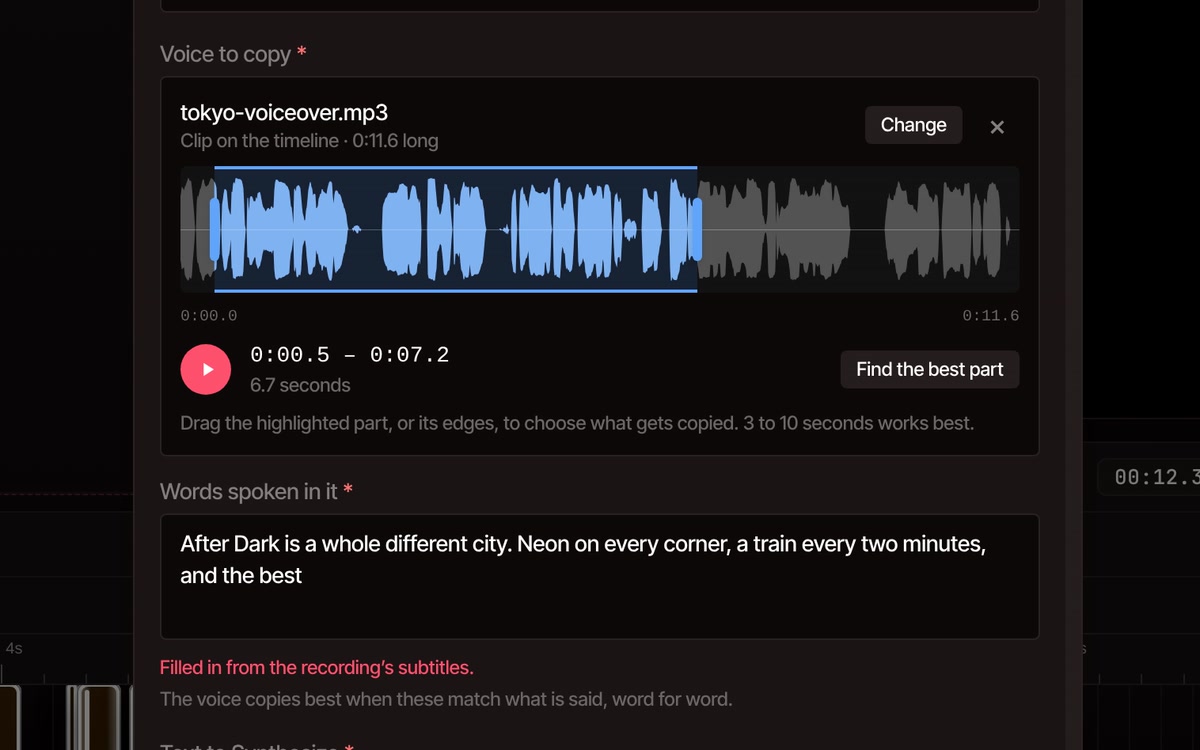
Choose the part to copyThe recording appears as a waveform with a highlighted part. Drag the part or its edges, press play to hear it, or press Find the best part.
-
04
Check the words spokenThey fill in from the clip’s subtitles when it has them. If not, type what is said in the chosen part.
-
05
Type the new line and press Generate AudioThe recording is made in the copied voice and lands on an audio track at the playhead.
Listen for yourself
The voice, then the copy.
A voiceover made with VidTL. This is the recording the demo picks from, up to the end of the stretch it highlights.
Made from that stretch by the Text to Speech dialog: “Tonight we are heading to Shibuya, for the quietest ramen counter in the city.” Exactly what the editor produced, not edited afterwards.
How close the copy sounds depends on the recording you start from. Clear talking from one person, with no music or room noise under it, gives the best result.
What you can do
Control what gets copied, and how it is said.
-
Copy from what you have
A clip on the timeline, anything with sound in your media library, or a file you upload. A video with sound works as well as an audio file.
-
Choose the exact stretch
Slide the highlighted part or drag its edges, from 3 to 10 seconds. The edges settle between words or in a pause, so the copy never starts mid-syllable.
-
Words filled in for you
If the clip has subtitles, the words spoken in your chosen part are filled in and change as you move it. You can still correct them by hand.
-
Add a feeling or a style
One of the Voice Clone options can speak the line with an emotion, such as Excited or Sad, and a style, such as Whisper or Newsreader. Each one you pick makes the line take longer to make.
-
Keep one voice across a video
Copy from the same clip and the same part for every line, and the narrator stays the same from the first line to the last.
-
Ask the assistant instead
In the AI assistant, ask for a line in the voice of a clip in your project. It uses the clearest talking in that clip unless you name a part.
Before you copy a voice
Only copy your own voice, or the voice of someone who has said yes.
That means a recording you made of yourself, a voice you have written permission to use, or a voice you own the rights to. The editor does not check whose voice a recording is, so that part is up to you. Do not copy a customer, a coworker or a public figure without asking, and do not use a copied voice to make someone appear to say something they did not.
Part of Pro
Voice cloning comes with the Pro plan, along with every other Text to Speech voice.
The free plan has the whole editor without it: unlimited video length, 8K exports and no watermark. If you only need a voice on your video, you can record your own with the voiceover recorder. Each voice you make uses some of your weekly AI credits, more for a longer line.
See plansQuestions
Before you try it
Is voice cloning free?
No. It is part of the Pro plan, with the rest of Text to Speech. The free plan still gives you the full editor with no watermark, and you can record your own voice over a video with the voiceover recorder.
How much audio does it need?
Between 3 and 10 seconds of clear talking from one person. The editor suggests the clearest stretch of a recording, and you can move it. Under 3 seconds, the editor warns you that the copy may not sound much like the voice.
Can it speak other languages?
The Language list in the dialog offers Chinese, English, Japanese, Korean, German, French, Russian, Portuguese, Spanish and Italian, or Auto Detect. One of the Voice Clone options handles only English and Chinese, and says so in the Model list.
Is my recording uploaded?
The stretch you choose, 3 to 10 seconds, and the line you type are sent to VidTL’s servers to make the new recording. The rest of your recording and your video stay on your computer.
How long does it take?
Between about half a minute and a couple of minutes in our own runs for a one-sentence line. A longer line takes longer. You can keep editing while it works, but keep the editor tab open until the new clip appears.
Can I add captions to the new line?
Yes. A new recording starts with no captions, like any clip, so run subtitles on it once it is on the timeline. Auto caption generator covers how.
Also for your voice
- AI voice over Type a script and pick a ready-made voice instead of copying one.
- Voiceover recorder Record your own voice over the video while it plays.
- Remove background noise Clean the recording first, so the copy does not pick up the hum.
- Voice isolator Pull a voice away from music before you copy it.
- Auto caption generator Add captions to the new line once it is on the timeline.
- AI video editing assistant Ask for a line in a clip’s voice by typing a request.
Your voice, saying anything.
Voice cloning is part of Pro. The editor opens in your browser with nothing to install.