
Film editing software online
Film editing software in your browser.
VidTL is a multi-track editor for short films and documentaries. Stack picture and sound on as many tracks as a scene needs, animate shots with keyframes, mask and grade them, and export a ProRes master. It is free, with no watermark, and there is nothing to install.
- Free, no watermark
- ProRes master export
- Nothing to install
The demo, step by step
Push in on a shot, then master the film.
-
01
Click the shot on the timelineThe Properties tab fills with its position, width, height, opacity and rotation. Each one has a diamond beside it.
-
02
Add keyframes where the move startsWith the playhead at the start of the shot, press the diamond beside Width and beside Height.
-
03
Move to the end and change the sizeClick the ruler near the end of the shot and type a bigger Width. Lock Aspect keeps the shape, so Height follows, and the shot grows between the two keyframes when it plays.
-
04
Export the masterChoose File › Export Video, open the Presets tab, pick ProRes Master (MOV) and press Export. The file is made on your computer.
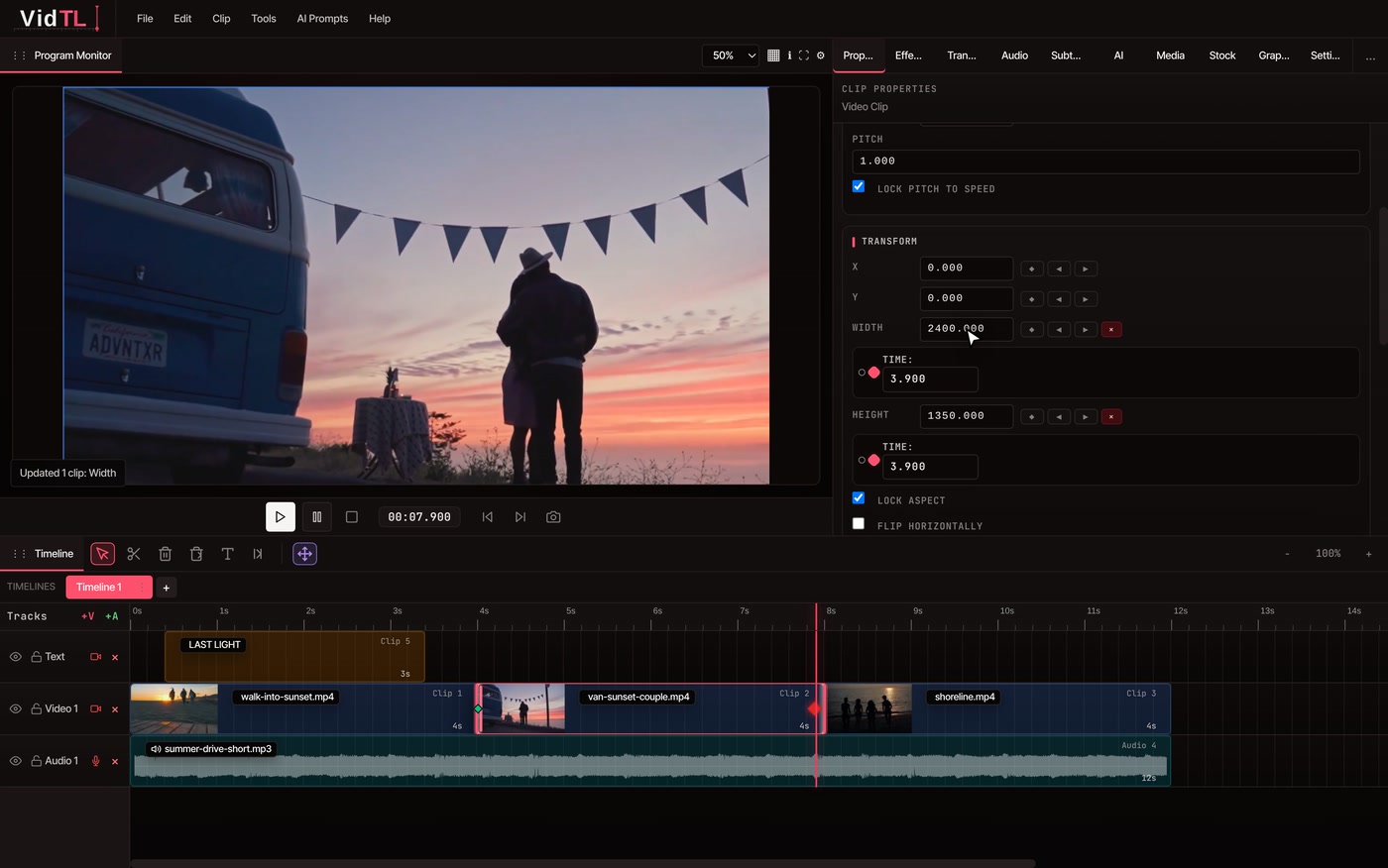
What a film edit needs
The parts of a film edit, in one browser tab.
-
Tracks and timelines
Add picture and sound tracks with +V and +A, and hide or lock any of them. The Audio tab is a track mixer with volume, mute and solo, and a clip can take reverb, an equalizer and a compressor. One project holds several timelines, so each scene or reel can have its own.
-
Keyframes and speed ramps
Animate a picture clip’s position, size, rotation and opacity, a sound clip’s volume, and a clip’s speed, to ease a shot into slow motion or out of it. Keyframes show as marks on the clip in the timeline. More on keyframes.
-
Masks
Add Mask puts points on the picture. Drag them, double-click an edge to add one, and invert the mask. The inside and the outside each get their own opacity, blur and colour correction. Track Moving Object makes the mask follow someone through the shot.
-
Colour
Color Correction has ten sliders: exposure, contrast, highlights, shadows, whites, blacks, temperature, tint, saturation and hue. Auto sets a starting point. It fixes and matches shots; what it lacks is listed below. Color correct a video.
-
Interviews and several cameras
Multi Cam Smart Sync lines clips up by their sound, and Multi Cam Auto Cut then cuts between the cameras by who is speaking. For a talking head, Generate Subtitles writes a transcript you can cut the video from, which is free with a free account.
-
Titles and subtitles
Text clips sit on their own track. Import an .srt, or let VidTL write the subtitles from the speech and fix them in the Subtitles tab. Subtitles are drawn into the exported video, and hiding their track exports the film without them. Edit subtitles.
Finishing
Set it up like a film. Hand it on like one.
-
Film frame rates
In the Settings tab, set the project to 23.976 or 24 frames a second (25, 29.97, 30, 50, 60 and 120 are there too) and any size up to 8K. The export’s Frame Rate list starts on Project Default, so the master keeps the rate you chose.
-
A ProRes master
The ProRes Master preset makes a MOV in ProRes 422 HQ with uncompressed sound, at your project’s size. The Quality slider picks the level: 95 and up is HQ, 75 to 94 is standard 422 and lower is LT. ProRes files are big: a 12-second 1080p master came to about 320 MB.
-
Round trips with Premiere Pro and Resolve
File › Import XML/Zip (FCP7) opens a timeline saved from Premiere Pro or DaVinci Resolve, and File › Export for Premiere Pro or for DaVinci Resolve sends yours back. Tracks, clips, speed, markers and titles travel. Effects and masks don’t. Premiere Pro and Resolve have the details.
Before you commit
Where a film editor may want more.
VidTL is built for cutting, not for finishing. If your film leans on these, cut here and do that last part elsewhere. The XML goes both ways.
-
Colour gradingThere are no scopes, curves, colour wheels or LUT files, and the sliders can’t change over time, so a clip keeps one look from its first frame to its last. VidTL has no HDR workflow.
-
ProRes, with limitsVidTL makes ProRes 422 only, not 4444. At 4K it is slow and not reliable yet, so make 4K masters as MP4 or WebM (see 4K video editor). ProRes you bring in gets a smooth-playing working copy, shrunk to 720p when the file is very large, so keep your originals for the final.
-
What an XML file leaves outA timeline opened from Premiere Pro or Resolve arrives without its transitions, effects, keyframes, masks and colour. You rebuild those here, or finish them back in the other app.
-
Big projectsEditing runs in a browser tab on your own computer, so how smooth it feels depends on that computer and your footage. Exports can be any length. Try your heaviest scene before you move a whole film.
-
Plug-ins and compositingThere are no third-party effect plug-ins and no node-based compositing. Motion graphics come from VidTL’s own templates.
Questions
Questions about editing a film.
Can I edit a whole short film in a browser?
Yes. Exports can be any length, up to 8K, and the editor needs a desktop or laptop with Chrome, Edge, Brave, Arc or Firefox (Safari works for lighter editing). It does not run on phones. How smooth a long edit feels depends on your computer, so open your heaviest scene first.
Is it free, and is there a watermark?
Editing and exporting are free with no account, and no export has a watermark. Every plan exports up to 8K and any length. Pro adds the AI tools, such as the assistant that edits from a typed request. See the plans.
Can I export ProRes?
Yes. File › Export Video › Presets › ProRes Master saves a ProRes 422 HQ MOV with uncompressed sound. It is slower than MP4 and the files are large. ProRes 4444 isn’t offered, and ProRes at 4K isn’t reliable yet.
Can I open a timeline from Premiere Pro, DaVinci Resolve or Final Cut Pro?
From Premiere Pro and DaVinci Resolve, yes: save the timeline as Final Cut Pro 7 XML and open it with File › Import XML/Zip (FCP7). A current Final Cut Pro project can’t be opened, because VidTL doesn’t read the newer FCPXML format. Switching from Final Cut Pro says what to bring instead.
Can I add subtitles to my film?
Yes. Import an .srt file, or select the clip and choose Generate Subtitles to write them from the speech, which is free with a free account whose email is confirmed. Subtitles are drawn into the exported video. VidTL can’t save them out as an .srt file.
Is my footage uploaded?
No. Importing, editing and exporting all happen on your computer. Footage leaves it only if you save to cloud storage or use a tool that runs on VidTL’s servers, like the AI assistant.
Keep going
- Keyframe animation Push in, drift, fade and ramp speed with diamonds.
- Multicam video editor Line up cameras by sound and cut between them.
- Color correct video Ten sliders and Auto, in plain words.
- Premiere Pro alternative Open a Premiere Pro timeline and send it back.
- DaVinci Resolve alternative Cut here, grade in Resolve, or the other way round.
- Subtitle editor Fix the words and timing of a film’s subtitles.
Cut your film where you are.
No account to start, no watermark, and your footage stays on your computer.