Free online video converter
Convert a video to MP4, MOV, WebM or GIF.
Open a MOV, WebM, MP4, MKV or AVI file, choose File › Export Video and pick the format you want. The conversion runs on your own computer, and the file you save has no watermark.
- Free, no account
- No watermark
- Stays on your computer
How to convert
Open it, then export it as something else.
-
01
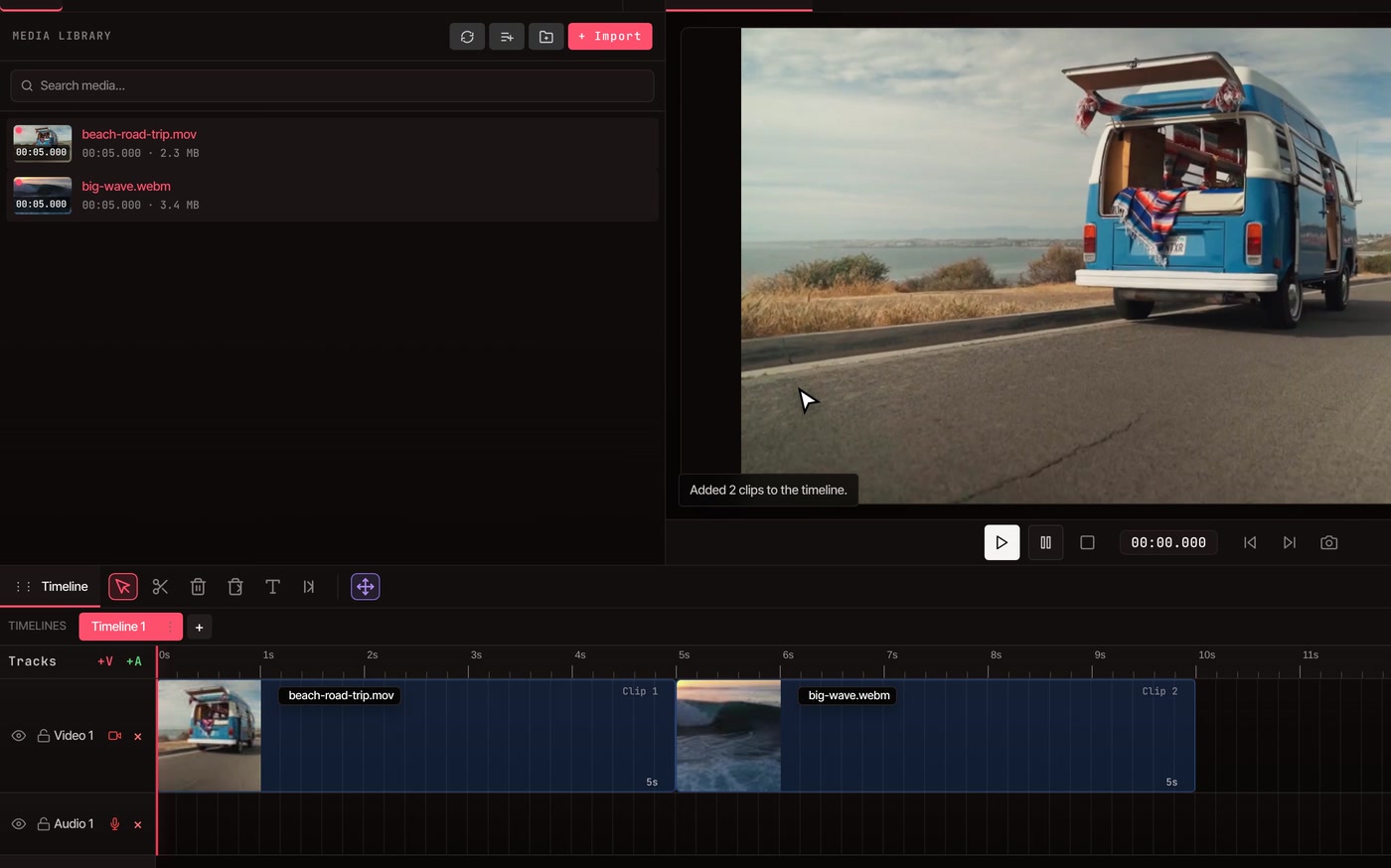
Bring the file in.Choose File › Import Media, click + Import, or drag the file onto the Media tab. Then click Add all clips to timeline, the button at the top of the library.
-
02
Match the size to your file.A new project is 1920×1080 at 30 frames a second, and the video is saved at the project’s size. For anything else, open the Settings tab, type your file’s width, height and frame rate, and click Apply Changes.
-
03
Pick a format and export.Choose File › Export Video, pick MP4, WebM, MOV or GIF from Format, then click Export. Keep the tab open until it says Export Complete.
Formats
What goes in, and what comes out.
-
What it opens
Video: MP4, MOV, M4V, WebM, MKV and AVI. Sound: MP3, WAV, AAC, OGG, Opus, M4A and FLAC. Pictures: PNG, JPG, GIF, WebP, BMP and SVG.
-
MP4
The default, and the safe pick when you are not sure. It saves as H.264. For a smaller file, open the Advanced tab and set Video Codec to H.265. That exports more slowly, and some older players cannot open it.
-
MOV
H.264, H.265 or ProRes. For ProRes, use the ProRes Master preset on the Presets tab. The Quality slider picks the level: 95 and up is ProRes 422 HQ, 75 to 94 is standard 422, and lower is LT. These files are large.
-
WebM
VP8 by default, or VP9 from the Advanced tab. Tick Transparent background and any empty part of the picture stays see-through, for a clip you want to lay over other video.
-
GIF
An animated, looping picture with no sound. The Animated GIF preset sets 15 frames a second. Also pick a small Resolution, such as 360p or 480p, because a GIF grows quickly. Short clips work best.
-
One-click presets
The Presets tab fills in the settings for YouTube 1080p and 4K, Instagram Feed and Story, TikTok, Twitter/X and a small 720p web version. Pick one, check the file name, and export.
Good to know
Before you press export.
-
It saves a new copy
Every conversion draws the video again and encodes it fresh, so it is never a bit-for-bit copy. Quality starts at 80. Raise it for a closer match, at the cost of a bigger file. To go the other way, see compress video.
-
Size and speed follow the project
The video comes out at the project’s size and frame rate, 1920×1080 at 30 until you change them. A clip with a different shape is fitted inside the frame with empty bars. The Settings tab takes sizes up to 7680×4320, which is 8K.
-
AVI and ProRes get a working copy
These cannot be played as they are, so the editor first makes a copy that plays smoothly. The copy is shrunk to 720p for an AVI file over 200 MB, and for a ProRes file longer than about 2½ minutes of 1080p video or 40 seconds of 4K. The picture in your export is then only 720p sharp.
-
Length
MP4, MOV and WebM exports have no length limit. A WebM with a transparent background is built in your computer’s memory, so keep it short. A GIF is made in one piece and can be about three and a half minutes at 640×360 and 15 frames a second, less at a larger size. The editor tells you before it starts if a GIF is too large.
-
H.265 and ProRes are slower
Your computer cannot make these directly, so VidTL uses its own encoder, which takes longer than plain MP4 or WebM. On a long video, expect to wait.
-
Sound comes along
Sound is kept in every format except GIF. MP4 and MOV save it as AAC by default, WebM as Opus. The Advanced tab lets you change the sound format and how much it is compressed.
Questions
Video converter questions.
How do I convert MOV to MP4?
Import the MOV file, click Add all clips to timeline, then choose File › Export Video. Format is already set to MP4, so click Export. The new file downloads when it says Export Complete. A WebM file works the same way.
Is the video converter free, and does it add a watermark?
It is free with no account, and nothing you export has a watermark. Every plan exports up to 8K and videos of any length. Paid plans add the AI features, and converting does not need one.
How do I convert a video to ProRes?
Import it, choose File › Export Video, open the Presets tab and pick ProRes Master. It saves a MOV with ProRes 422 HQ and uncompressed sound. VidTL makes ProRes 422 only; it does not make ProRes 4444.
How do I turn a video into a GIF?
Put the part you want on the timeline, choose File › Export Video, then pick the Animated GIF preset on the Presets tab and a small Resolution such as 480p. A GIF has no sound and works best under a few seconds. For trimming and looping tips, see video to GIF.
Is my video uploaded?
No. Opening and converting happen on your own computer, and the finished file is saved to your computer. Your video only leaves your computer if you save it to cloud storage or choose to make the export on our servers, a Pro option.
Can I convert without losing any quality?
Not exactly. Every conversion encodes the video again. Set Quality to 100 for the closest match. If you need a file moved into a new wrapper without re-encoding, the command box under Tools › Advanced can do it, and this guide shows how.
Can I convert video to MP3 or another sound format?
Not directly. File › Export Video makes video files in four formats: MP4, MOV, WebM and GIF. The command box under Tools › Advanced has an Extract audio example you can adapt to save the sound as its own file.
Do I have to keep the tab open?
Yes, when the video is made on this computer, which is the default. Pro adds an option to make it on our servers instead, so you can close the tab. Your footage is sent to our servers to do that.
Next, in the same editor
- Compress video Make the file smaller without changing its format.
- Video to GIF Cut the moment you want and save it as a looping GIF.
- Resize video Change the size or shape for TikTok, Reels and YouTube.
- Trim video Cut the start, the end or a middle part before you convert.
- Commands without installing The command box for jobs the export dialog does not cover.
- Online video editor Everything else the editor does, with no watermark.
Convert it now, no sign-up.
Free in your browser, with nothing to install and no watermark on the file you save.