Free video to GIF converter
Video to GIF, free, no watermark.
Put the moment you want on the timeline, choose File › Export Video and pick the Animated GIF preset. You get a looping GIF, 640 pixels wide, made on your own computer.
- Free, no account
- No watermark
- Stays on your computer
How to make a GIF
Cut the moment, then export it as a GIF.
-
01
Bring your video in and cut it to the moment.Choose File › Import Media, or drag the file onto the Media tab, then drag it onto the timeline. A GIF covers everything on the timeline, so press S to split at the playhead and use the Ripple Delete tool (R) to remove the rest. Trim video shows each way.
-
02
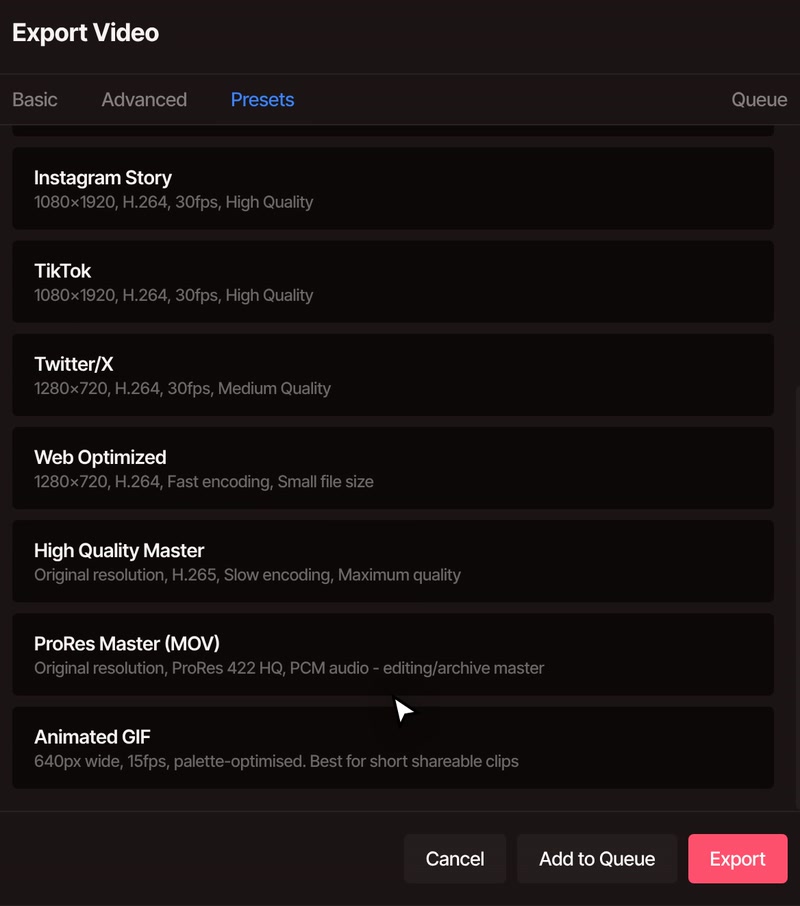
Open File › Export Video, then the Presets tab.Scroll to the bottom of the list and click Animated GIF. It sets the format to GIF, the width to 640 pixels and the speed to 15 frames a second.
-
03
Click Export.Keep the tab open until it says Export Complete. The GIF downloads to your computer.
Settings
Set the size and the speed.
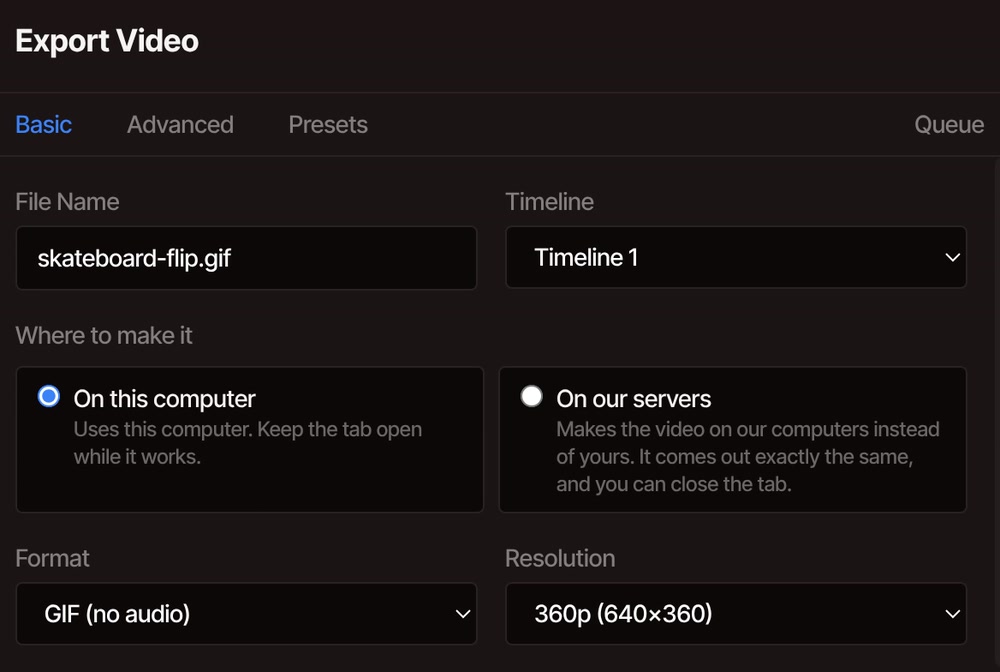
After you pick Animated GIF, the Basic tab shows what it filled in. Two of those settings change how the GIF looks, and one does not.
-
ResolutionThe preset gives 640 pixels wide in your project's shape, so a widescreen project comes out 640×360. The list stops at 360p. For a smaller GIF, lower the project's size on the Settings tab first.
-
Frame Rate, on the Advanced tabThe preset uses 15 frames a second. The list also offers 24, 25, 30 and 60, which look smoother and make a bigger file.
-
The Quality slider does nothing hereIt stays on the screen, but a GIF ignores it. Length, size and frame rate decide how big the file is.
Limits
GIFs get big fast, so keep them short.
-
The file is large
In the demo above, 2.5 seconds of skateboard footage came out as a 5.9 MB GIF. The 8-second MP4 it was cut from is 4.6 MB. Detailed footage with a lot of movement makes the biggest GIFs.
-
A few minutes at most
A GIF is made in one piece, so the editor limits how big one can be. At the preset's 640×360 and 15 frames a second, that is about three and a half minutes. A larger size or a higher frame rate makes the limit shorter, and the editor tells you before it starts if a GIF is too large.
-
No sound
The list calls it GIF (no audio) because a GIF cannot carry sound. If you need sound, export an MP4 or WebM from the same window. The video converter covers those.
-
It loops forever
Every GIF made here plays over and over. There is no setting to make it play once, or a set number of times.
-
256 colours at most
VidTL picks the 256 colours that suit your clip best. Skies, skin and soft gradients can still look grainy, because that comes with the format.
-
Some options switch off
A GIF always has a solid background, because see-through video is a WebM option. The extra sizes and splitting at markers do not work with GIF either: it comes out as one file.
Questions
Video to GIF questions.
Is video to GIF free, and does it add a watermark?
It is free with no account, and the GIF has no watermark. Every plan exports without one. Paid plans add the AI features, and making a GIF does not need one.
How do I turn only part of a video into a GIF?
A GIF covers everything on the timeline, so cut the clip down first. Click the ruler to put the playhead where the moment starts, press S to split, do the same where it ends, then remove the parts around it with the Ripple Delete tool (R). Trim video has the other ways, such as dragging a clip's edge.
How do I make the GIF smaller?
Cut it shorter first, since every second adds frames. After that, lower the project's size on the Settings tab before you export, because the Resolution list stops at 360p (640×360). Footage with less movement and fewer fine details also makes a smaller file.
Can I add sound to a GIF?
No, a GIF cannot carry sound. If you need it, export an MP4 or WebM instead. The video converter lists every format the editor saves.
Can I add text or change the speed before I make the GIF?
Yes. The GIF is drawn from your timeline, so text, effects and speed changes all show up in it. Add text to video covers captions on the picture, and change video speed covers slow motion and fast forward.
Is my video uploaded?
No. The GIF is made on your own computer and saved to it. Your footage only leaves your computer if you save it to cloud storage or choose to make the export on our servers, which is a Pro option.
Can I make a GIF on my phone?
Not with VidTL. The editor needs a desktop or laptop computer, and on a phone it shows a "Desktop computer required" message. On a computer it opens in the browser with nothing to install.
Next, in the same editor
- Trim video Cut the exact moment before you make the GIF.
- Change video speed Slow the moment down, or speed it up, first.
- Add text to video Put a caption or a title on the picture.
- Resize video Change the shape of the picture before you export.
- Video converter Need sound? Save an MP4 or WebM instead.
- Compress video Make a video file smaller when a GIF is too big.
Your clip is one export away from a GIF.
Free, with no account, and no watermark on the file.