Interviews and webinars
Interview video editor. Cut it by its words.
Write out the transcript, drag across the rambling and delete it, and the picture, sound and captions close up with it. Cover the join with b-roll, add your guest’s name, and export. It runs in your browser, with no watermark.
- Free with a free account
- No watermark
- Any video length
How it works
Read it, cut it, cover the join.
-
01
Write out the transcript.Click the interview, then choose Generate Subtitles in the Tools menu or in the Subtitles panel. Pick Free Processing and the words appear in the panel, each one timed to the sound.
-
02
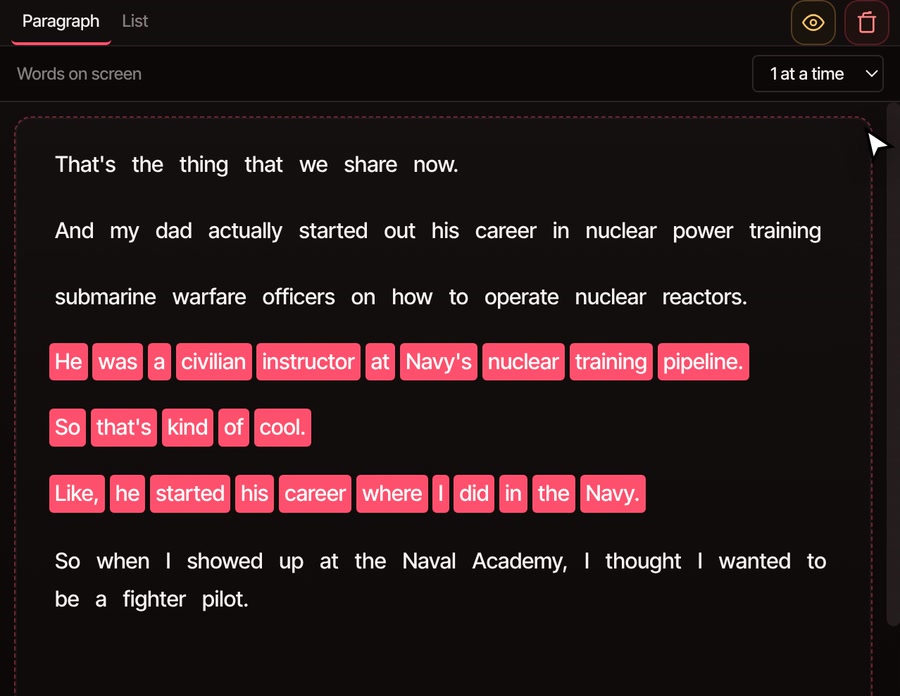
Drag across what to cut.Drag a box over the words, or click them one at a time. The eye button, Preview Cuts, marks them in red on the timeline first. Delete Selected cuts them, and the picture, sound and captions close up together. Ctrl+Z brings them back.
-
03
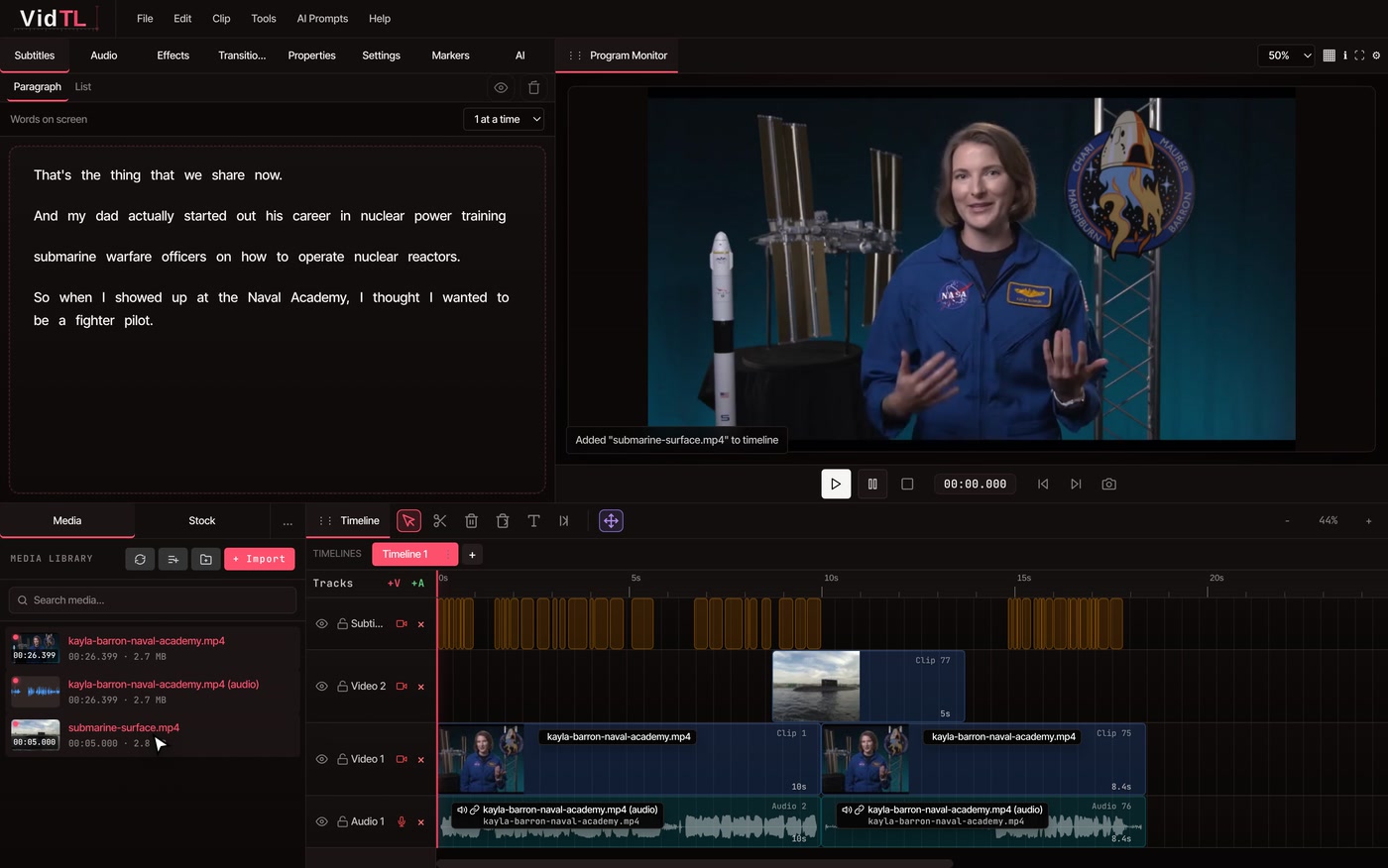
Cover the join.Drag a shot from the media library onto the track above the interview, so it starts just before the cut and runs past it. The interview’s sound keeps playing underneath, so nobody sees the jump.
What you get
One clean answer, and no visible seam.
In the demo, a 26-second stretch of an interview loses about eight seconds of her father’s career. The two halves of the answer sit side by side on the lower track, and the cutaway sits on the track above, covering the cut from just before it to just after. Everything is an ordinary clip, so you can drag the cutaway longer, move the cut, or put the words back with undo.
Around the cut
The rest of the interview, finished.
-
Two cameras
If you filmed with two cameras, Multi Cam Smart Sync lines them up by their sound and Multi Cam Auto Cut cuts to whoever is speaking. It works best when each camera hears its own person loudest. More on the multicam video editor page.
-
A name on screen
Open the Graphics tab, go to Name Tags, and click Name Tag Card or Name Tag Bar to add it at the playhead. Double-click its words to type your guest’s name and job. The Cards group also has a Quote design for pulling out a line.
-
B-roll to cut away to
The Stock tab searches free stock footage, so a cutaway is one search and one drag. For a longer interview, Auto B-Roll reads the captions and lays matching stock footage over each stretch of what is said.
-
Captions from the same words
The transcript you cut from is also your captions, so they close up with every cut. The Words on screen menu sets how many words show at once, from one to a full line. A misheard word can be fixed in the Subtitles panel.
-
Even sound
Normalize Audio brings a quiet guest up to the host’s level. Remove Silence cuts long pauses and closes the gap on every track, and Remove Background Sound takes out a hum like a fan. All three are in the Tools menu, under Audio.
-
Recordings that stay private
Editing and exporting happen on your own computer, and Free Processing writes the transcript there too. Footage leaves it only if you save to cloud storage or use a tool that runs on VidTL’s servers, like Priority Processing.
Free and Pro
Pro adds the AI assistant: rough cuts that keep your best sentences, and highlight reels from a long interview.
The free plan still does the whole edit by hand. With a free account and a confirmed email, Free Processing writes the transcript on your computer. Cutting by words, cutaways, name tags, captions, the Multi Cam tools, sound clean-up and export are free, with no watermark. Pro also adds Priority Processing, a faster way to write transcripts.
See plansQuestions
Interview editing, answered.
Is there a free interview video editor?
Yes. Cutting by hand, layering b-roll, name tags, the Multi Cam tools and exporting need no account, and nothing you export has a watermark. Cutting by transcript and captions need a free account with a confirmed email, because that is what lets Free Processing write the transcript on your computer.
How do I cut an interview by its transcript?
Write the transcript with Generate Subtitles, drag across the words you want gone, and press Delete Selected. Picture, sound and captions all close up. The edit video by text page has the whole walkthrough.
How do I hide a jump cut in an interview?
Cover it. Put a shot of what the guest is talking about on the track above the interview, starting a moment before the cut and ending a moment after it. The guest’s voice keeps running underneath, and the picture changes before anyone sees the jump. Free stock footage from the Stock tab works as well as your own.
Can it cut a two-person interview between cameras?
Yes, when each person has a camera. Multi Cam Smart Sync lines the recordings up by sound, then Multi Cam Auto Cut switches to whoever is speaking, with a shortest-shot setting from 1 to 10 seconds. One camera that sees both people can’t be cut by voice. See multicam video editor.
Can it find the best answers in a long interview?
On Pro, yes. The AI assistant reads the transcript and a Rough cut keeps the sentences that tell the story, in order, or Highlight Reel picks the strongest moments. On the free plan you read the transcript and delete what you don’t need. There is a step-by-step AI rough cut of an interview walkthrough.
How long an interview can I edit, and what about webinars?
There is no limit on video length, and a recorded webinar is a video file like any other: open it, write the transcript, cut the false starts and pauses, add captions. A long recording takes longer to transcribe on your computer, and Free Processing works best in Chrome or Firefox. Priority Processing on Pro is faster.
Also in the editor
- Edit video by text Cut by deleting words, with every step in order.
- Multicam video editor Line cameras up by sound and cut to the speaker.
- AI rough cut Turn a long interview into a short story with one request.
- Auto caption generator Captions for every answer, timed word by word.
- Motion graphics templates Name tags and titles with your own words.
- Podcast video editor The same cameras-and-sound workflow for a conversation show.
Cut your next interview by its words.
It opens in your browser on a laptop or desktop computer, with nothing to install and no watermark on what you export.