How to Rough Cut a Long Interview with AI (in Minutes)

To rough cut an interview with AI, put it on the timeline and tell the AI what the short version is about and how long it should be. In VidTL, the AI assistant transcribes the interview, picks the sentences that tell that story, and puts them on your timeline in order. You watch it, ask for changes in plain words, and export.

In the video above, one request turns a 20-minute interview into a 3-minute story. One more brings back a part the first cut left out.

What you need

  • The interview, as one or more video files. Any length works. The one in this guide runs 20 minutes.
  • Clear speech. The AI works from its transcript of the interview, so it can only choose what the transcript got right.
  • A Pro or Studio plan for the AI assistant.

Step 1: Put the interview on the timeline

Open the editor, add your interview file, and drag it onto the timeline. If the interview is split across several files, add them all. You don't need a transcript first.
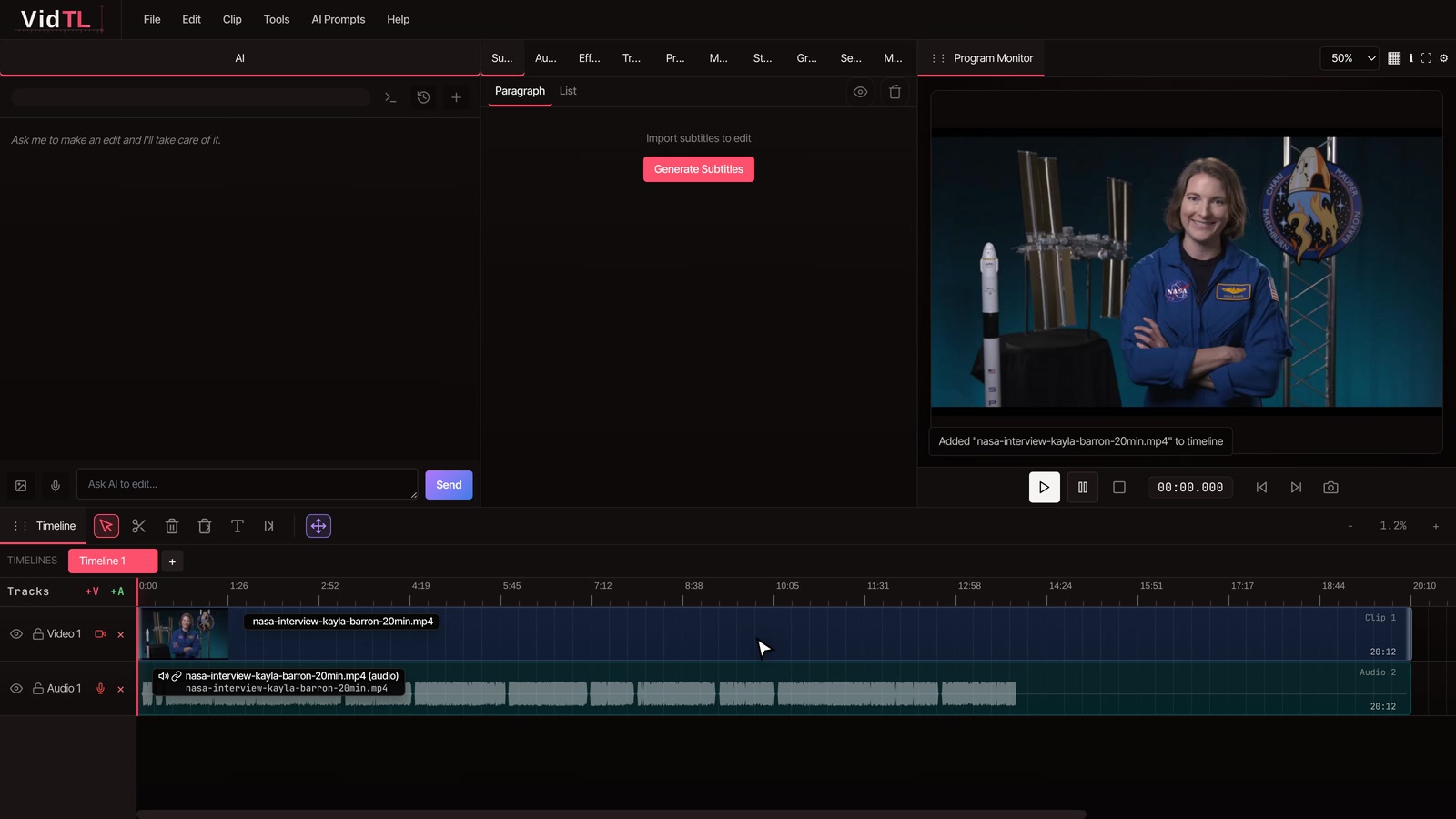
A 20-minute interview on the timeline, ready to be cut down

Step 2: Ask the AI for the cut

Open the AI assistant and describe the short version. Here is the request from the video:

Make a 3 minute cut about how Kayla went from submarine officer to astronaut. Keep it in the order she tells it.
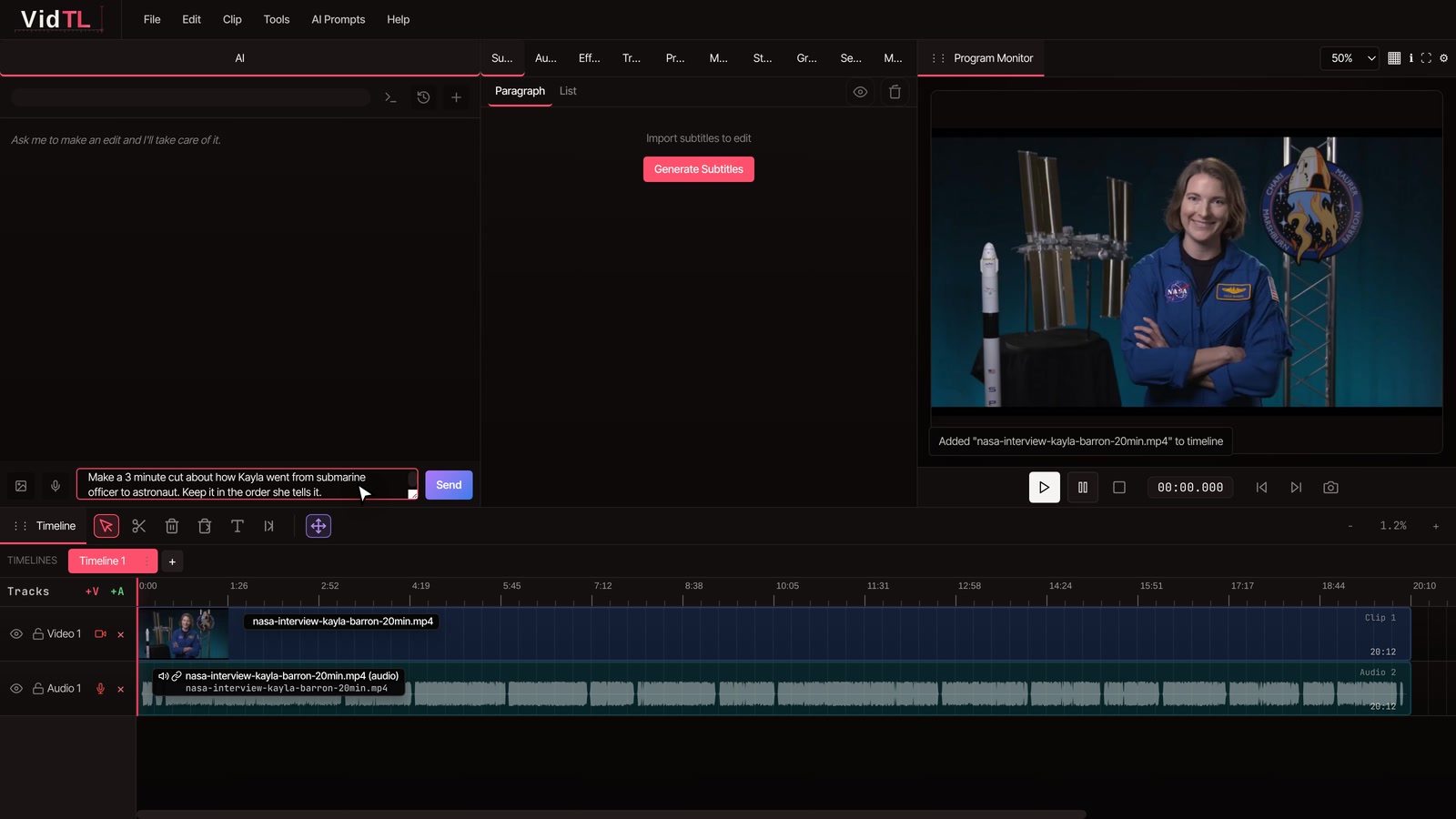
Asking the AI assistant for a 3-minute cut of the interview

That's all you do. The assistant transcribes the interview, reads it as numbered sentences, chooses the ones that tell that story, checks the length, and then builds the cut. On a long interview it takes several minutes. Ours came back as a 3:11 cut made of 20 clips, running from why she joined the military, through her years on a submarine, to the phone call telling her she'd been picked as an astronaut.
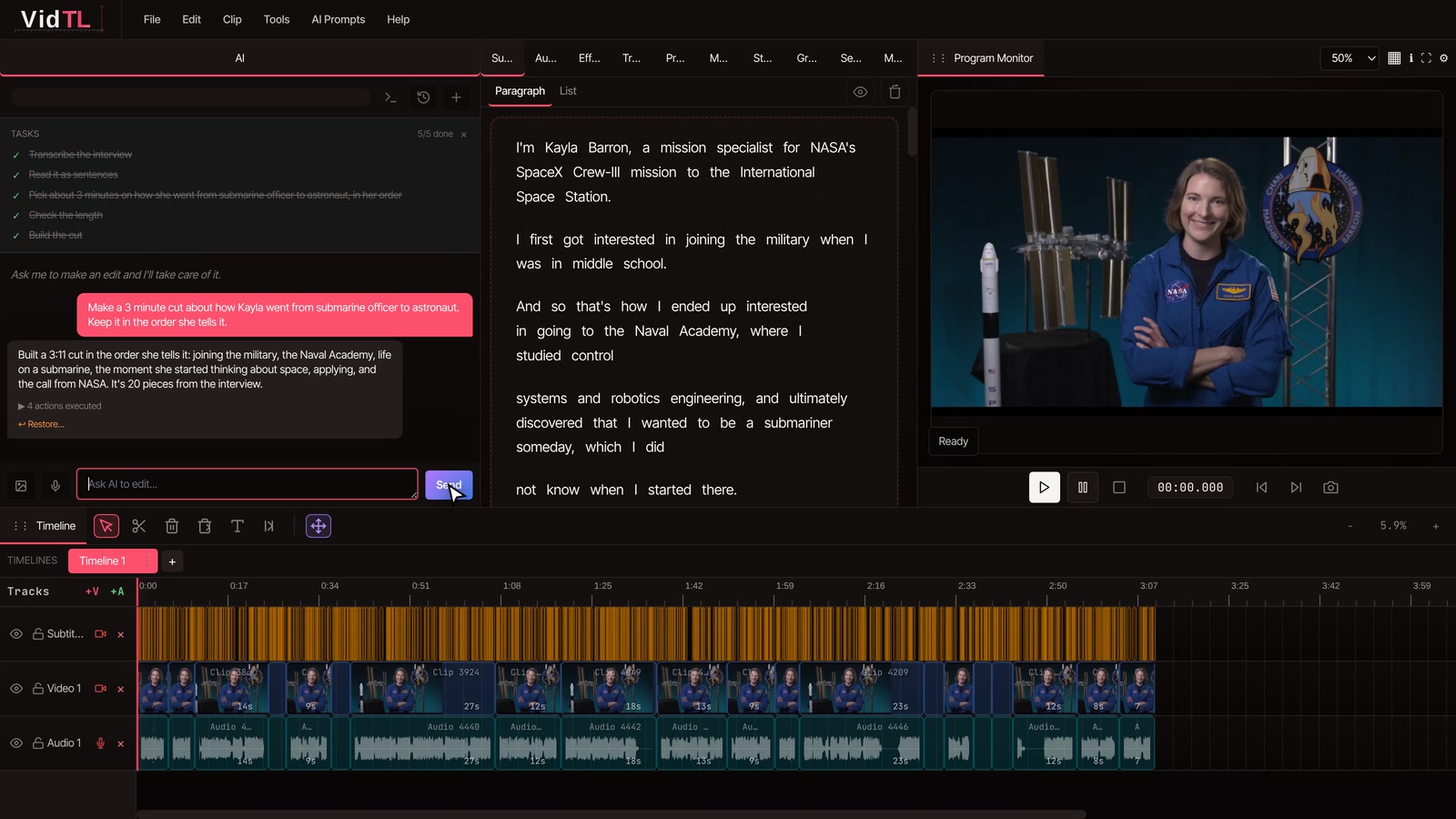
The AI assistant's first rough cut of the interview on the timeline

Sentences that sat next to each other in the interview play as one continuous take, so you don't get a cut after every line. The whole cut is also a single undo step. If you hate it, one undo puts the full interview back.

The transcript it made is under Subtitles. If it got a name or a key word wrong, fix it there and ask again, because the AI picks by the words, not the sound.

Step 3: Watch it, then ask for changes

Play the cut from the start and note what's missing or what drags. Then say it the way you'd say it to an editor sitting next to you:

Bring back the part where she talks about her dad working in nuclear power.

Nothing the first cut left out is gone. Every revision is a fresh pick from the full interview, so you can bring a part back, drop one, reorder the story, or change the length. Here, the assistant put the story about her dad back right after she talks about becoming a submariner, where it happened in the interview. The cut grew to 3:16.
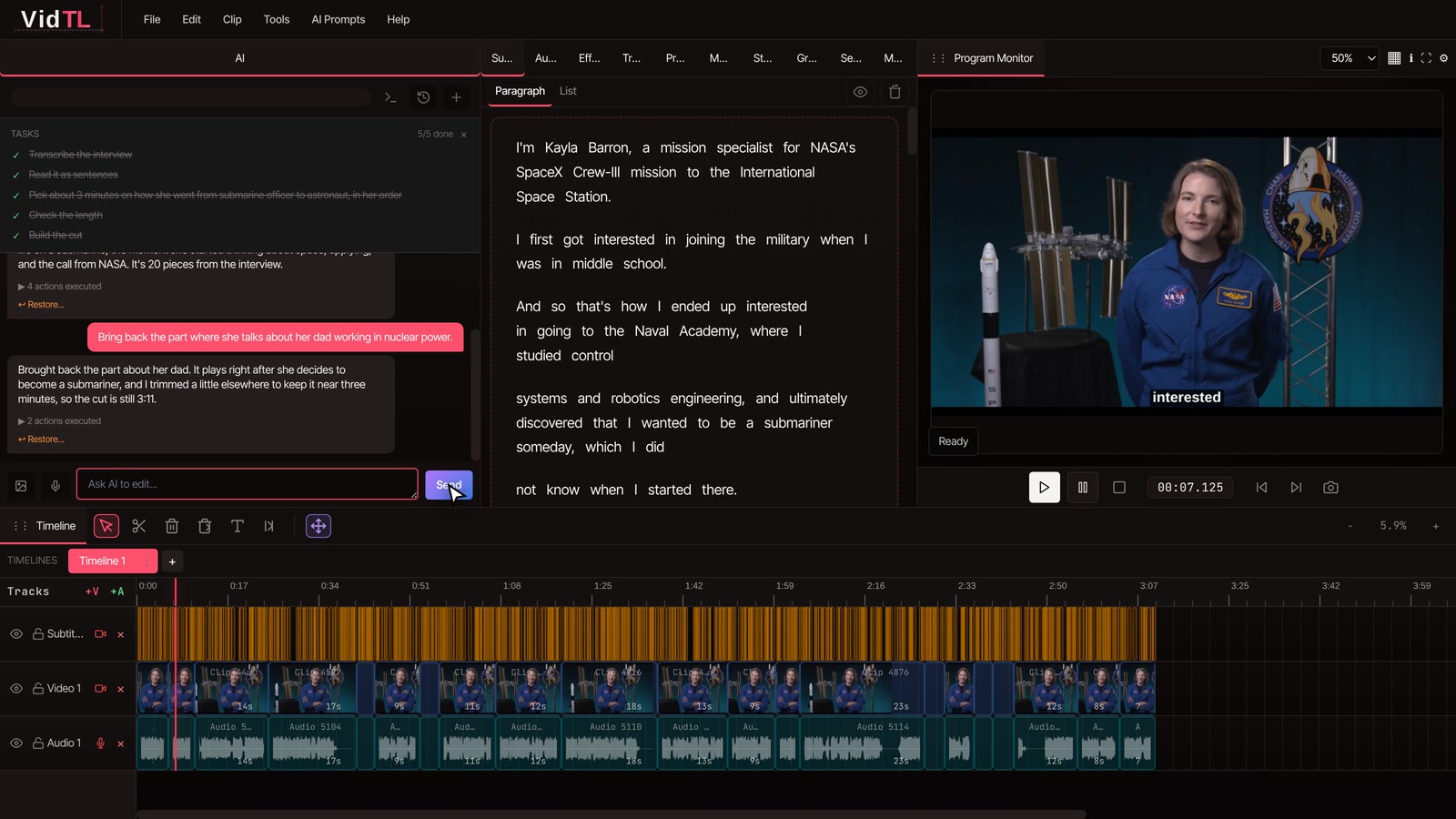
The revised rough cut after asking the AI to bring back a section

Other changes that work well

  • "Make it 90 seconds for Instagram. Keep the story about the phone call."
  • "Start with the moment she decided to apply, then go back to the submarine."
  • "Take out the ums and repeated words."
  • "Tighten the pauses between sentences."
  • "Leave out the interviewer's questions."

Step 4: Finish and export

The rough cut is a normal edit on your timeline. Trim any cut by hand, add captions or music, then open Export. If you want captions on the finished video, see how to add AI captions to a video.
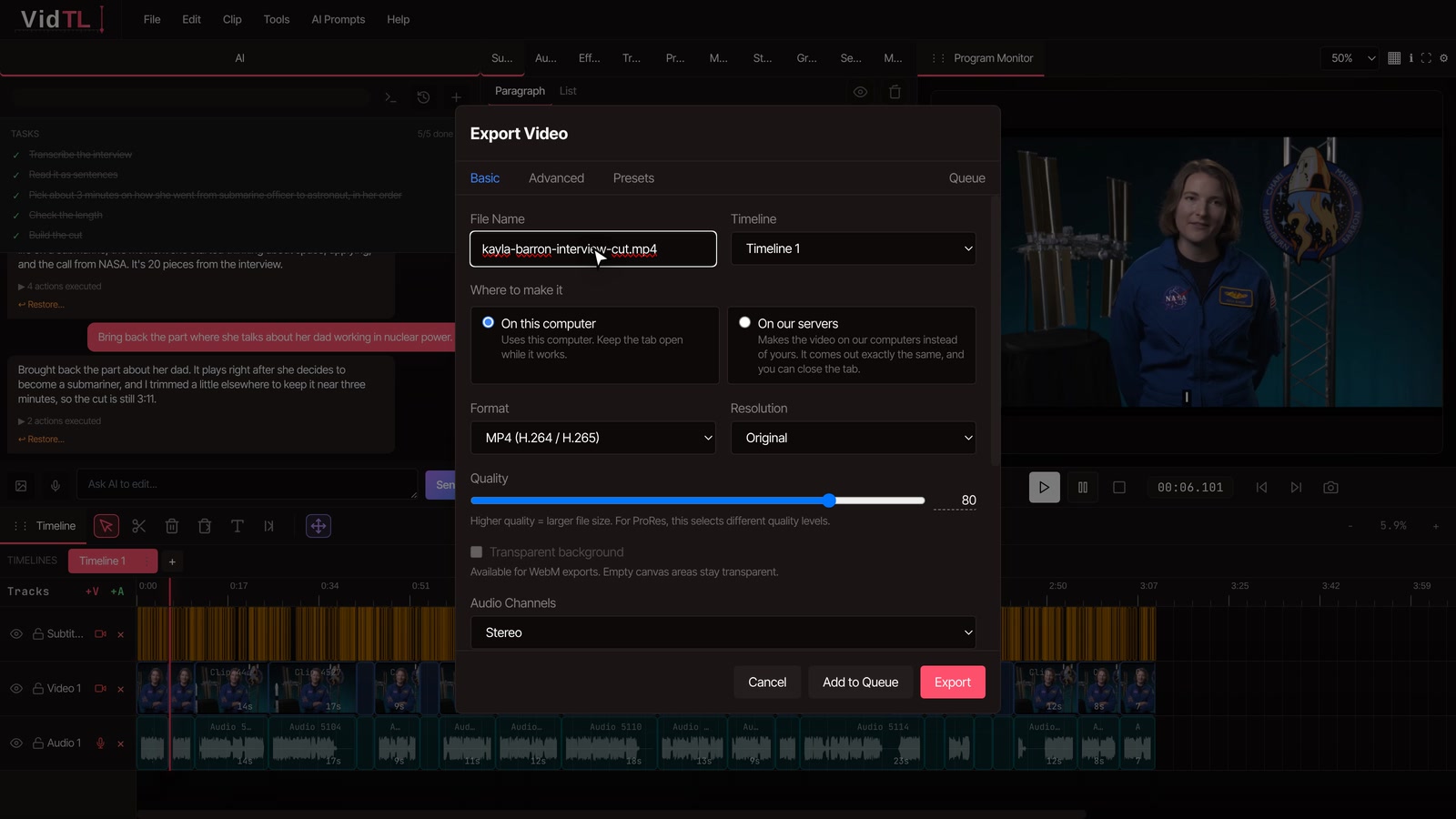
Export window ready to save the finished interview cut

How to word your request so the first cut is good

The AI can only aim at what you tell it. Four things make the biggest difference: the topic, the length, the order, and who it's for.

Vague request Request that works
Make this shorter. Cut this down to 3 minutes about how she became an astronaut.
Find the best parts. Pick the 5 strongest answers about customer service, 60 to 90 seconds each.
Make a trailer. Make a 45 second teaser. Open on the funniest line, end on a question.
Cut the boring bits. Keep everything about pricing and onboarding. Drop the small talk at the start.

You can also ask for more than one cut from the same interview, such as a 3-minute version for YouTube and a 60-second one for Shorts. Save the project first so you can come back to the full edit. For more ways to direct the assistant, read how to edit videos using AI prompting.

What an AI rough cut won't do

It picks whole sentences

It won't cut in the middle of a thought, which keeps it from making people say things they didn't say. It also means a rambling sentence stays rambling. Trim those by hand.

It doesn't hear tone

It chooses by what was said, not how. The take where someone laughs or pauses for effect might lose to a flatter one with the same words.

Jump cuts are still jump cuts

With one camera, every cut between sentences shows as a jump. Cover them with B-roll, a zoom, or a second camera angle.

You still watch it

Treat the result like a first draft from an assistant editor. It saves the hours of finding the story, not the final pass.

Questions people ask

How long can the interview be?

Well over an hour of talking. When there's too much to read at once, the assistant reads the recordings one at a time. Transcription takes longer the longer the footage is, so start it and do something else.

Do I need to make a transcript first?

No. The AI transcribes the interview itself the first time you ask. If you only want the transcript, see how to transcribe a video to text for free.

Does the AI change or make up any words?

No. It only chooses which sentences stay and in what order. Everything in the cut is footage you recorded.

Can I edit the cut by hand afterwards?

Yes. It's an ordinary edit on the timeline. Trim, move, or delete any piece, then keep asking the AI for changes if you want to.

Is it free?

The editor is free on the Hobby plan, with no watermark. The AI assistant that builds the cut needs Pro or Studio. To shorten a video without the assistant, remove the silences automatically, which is free.

Interview footage: NASA's SpaceX Crew-3 interview with astronaut Kayla Barron, courtesy of NASA. NASA does not endorse VidTL.