
Gaming & streams
A gaming video editor for the good parts.
Drop in your recordings, keep your facecam in the corner, line the best clips up on the beat of a song and caption your commentary. It runs in your browser, with no watermark on anything you export.
- Free, no watermark
- Any recording length
- Nothing to install
How it works
From a long session to a montage.
-
01
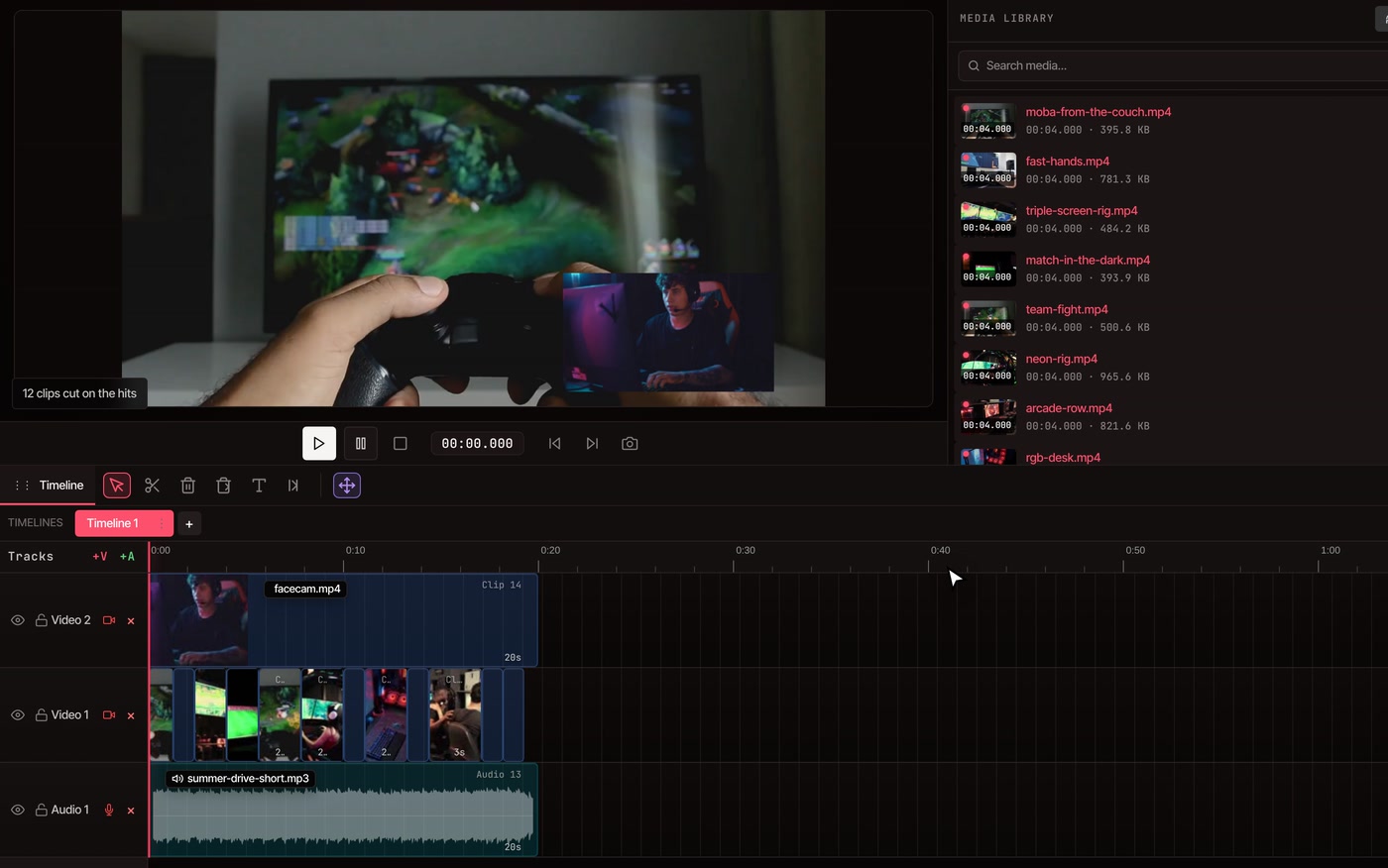
Bring your recordings inImport them in the Media tab, then add them to the timeline. Put your facecam file on a second video track, above the gameplay.
-
02
Park the facecam in a cornerSelect it, then set Width, Height, X and Y in the Properties panel, or drag it in the preview. Or record Screen + Webcam and it lands in the bottom-right corner already.
-
03
Add a song, then select the gameplay clips and the songDrag a box over the gameplay track and the song, leaving the facecam out of it. The demo selects twelve clips this way.
-
04
Open Tools › Cut & Trim › Cut to the BeatClick Find the Hits, then Cut Clips on the Hits. The clips are re-timed so every cut lands on a hit, and the facecam keeps playing.
Want the music part on its own? The sync video to beat page goes through it.
What it does
What a gaming edit actually needs.
-
Long recordings, no length limit
Import MP4, MOV, MKV, WebM or AVI files and edit them at any length. If your computer plays a heavy file slowly, VidTL offers a smoother copy to edit with, and tells you the copy is slightly lower quality. Scene Detection under Tools › Cut & Trim finds the hard cuts inside a long clip and splits it there.
-
Your facecam over the game
The webcam is an ordinary clip on the track above your gameplay. Set its Width, Height, X and Y in the Properties panel, or drag it in the preview, and park it in any corner. Cut the gameplay underneath and the facecam keeps running.
-
Cuts that land on the beat
Pick the clips and a song, and Cut to the Beat lines every cut up with a hit in the music. It is free, and it works on your own computer. Add Hit Markers instead if you would rather cut by hand.
-
Captions for your commentary
Generate Subtitles writes out what you said and puts it on the timeline word by word. Free Processing runs on your computer, with a free account and a confirmed email. Fix a word by typing it.
-
Game and voice at the right volume
Normalize Audio evens out the loud and quiet parts, and Noise Suppression takes fan hiss and keyboard hum out of your mic, both under Tools › Audio. If your game sound and your voice are separate files, the Track Mixer sets each one's level.
-
Export for where it is going
File › Export Video has YouTube 1080p and 4K presets, and a Frame Rate setting that goes up to 60 fps. The TikTok preset is vertical, 1080x1920. Every plan exports up to 8K with no watermark.
Highlight reels are part of Pro
Pro adds the AI assistant, which can pick the best moments of a long recording and cut the rest.
The free plan still gives you the whole editor, with no watermark and no limit on length. Cut to the Beat, facecam placement and exports are free. Captions are free with a free account and a confirmed email. You can also read the transcript and delete what you do not want, and the video cuts with it.
See plansQuestions
Before you load a recording.
Is there a free gaming video editor with no watermark?
Yes. VidTL opens in your browser with nothing to install, and you can edit and export without an account. Nothing you export carries a watermark, on any plan, and exports go up to 8K. The paid plans add the AI assistant, including highlight reels.
Can VidTL record my game?
It can record a screen or a window, with your webcam and microphone, straight onto the timeline. For a long session you will usually do better recording with your usual capture tool, such as OBS or your console’s capture, and bringing the file in. VidTL edits the recording. The screen recorder is the better fit for short clips and commentary.
How long a recording can I edit?
There is no limit on video length in the editor. Your computer does the work, so a three-hour 4K recording asks more of it than a ten-minute one, and Chrome, Edge, Brave, Arc and Firefox all run it well.
Can I keep my facecam and cut only the gameplay?
Yes. Put the facecam on its own track and select only the gameplay clips and the song before you run Cut to the Beat, as the demo above does. The facecam is not re-timed, so it keeps playing in its corner. Trim it to the new length afterwards if the edit is shorter than the recording.
Can AI pick my best moments?
With Pro, yes: open AI Prompts and click Highlight Reel. The AI reads what was said to choose moments, so it works best when you talk over your game. A silent recording gives it little to go on. For that, Cut to the Beat or your own cuts do the job. The AI highlight reel page shows it working.
Does my footage get uploaded?
Not by default. Editing and exporting happen on your computer, and Cut to the Beat and Free Processing captions run there too. Footage leaves your computer only if you save it to cloud storage or use a tool that runs on VidTL’s servers, such as the AI assistant or Priority Processing captions.
Can I make vertical clips for Shorts and TikTok?
Yes. The export dialog has a TikTok preset at 1080x1920, and you can set the project to a vertical size in the Settings tab. The editor itself needs a desktop or laptop computer, so you finish the clip there. The resize video page covers fitting widescreen gameplay to a vertical frame.
Also in the editor
- Sync video to beat The Cut to the Beat tool on its own, with Hit Markers.
- AI highlight reel Pro: the AI picks the best moments of a long recording.
- Screen recorder Record a window with your webcam and voice onto the timeline.
- Auto caption generator Captions for your commentary, timed to every word.
- Resize video Fit widescreen gameplay to a vertical frame.
- YouTube video editor Chapters, thumbnails and 16:9 export for your channel.
Hours of gameplay, one tight edit.
Free in your browser, with no download and no watermark on your export.