
Video editor for Chromebook
Edit video on your Chromebook. Just open Chrome.
VidTL runs in Chrome, which every Chromebook already has. Add your clips, trim, put titles on them and export an MP4 with no watermark. There is nothing to install, no Linux setup, and no account to start.
- Free, no watermark
- Nothing to install
- Fits a 1366 by 768 screen
Fits the screen you have
From clips to MP4, on one small screen.
-
01
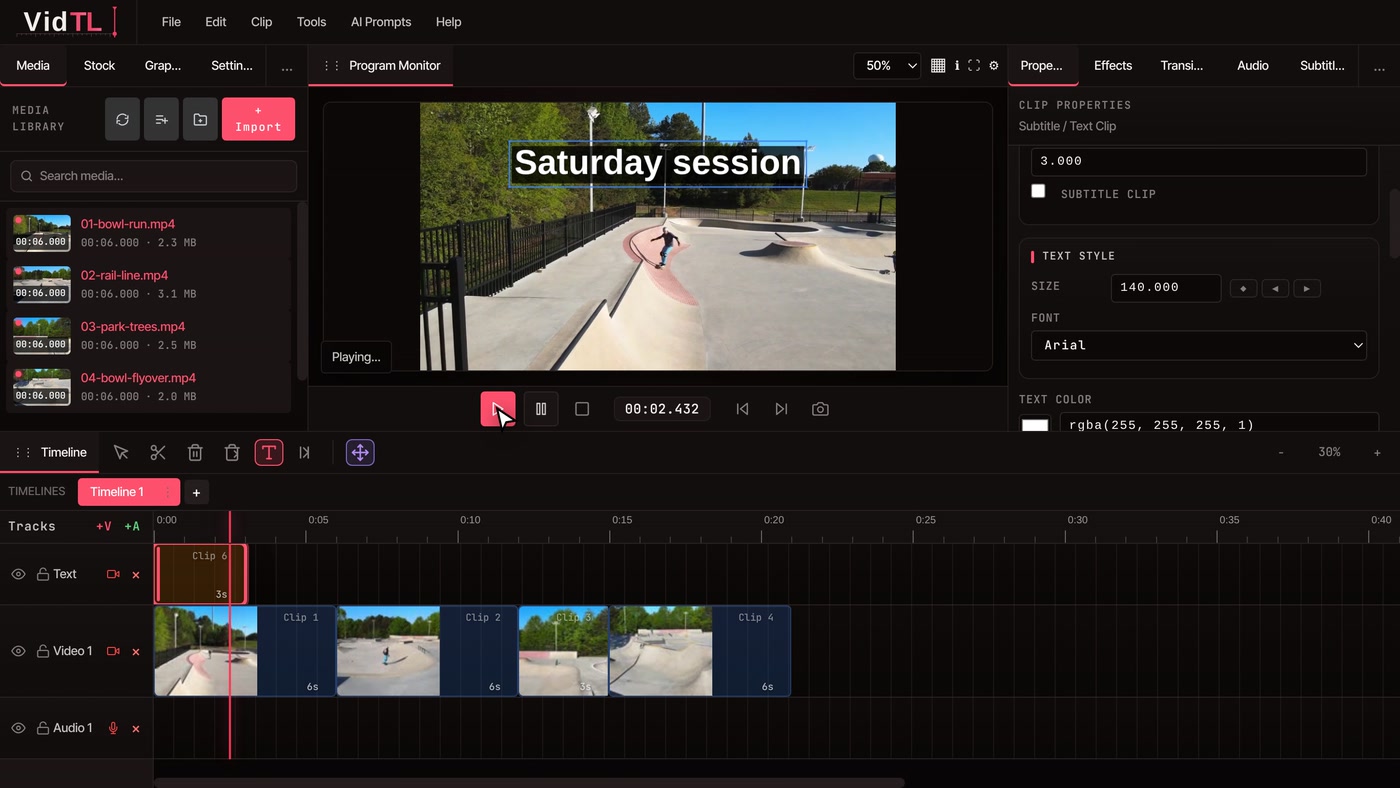
Open the editor in ChromePress Import in the Media tab and pick your clips. The editor needs a screen at least 800 pixels wide, so every laptop Chromebook qualifies.
-
02
Cut with the keyboardPress S to split at the playhead, then Backspace to delete a selected clip. Your Chromebook has no Delete key, and Backspace does the same job here.
-
03
Add a titlePick the Text tool, click the preview and type. Change the size in the Properties panel on the right.
-
04
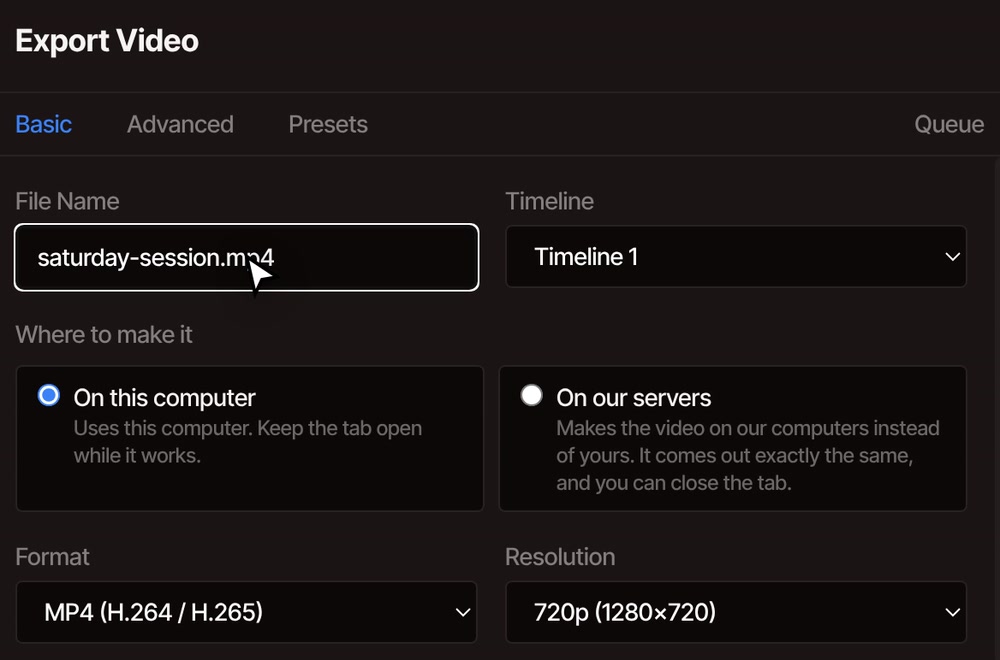
Export an MP4Open File, then Export Video. The finished file saves like any other download in Chrome.
What to expect
What your Chromebook can handle.
VidTL edits and exports on the Chromebook itself, so the machine matters. We have no published minimum, and this is a guide, not a promise. The more memory and the faster the chip, the longer and heavier the project you can edit comfortably.
-
Entry-level Chromebooks
Trimming, splitting, titles, music and short projects are the light jobs, so start there. Keep the timeline short, use 1080p or 720p footage, and lower the preview size with the percentage menu above the preview. Four tracks of 4K footage is where a small machine will struggle.
-
Faster Chromebooks
More memory and a stronger chip give you room for longer timelines, more tracks, effects and higher-resolution footage, and exports finish sooner. Even then, a full 4K project is hard work for any laptop, so check a short export first.
-
Phone footage
If a clip is in a format your Chromebook can't play at full speed, VidTL asks whether to make a smooth copy to edit with. The copy takes a little while to make and is slightly lower quality, and you can choose to keep the original instead.
-
Memory and storage
Chromebook drives are small, and an export needs free space while it runs. If there isn't enough, VidTL says so and asks you to free some up. If Chrome pauses the editor to save memory while you're away, your work is safe and one click on Resume Editing carries on.
Exporting
Keep it light, or hand it off.
Exports run on your Chromebook by default. For a video that will mostly be watched on a phone or a laptop, 1080p or 720p is plenty and finishes faster than 4K. While it runs, keep the tab open and the window visible. Minimizing the window can interrupt it.
With a Pro plan, you can choose On our servers instead. Your Chromebook sends the footage, VidTL makes the video, and you can close the tab while you wait. The footage leaves your computer for that, so it is your choice each time.
Free does the editing
Pro takes the heavy work off a small machine.
The free plan has the full timeline, exports with no watermark and automatic captions that run on your Chromebook, slower than the faster option. Pro adds exports and priority captions that run on our servers, plus the AI assistant. Captions need a free account with a confirmed email.
See plansQuestions
Chromebook questions, answered.
Does VidTL work on a Chromebook?
Yes. It opens in Chrome on any laptop Chromebook, with nothing to install. The demo above was recorded on a page the size of a 1366 by 768 Chromebook screen, and the whole editor fits.
Is it really free, with no watermark?
Yes. The free plan edits videos of any length and exports without a watermark, and you can start without an account. Captions and saving projects online are free with a free account that has a confirmed email. The AI assistant, voiceovers and exports on our servers are part of Pro.
Do I need Linux, Android apps or an extension?
No. You open the editor as a web page in Chrome, so there is no Linux setup, no Android app and no extension to add.
Will it run on a cheap Chromebook?
Short projects with 1080p or 720p footage are the place to start. Keep the preview size low, close other tabs and export at 720p or 1080p. Long timelines, many tracks and 4K footage ask more of the machine, and an entry-level Chromebook will feel it.
Where do my videos and projects go?
Editing and exporting happen on your Chromebook, and finished videos save like any other download. You can also pick a folder where your project saves itself as you work. Footage leaves your Chromebook only if you save it to cloud storage or use a tool that runs on our servers.
Can I edit on a Chromebook tablet or a phone?
Not on a phone. The editor is made for a keyboard and a trackpad or mouse, and on a screen narrower than 800 pixels it shows a "Desktop computer required" notice instead. A Chromebook with a laptop-sized screen is fine.
Next on your Chromebook
- Online video editor The full editor: multi-track timeline, titles and export.
- Screen recorder Record your screen and webcam in the browser, straight onto the timeline.
- Compress video Make a file smaller when your Chromebook's storage is tight.
- Auto caption generator Captions from the speech in your video, on your Chromebook.
- Video converter Turn a clip your Chromebook won't play into an MP4.
- Video editor for schools For students and classrooms, where Chromebooks are the usual computer.
Open Chrome. Start cutting.
No install, no account to start, and no watermark on the video you export.