
FFmpeg in your browser
FFmpeg online, nothing to install.
Open Tools, then FFmpeg, type a command and click Execute. It runs on your computer against the files in your media library, and any video, audio or picture it makes goes straight back into the library.
- Free, no account
- Runs on your computer
- No watermark
How it works
From file to result in one window.
-
01
Import your files.Use the Import button in the media library. A command can only read files that are listed there.
-
02
Open Tools, then FFmpeg.Your files are listed on the left and the command goes in the box on the right.
-
03
Write the command.Click a file to put its name in the command, or click a Quick Example and change the names. The last name in the command is the file it makes.
-
04
Click Execute.A progress bar runs. The first run of a session takes a little longer while FFmpeg loads. The new file is added to your library, and your browser saves a zip of everything the command made.
Commands to start from
Six commands to copy and adjust.
The first five are the Quick Examples in the FFmpeg window. Change input.mp4 to the name of your own file, exactly as it shows in the file list.
| Job | Command | What you get |
|---|---|---|
| Pull out the sound | -i input.mp4 -vn -acodec copy audio.m4a |
Saves the audio without re-encoding. It works when the sound is AAC, which most MP4 files use. M4A files arrive in the saved zip, not in the library. |
| Cut ten seconds | -ss 00:00:05 -i input.mp4 -t 00:00:10 -c copy clip.mp4 |
Ten seconds starting at the 5 second mark, copied as they are. A copy starts at the nearest keyframe, so it can begin a moment early. |
| Drop the sound | -i input.mp4 -c:v copy -an no-audio.mp4 |
The picture is copied and the audio is left out. |
| Swap the sound | -i video.mp4 -i audio.mp3 -c copy -map 0:v -map 1:a output.mp4 |
Picture from the first file, sound from the second. Both files must be in your library. |
| Make it 720p | -i input.mp4 -vf scale=1280:720 output.mp4 |
Re-encodes at 1280 by 720. This one takes the longest, because every frame is processed. |
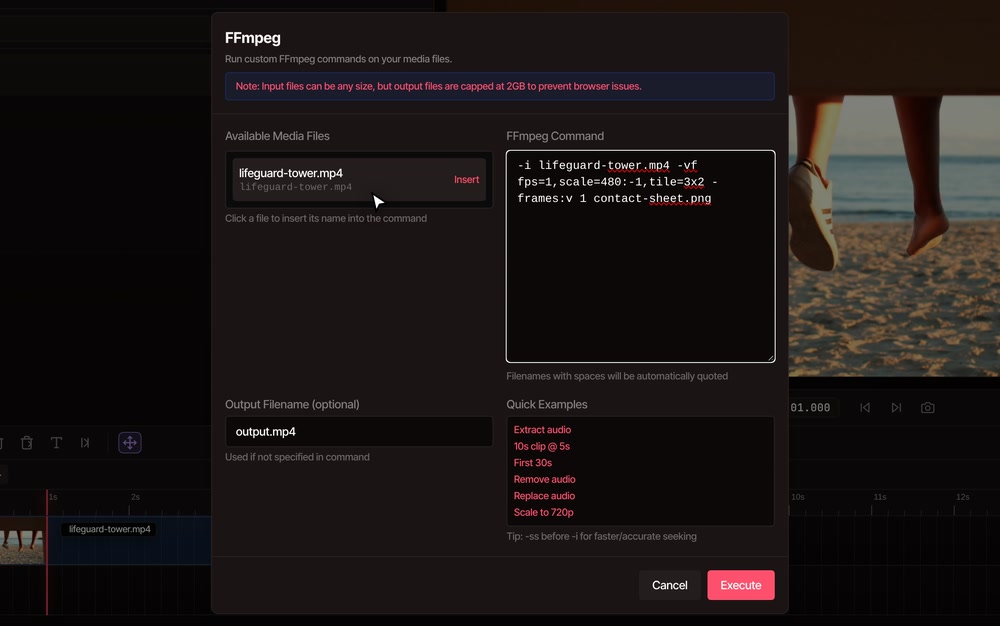
| Make a contact sheet | -i input.mp4 -vf fps=1,scale=480:-1,tile=3x2 -frames:v 1 contact-sheet.png |
One picture of six frames, one a second, from the first six seconds. This is the command in the recording. |
Limits
What does not work in the browser version.
-
Files come from your library
An input has to be a file in the media library, and its name in the command has to match the name in the file list. Folders on your computer and web addresses are not read.
-
It is the command, not a terminal
There is no shell around it, so no pipes, loops or scripts, and no ffprobe or ffplay. One command makes one run.
-
Write filters without quote marks
Quote marks are passed through to FFmpeg as they are, so a filter inside quotes fails and the window says no output files were generated. Write the filter as one piece with no spaces, like -vf fps=1,scale=480:-1. Quotes around a file name that has spaces are fine.
-
Slower than desktop FFmpeg
It runs inside a browser tab, so a long re-encode takes longer than the same command on an installed copy, and a very large file can run out of memory and fail. Commands that copy streams, with -c copy, finish fast.
-
Only some results reach the library
Video, audio and picture files in MP4, WebM, MOV, AVI, MKV, MP3, WAV, AAC, OGG, FLAC, PNG, JPG, GIF and WebP are added to the library. Other files, such as M4A, subtitle or playlist files, arrive only in the zip your browser saves.
Questions
About FFmpeg online
Is FFmpeg online free in VidTL?
Yes. FFmpeg is in the Tools menu of the VidTL editor, and you can use it without an account. It needs a desktop or laptop computer, not a phone. Nothing it makes carries a watermark.
Does my video get uploaded?
No. The command runs on your own computer, inside the browser tab. Your footage only leaves it if you save to cloud storage or use a tool that runs on VidTL's servers, and the FFmpeg tool is neither.
Does it change my original file?
No. The command reads the file from your library and writes new files. The original stays as it was.
Which formats and codecs does it handle?
It is FFmpeg 5.1. For video it can write H.264, H.265 and VP9, and for sound MP3, Opus, Vorbis and FFmpeg's own AAC. Pictures can be PNG, JPG or WebP, and it can make GIFs.
Why did my command fail?
The usual causes are a missing -i, an input name that does not match the name in the file list, or a filter written inside quote marks. When FFmpeg cannot make a file the dialog says “No output files generated”. Check the three, then run it again.
Should I use this or the editor's own tools?
Use the editor's tool when there is one. Trimming, converting and compressing all have a window with buttons and a preview. The FFmpeg tool is for jobs the editor has no button for.
Keep going
- How to use FFmpeg online A step-by-step guide with more command ideas, for beginners.
- Video converter Save a video as MP4, WebM, ProRes or GIF with buttons instead of a command.
- Compress video Make a file smaller with a resolution list and a quality slider.
- Trim video Cut the start or end by dragging, with a preview as you go.
- Video to GIF Turn a clip into a GIF without writing a filter.
- Video editor MCP and CLI Drive the editor from your own scripts and tools.
Run your command in this tab.
Free, no account, and your files stay on your computer.