
Video editor for Mac
A free video editor for Mac. Nothing to download.
VidTL opens in Chrome, Edge or Arc on your Mac and edits on a multi-track timeline. It opens your iPhone and QuickTime clips, and it saves ProRes for Final Cut Pro or DaVinci Resolve. Safari works for lighter editing.
- No account to start
- No watermark
- Exports ProRes
Browsers on a Mac
Use Chrome if you can. Safari works too.
-
Chrome, Edge, Arc
The best fit, and Chrome is the one we would pick. Your project saves to a folder on your Mac as you work, and the free automatic captions run faster than they do in Safari.
-
Safari
Good for lighter editing. Safari can’t keep a project in a folder, so the editor holds it in the browser and asks you to save a copy if it runs out of room. The free captions are slower, and green screen removal asks for Chrome or Edge.
-
Firefox
Runs the editor well. Like Safari, it keeps your project in the browser instead of a folder, so save a copy of anything you can’t afford to lose.
Opening your files
What your Mac makes opens here.
-
iPhone and camera clips
MOV and MP4 files open when you drag them in or press Import in the Media tab. H.265, the format iPhones record in by default, opens too. If your browser can’t play a clip directly, VidTL plays it another way, which can be slow, and offers to make a smoother copy.
-
Screen recordings
A recording from QuickTime Player or Shift-Command-5 is a MOV, and it opens like any other clip. You can also record your screen in VidTL. The first time, macOS asks you to allow screen recording for your browser.
-
ProRes, with a catch
ProRes clips open, but VidTL first makes a lighter copy to edit with, and your export is made from that copy. The longest and largest clips get a copy scaled down to 720 pixels tall. Keep your originals for any final master.
-
Command, not Ctrl
The keyboard shortcuts that use Ctrl on a PC use the Command key on a Mac, and the editor shows them that way. Need a file in another format first? The video converter turns a MOV into an MP4.
Handing off to Final Cut Pro
Save a ProRes file for your next editor.
-
01
Finish the edit on the timeline.Cut, trim, add titles and captions. It all happens on your Mac.
-
02
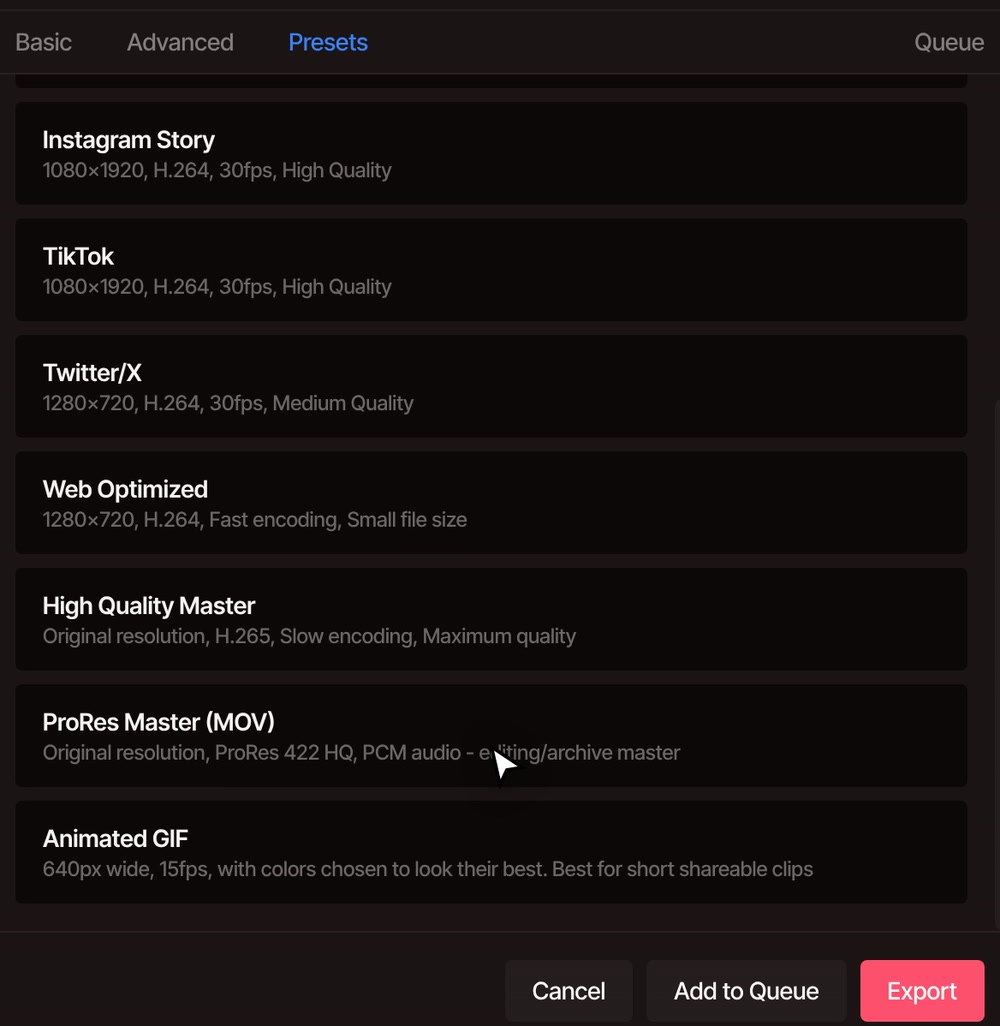
Open File, then Export Video, and type a name.Then open the Presets tab. The list scrolls, and ProRes Master (MOV) is near the bottom.
-
03
Choose ProRes Master (MOV).It sets the format to MOV and the video to ProRes 422 HQ at your project’s size, with uncompressed sound. The Basic tab comes back with those settings filled in.
-
04
Press Export, then drag the file into your other editor.The file is made on your Mac, so keep the tab open until it says Export Complete.
ProRes files are big: a ten second 1080p clip came to about 270 MB in our test. For smaller files, lower the Quality slider. From 75 to 94 it makes ProRes 422, and below 75 ProRes 422 LT.
Other editors on your Mac
Premiere Pro and Resolve take a timeline. Final Cut takes a file.
-
Out to Premiere Pro or Resolve
File, then Export for Premiere Pro or Export for DaVinci Resolve saves your timeline in the older Final Cut Pro 7 format. Cuts, tracks, markers, size, position, rotation, opacity, speed and volume go across as timeline data. Effects, graphics and masks go out as rendered video clips. See the Premiere Pro round trip.
-
In from Premiere Pro or Resolve
File, then Import XML/Zip (FCP7) opens a timeline saved in that format. Tracks, clips, cut points, markers, position, size, rotation and opacity come across. Transitions and other effects don’t, so add them again here. See how Resolve fits.
-
Final Cut Pro, by file
Final Cut Pro 10 and later exchanges projects as FCPXML, which VidTL doesn’t read or write. Send footage across as a ProRes or MP4 file instead, and export finished clips or the originals from Final Cut to edit here. The File menu has an Export for Final Cut Pro item, but it writes the older format, so use ProRes. Apple’s guide to XML in Final Cut Pro.
Questions
Before you start on a Mac.
Is there a free video editor for Mac with no download?
Yes. VidTL opens in your browser, so there is nothing to install. You can edit and export without an account, nothing you export has a watermark, and exports go up to 8K at any length. Pro adds the AI assistant, voiceovers and AI music and video. See plans.
Does it work in Safari?
For lighter editing, yes. For longer projects, captions or green screen, use Chrome. The differences are in the browsers section above.
Can I edit iPhone videos on my Mac with VidTL?
Yes. Copy the clips to your Mac, for example with AirDrop, then drag them into the Media tab. The editor itself needs a desktop or laptop screen, so it won’t open on the phone.
Can I open a Final Cut Pro project in VidTL?
Not a current one. Final Cut Pro 10 and later hands projects to other apps as FCPXML, and VidTL only reads the older FCP 7 format. Export the finished video or the original clips from Final Cut Pro, bring them in and rebuild the cuts.
Can I record my screen on a Mac?
Yes, in Chrome, Edge or Firefox, with your webcam and microphone too. macOS asks you to allow screen recording for your browser the first time. If the share carries no sound, VidTL records your microphone instead. More on the screen recorder.
Will it run well on my Mac?
Editing and exporting run on your own Mac, so speed depends on it. Long 4K timelines ask a lot of any computer, and a recent Mac with plenty of memory helps. While an export runs, keep the tab open and the window visible. Your footage stays on your Mac unless you save to cloud storage or use a tool that runs on our servers.
Also in the editor
- Online video editor The whole editor: tracks, keyframes, masks and export.
- Video converter Turn a MOV into an MP4, or an MP4 into ProRes or a GIF.
- 4K video editor What to set, and what your Mac needs, for 4K footage.
- Screen recorder Record your screen and webcam, then edit it in the same tab.
- Premiere Pro alternative Open a Premiere Pro timeline in the browser, and send one back.
- DaVinci Resolve alternative Resolve is free too. Where each one fits.
Open it on your Mac. Start cutting.
Nothing to download. No account to start, and no watermark on any plan.