
Video editor for Linux
A video editor for Linux with nothing to install.
Open VidTL in Chrome, Chromium, Edge, Brave or Firefox and start cutting. There is no package to install and no account to make. Your exports are MP4 files with their sound, and no watermark.
- Free, no watermark
- No install, no account to start
- MP4 export keeps its sound
Exporting on Linux
MP4 exports that keep their sound.
Chrome on Linux can’t make the sound for an MP4 by itself. VidTL does that part, so your browser makes the picture, VidTL adds the sound, and you get one normal file. You don’t change any settings to make that happen.
-
01
Open File, then Export VideoPick MP4, name the file, and choose a size and quality.
-
02
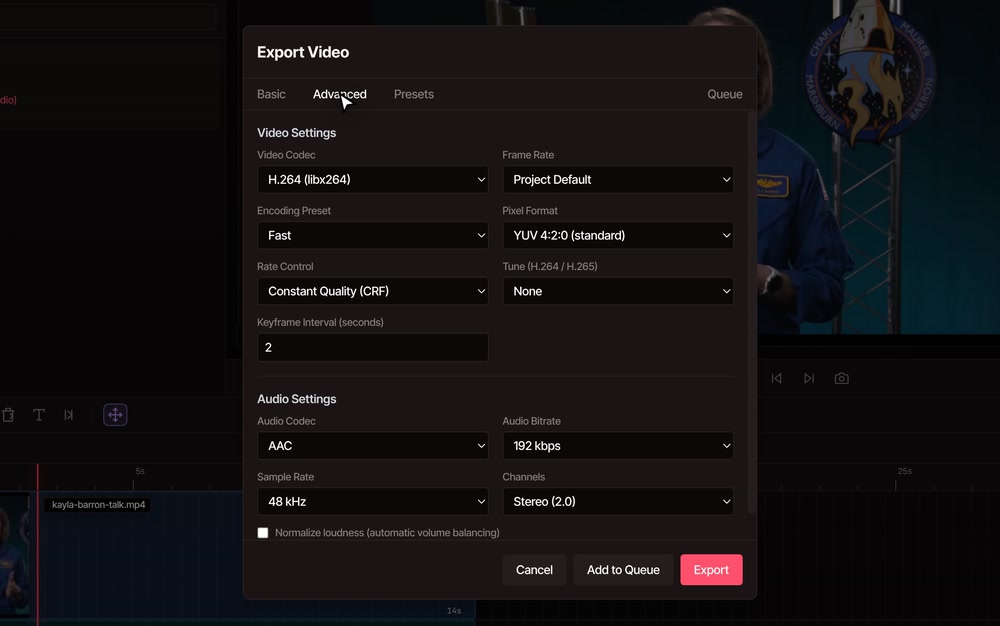
Check the sound on the Advanced tabIt starts at AAC, 192 kbps, 48 kHz stereo. Turn on Normalize loudness to even out the volume.
-
03
Press ExportThe finished MP4 saves to your computer, and nothing is uploaded.
Browser by browser
What works in which browser.
-
Chrome, Chromium and Edge
The easiest setup. Your browser makes the picture of your export, and these browsers can also save your project into a folder on your computer as you work.
-
Firefox
Editing works, and so does exporting. Firefox can’t save into a folder, so VidTL keeps your project in the browser and warns you before you close the tab. To reopen a project later, pick your media files again.
-
Video your browser can’t play
Some Linux setups can’t play H.265 from a phone or camera, or lose hardware decoding after a graphics driver update. VidTL decodes that footage itself, and for short clips it can offer a smoother copy to edit with.
-
Your files stay put
Editing and exporting happen on your computer. Footage only leaves it if you save to your account online or use a tool that runs on VidTL’s servers.
-
Moving to another editor
File, then Export for DaVinci Resolve, Premiere Pro or Final Cut Pro saves a timeline file. The ZIP with media also holds a script that converts your clips to VP9, DNxHD or ProRes, for when Resolve on Linux won’t open your MP4s. The script uses ffmpeg, which you need installed to run it.
-
The full editor, not a lite one
A multi-track timeline, editing by transcript, captions, effects and keyframes are all here. See the video editor for the whole list.
Free, with a Pro option
On an older or slower computer, Pro can make your export on VidTL’s servers instead.
The free plan exports on your own computer, with no watermark, up to 8K and at any length. Pro adds exports made on our servers, so you can close the tab while they finish. Your footage is uploaded for that. Pro also adds the AI assistant, voiceovers, and AI music and video.
See plansQuestions
Questions from Linux users.
Is there a Linux app?
No, and you don’t need one. VidTL runs in your browser, so the same editor opens on Ubuntu, Fedora, Arch or any other Linux desktop with a current browser. You don’t need an account to start.
Which browser should I use?
Chrome, Chromium or Edge. Brave and Firefox run VidTL well too. The difference is saving: Chrome, Chromium and Edge can keep your project in a folder on your computer, and Firefox can’t.
Will my MP4 have sound?
Yes. Chrome on Linux can’t make MP4 sound by itself, so VidTL makes the soundtrack and puts it in the file with the picture. If your browser can’t make the picture itself either, VidTL uses its own encoder for the whole file. That’s slower, and the sound is still there.
Will my camera or phone video play?
Footage your browser can’t decode still plays in VidTL, which decodes it itself, whatever its size. For short clips VidTL may offer a copy that plays more smoothly while you edit. Making the copy takes a little while and is slightly lower quality.
Is it free on Linux?
Yes. The free plan has no watermark, exports up to 8K and has no length limit. Pro is for the AI assistant, voiceovers, AI music and video, and exports made on our servers. See plans.
Does my footage leave my computer?
Not while you edit or export on your computer. It only leaves if you save to your account online or use a tool that runs on VidTL’s servers.
Also in the editor
- Video editor The whole editor, with its timeline, tools and free plan.
- Video converter Turn MOV, WebM and other files into MP4 without installing anything.
- FFmpeg online Run an FFmpeg command on a clip in your browser, with no install.
- DaVinci Resolve alternative Coming from Resolve? See what carries over and what doesn’t.
- Screen recorder Record your screen and webcam in the browser, then edit it here.
- Compress video Make a big file smaller before you share it.
Edit on Linux, in one tab.
No install, no watermark, and your exports keep their sound.